
Is your smartphone storage constantly hitting the “Storage Full” limit? Do you find your gallery cluttered with hundreds of random photos, memes, and videos from group chats you barely check? You aren’t alone. As of 2026, WhatsApp remains the world’s most popular messaging app, but its default auto-download settings can be a nightmare for your data plan and your device’s internal memory.
In this guide, we will walk you through exactly how to disable auto download WhatsApp media on Android, iPhone, and PC. By taking control of these settings, you can save precious storage space, reduce mobile data usage, and keep your gallery organized.
Why You Should Disable Auto Download on WhatsApp
Before we dive into the steps, it is important to understand why this feature exists and why you should turn it off. WhatsApp enables auto-download by default to provide a seamless experience, allowing you to view media instantly. However, this convenience comes at a cost:
- Data Consumption: High-definition videos and photos can consume your monthly data allowance in hours if you are a member of active group chats.
- Storage Clutter: Every video and photo downloaded is saved directly to your phone’s internal storage, leading to the dreaded “Storage Almost Full” notification.
- Privacy and Organization: Having personal or work-related photos mixed with random meme images makes it difficult to find the files that actually matter.
How to Stop Auto Download Media on Android
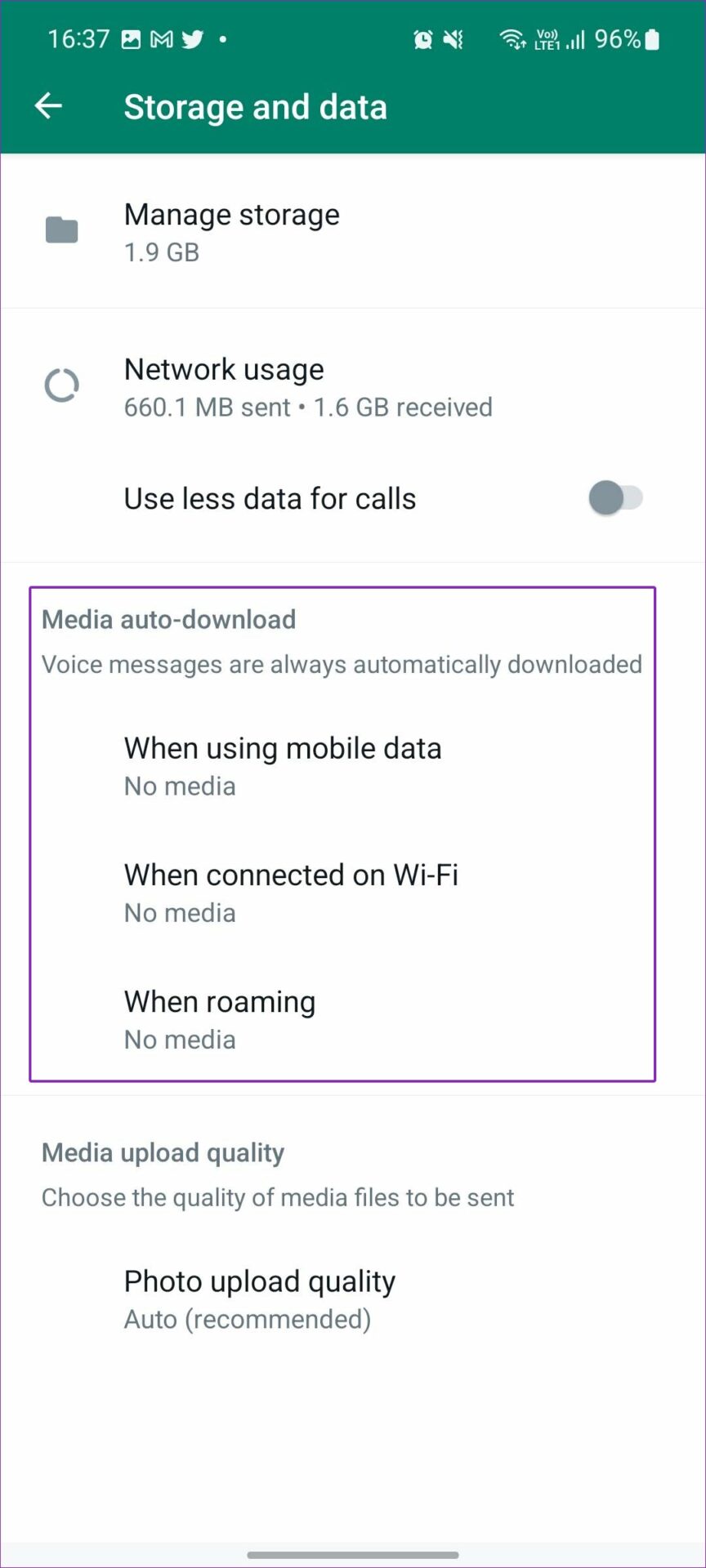
Android users have granular control over what gets downloaded based on the network connection (Mobile Data, Wi-Fi, or Roaming). Follow these steps to take back control:
- Open WhatsApp and tap the three-dot menu in the top-right corner.
- Select Settings and then tap on Storage and data.
- Look for the section labeled Media auto-download.
- You will see three options: When using mobile data, When connected on Wi-Fi, and When roaming.
- Tap each one and uncheck all boxes (Photos, Audio, Videos, and Documents) to stop them from downloading automatically.
- Tap OK to save your preferences.
By disabling these, you will only download media when you manually tap the “download” icon on a specific file, giving you full control over your bandwidth.
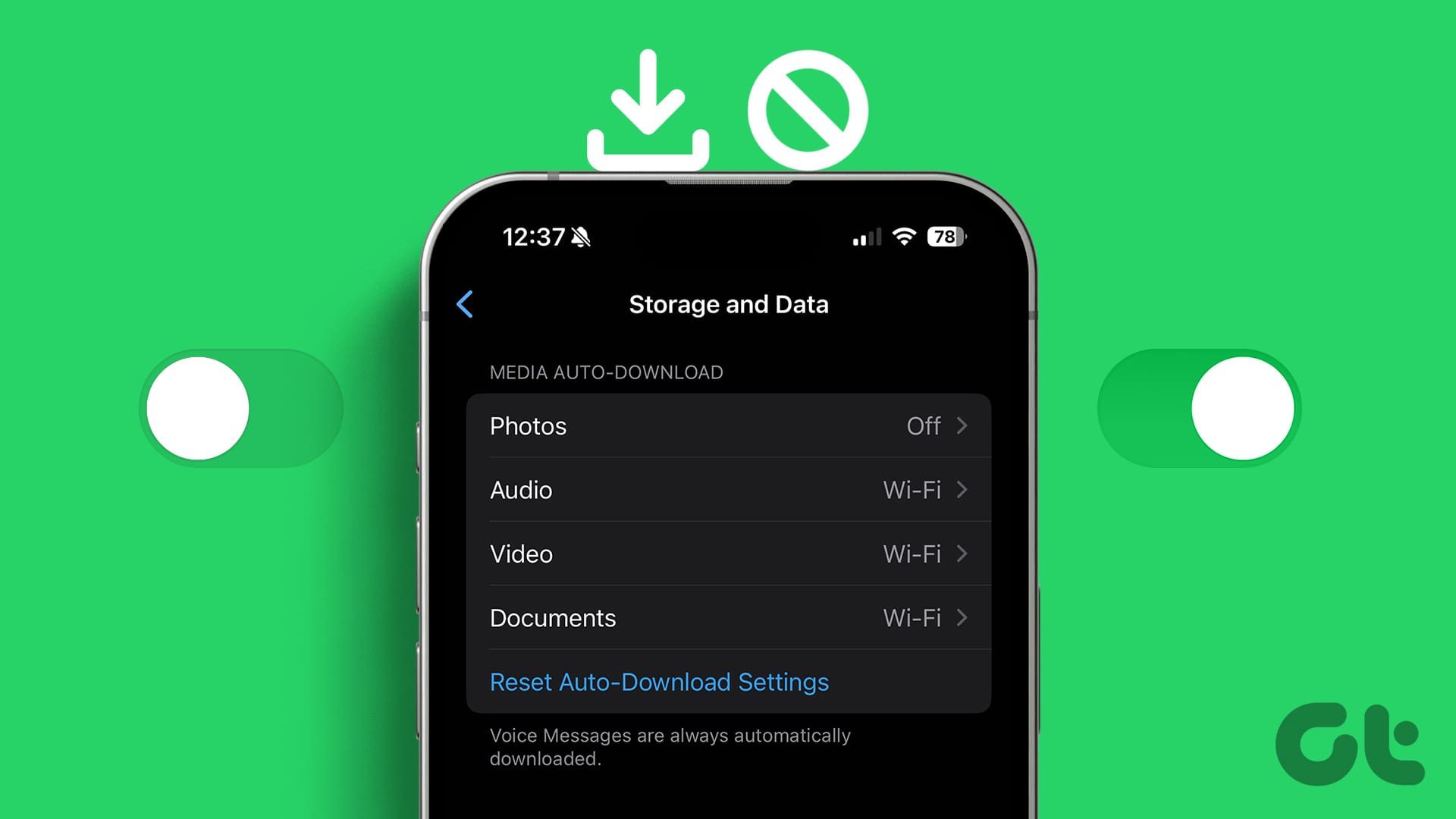
How to Prevent WhatsApp from Saving Media to Your Gallery (iPhone & Android)
If you are happy with downloading media but hate that it shows up in your phone’s photo library, there is a simple fix. This is known as Media Visibility.
- For Android: Go to Settings > Chats and toggle off Media visibility. This stops newly downloaded media from showing up in your device’s gallery app.
- For iPhone: Go to Settings > Chats and toggle off Save to Camera Roll.
Managing Auto-Download on WhatsApp Desktop/Web
Many of us use WhatsApp on our laptops for work or communication. However, the desktop version can also be a storage hog if left unchecked. While the desktop interface is more streamlined, it is important to ensure your PC doesn’t get flooded with files.
- Open WhatsApp on your PC.
- Click the Settings icon (gear icon) at the bottom left or top right depending on your version.
- Navigate to Storage or General settings.
- Review the Automatic Download preferences.
- Ensure that the settings are configured to prevent large files from downloading without your permission.
Pro Tips for Efficient WhatsApp Storage Management
Disabling auto-download is the first step, but what about the media already clogging your phone? Here are three expert tips for 2026:
- Use the Built-in Storage Manager: Go to Settings > Storage and data > Manage storage. WhatsApp will show you a breakdown of which chats are taking up the most space and allow you to delete large files in bulk.
- Clear Chats Regularly: If you are in high-activity groups, consider clearing the chat history once a month to remove unnecessary cached media.
- Cloud Backups: Ensure your important photos are synced to Google Photos or iCloud, and then delete them from your local WhatsApp folder to free up space.
Conclusion
Learning how to disable auto download WhatsApp media is one of the most effective ways to optimize your digital life in 2026. Not only does it save your mobile data, but it also prevents your phone from becoming a digital junkyard filled with unwanted images and videos. By following the steps outlined above for Android, iPhone, and PC, you can regain control over your storage and ensure that only the media you actually want ends up on your device.
Take a few minutes today to adjust these settings—your phone’s storage and your data plan will thank you!