
There is nothing more frustrating than finding the perfect app or game, downloading the APK, and hitting a brick wall with the dreaded “App Not Installed” error. In 2026, as Android security protocols become even more sophisticated, this error remains a common hurdle for power users and casual downloaders alike.
Whether you are trying to sideload an older version of an app or testing a new release, this error can stem from anything from storage limitations to security conflicts. In this comprehensive guide, we will walk you through the most effective, field-tested solutions to get your apps running smoothly on your device.
Why Does the “App Not Installed” Error Occur?
Before we dive into the fixes, it helps to understand the “why.” Usually, your Android operating system blocks an installation because it perceives a security threat, a compatibility conflict, or a system resource limitation.
Most often, this happens because the APK file is either corrupted, incompatible with your Android version, or restricted by the “Install Unknown Apps” security setting. Thankfully, most of these issues are easily resolved without needing professional technical assistance.
Step 1: Enable “Install Unknown Apps” Permissions
The most frequent cause of this error is Android’s built-in security feature that prevents the installation of apps from sources other than the Google Play Store.
- Open your device Settings.
- Navigate to Apps & Notifications or Security.
- Look for “Special app access” and tap on “Install unknown apps.”
- Select the browser or file manager you are using to download the APK.
- Toggle the switch to “Allow from this source.”
Step 2: Clear Cache for the Package Installer
Over time, the Android Package Installer—the system tool responsible for installing your apps—can accumulate junk data or cache that interferes with new installations.
- Go to Settings > Apps.
- Tap the three-dot menu icon in the top right corner and select “Show system apps.”
- Find Package Installer in the list.
- Go to Storage & Cache and tap “Clear Cache” and “Clear Storage.”
Step 3: Free Up Internal Storage Space
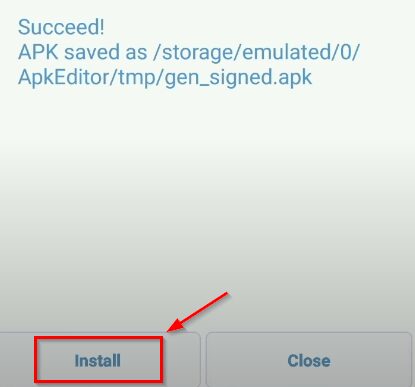
In 2026, many high-quality apps require significant space to unpack and install. If your device is running low on storage, the system will often fail to complete the installation process without providing a specific warning.
- Check your available space by going to Settings > Storage.
- If you have less than 1GB of free space, consider deleting large videos, unused apps, or clearing your downloads folder.
- Once you have freed up space, attempt the installation again.
Step 4: Disable Google Play Protect
While Google Play Protect is essential for device safety, it can sometimes be overzealous, flagging safe APKs as malicious. If you trust the source of your file, try disabling it temporarily.
- Open the Google Play Store.
- Tap your profile icon at the top right.
- Select Play Protect > Settings (gear icon).
- Toggle off “Scan apps with Play Protect.”
Note: Remember to re-enable this feature immediately after installing your app to keep your device secure.
Step 5: Check for Version Conflicts and Corrupted Files
Sometimes the issue isn’t your phone—it’s the file itself. If you are trying to install an update to an app, but the signature of the new APK doesn’t match the one currently installed, the OS will block the installation.
- Uninstall the existing version: If you are trying to update an app from a third-party source, ensure you have completely uninstalled the previous version first.
- Verify the APK integrity: If the APK file was interrupted during the download process, it might be corrupted. Try downloading the file again from a reputable source like APKPure or the official developer website.

Step 6: Check for Compatibility Issues
Android 2026 devices are highly optimized. If you are attempting to install an app designed for a much older version of Android (e.g., Android 8 or 9) onto a modern device running Android 15 or 16, the system may reject it due to architectural incompatibilities.
Always ensure the APK you download is compatible with your device’s CPU architecture (ARM64, ARM, or x86). You can use a utility app like Droid Hardware Info to check your device’s architecture if you aren’t sure.
Final Thoughts: When All Else Fails
If you have tried all the steps above and the error persists, consider performing a System Cache Partition wipe via Recovery Mode or checking if a newer version of the APK has been released. In rare cases, the app itself may simply be incompatible with your device’s hardware, and no amount of troubleshooting will bypass that restriction.
By following this guide, you should be able to resolve 99% of “App Not Installed” issues. Remember to always download APKs from trusted sources to avoid malware and keep your device running safely in 2026.