
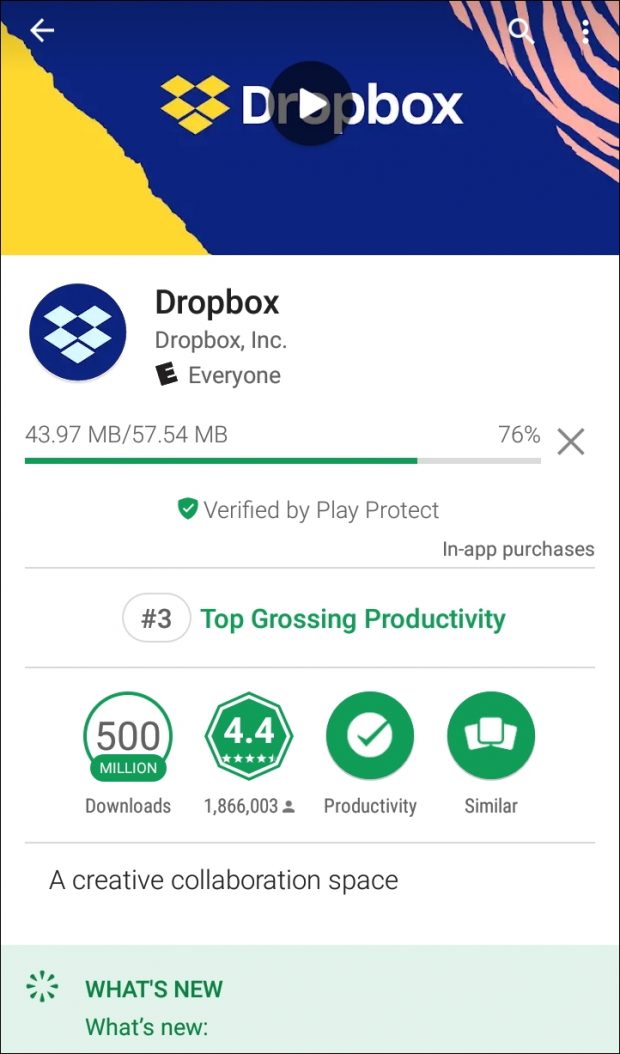
There is nothing more frustrating than tapping the “Install” button on the Google Play Store, only to watch the progress bar freeze indefinitely. Whether you are trying to download the latest viral game or a critical productivity tool, having an app stuck on installing on your Android device is a common 2026 tech headache.
If you are currently staring at a “Pending” or “Installing” message that won’t budge, you aren’t alone. Fortunately, most of these issues stem from simple software glitches or connectivity hiccups that can be resolved in minutes. In this guide, we’ll walk you through the most effective troubleshooting steps to get your apps moving again.
1. Check Your Internet Connection
Before diving into complex settings, verify that your internet connection is stable. A weak Wi-Fi signal or a glitchy mobile data connection is often the primary culprit behind an installation hang.
- Toggle Airplane Mode: Turn on Airplane mode, wait 10 seconds, and turn it off. This forces your device to reconnect to the nearest cell tower or Wi-Fi router.
- Switch Networks: If you are on mobile data, try switching to a stable Wi-Fi network. Conversely, if your Wi-Fi is acting up, try using your cellular data to see if the download initiates.

2. Clear Google Play Store Cache and Data
The Google Play Store app relies on a temporary cache to function smoothly. When this cache becomes corrupted or overloaded, it can prevent new installations. Clearing it is one of the most reliable ways to fix an app stuck on installing.
Follow these steps:
- Open your phone Settings.
- Go to Apps or Apps & Notifications.
- Find Google Play Store in the list.
- Tap on Storage.
- Select Clear Cache and then Clear Data.
Once completed, restart your device and try the installation again. This effectively “resets” the Play Store’s internal processes without deleting your installed apps.
3. Manage Your Device Storage Space
By 2026, app sizes have ballooned significantly. If your phone is running low on internal storage, the Android system will struggle to unpack and install new files.
Check your available storage by going to Settings > Battery and Device Care (or Storage). If you have less than 1GB of free space, consider deleting unused large files, clearing your gallery, or offloading old videos. A clean device is a fast device.

4. Force Stop and Restart the Download Manager
Sometimes, the Download Manager service itself hangs in the background, blocking all incoming app installs. You can manually restart this service to clear the blockage.
- Navigate to Settings > Apps.
- Tap the three-dot menu (top right) and select Show system apps.
- Search for Download Manager.
- Tap Force Stop and then select Clear Cache.
5. Remove and Re-add Your Google Account
If the issue persists, your Google account’s authentication token might be expired or corrupted. Since the Play Store syncs directly with your account, a refresh is often necessary.
- Go to Settings > Passwords & Accounts.
- Select your primary Google account.
- Tap Remove Account.
- Restart your phone and re-add the account through the same menu.
Note: Make sure you know your password before removing the account, as you will need it to sign back in.
6. Update Your Android System
In 2026, software compatibility is more important than ever. If your Android OS version is outdated, you may encounter bugs that prevent the Play Store from functioning correctly.
Always check for pending system updates by navigating to Settings > Software Update. A simple firmware patch from your manufacturer can often resolve deep-seated system errors that prevent app installations.
7. When All Else Fails: Factory Reset
If you have tried every step above and your apps are still getting stuck, there may be a deeper system-level corruption. A Factory Data Reset is the “nuclear option.”
Warning: This will erase all data on your phone. Ensure you have a cloud backup of your photos, contacts, and important documents before proceeding. To reset, go to Settings > General Management > Reset > Factory data reset.
Conclusion
Dealing with an app stuck on installing on Android can be annoying, but it is rarely a permanent hardware failure. By systematically clearing your cache, checking your storage, and ensuring your network is stable, you can resolve the issue in most cases. If you find that the problem only occurs with one specific app, the developer may have released a faulty build—in that case, waiting 24 hours for a patch is your best bet.
Stay patient, keep your system updated, and enjoy a smooth, glitch-free Android experience in 2026!