
In 2026, the Android ecosystem powers over 3.5 billion active devices globally, ranging from cutting-edge foldable flagships to efficient budget handsets. Despite the advancements in Android 16 and refined AI-driven resource management, app instability remains a common headache for users. Whether you are dealing with a frozen banking app or a social media feed that force-closes the moment you open it, experiencing a crashing application is undeniably frustrating. Fortunately, most of these software hiccups are manageable and do not signal a hardware failure.
This comprehensive guide explores why your apps keep crashing in 2026 and provides a battle-tested roadmap to restore your smartphone to its optimal state. By following these steps, you can avoid unnecessary factory resets and keep your digital life running smoothly.
Why Do Android Apps Crash in 2026?

Modern Android smartphones are marvels of engineering, yet they are not immune to software conflicts. In 2026, the primary reasons for app instability have shifted slightly due to the integration of on-device AI models and increased background processing. When your phone lacks the resources to handle a specific request, or when an app has not been optimized for the latest security patches, the system will often force-close the app to protect your data integrity.
Common culprits include fragmented cache files, incompatible AI-driven features that conflict with older app architecture, and storage exhaustion. With the rise of 4K streaming and high-fidelity mobile gaming, even high-end devices can experience “throttling” if the system partition becomes too crowded with temporary data.
1. The Power of a Strategic System Reboot
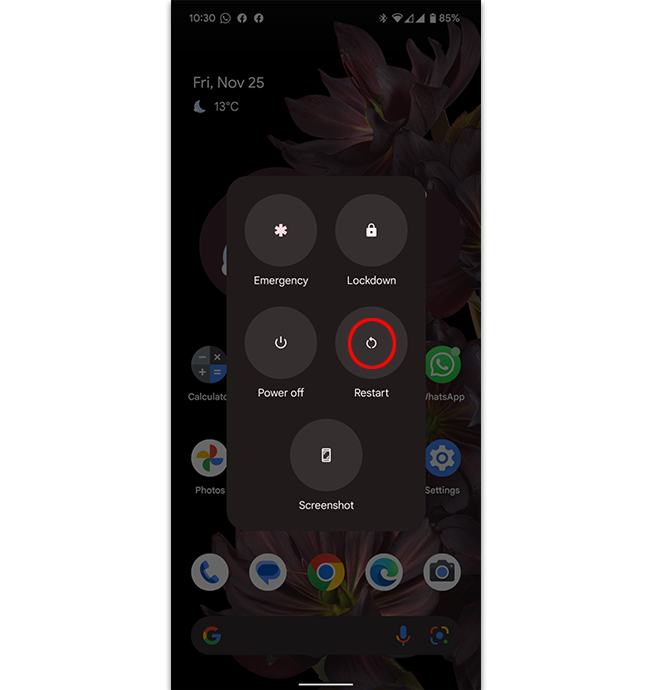
It sounds like a cliché, but the “Golden Rule” of tech support remains the most effective solution in 2026. A standard restart does more than just turn the screen off and on; it flushes the Random Access Memory (RAM) and terminates “zombie” processes—apps that are stuck in a loop and consuming system resources in the background. By performing a hard reboot, you force the Android kernel to re-initialize your system services, often resolving 60% of minor app crashes instantly.
2. Managing App Updates and Google Play Services
Apps in 2026 are frequently updated to maintain compatibility with the latest Android security protocols. If you have disabled auto-updates to save data, you might be running an outdated version that is no longer supported by the server-side API. To resolve this, open the Google Play Store, tap your profile icon, and navigate to Manage apps & device. Ensure that both your specific app and Google Play Services are fully updated. Google Play Services acts as the backbone for most apps; if it is outdated, it can cause a ripple effect of crashes across your entire device.
3. Clearing Cache and Data: The Surgical Approach
Over time, apps accumulate temporary data, known as cache, which is intended to speed up loading times. However, in 2026, corrupted cache files are a leading cause of sudden crashes. To fix this, go to Settings > Apps > See all apps, select the problematic application, and tap Storage & cache. First, try Clear cache, which removes temporary files without losing your login info. If the app continues to crash, use Clear storage or Clear data. Note that this will reset the app to its original state, so ensure your data is backed up to the cloud before proceeding.
4. Addressing Storage Constraints and System Memory
Modern Android apps require significant “breathing room” to perform updates and background tasks. If your internal storage is at 95% capacity or higher, the operating system will struggle to allocate space for temporary files, leading to frequent crashes. In 2026, aim to keep at least 10% of your total storage free. You can use the built-in Files by Google app to identify large, unused files or duplicate media that can be safely deleted to improve system stability.
5. Checking for OS Compatibility and Software Updates
Sometimes the issue isn’t the app, but the operating system itself. If you recently updated to the latest Android version, there may be a pending security patch that fixes known compatibility bugs. Navigate to Settings > System > Software update to check for any available firmware. Manufacturers like Samsung, Google, and Xiaomi frequently release “hotfix” updates that specifically address stability issues reported by the user community shortly after a major OS release.
6. Identifying Rogue Background Apps
With the rise of multi-tasking features and “always-on” AI assistants, some apps may conflict with one another. If you notice your apps crash only when you are running specific software, you may have a resource-heavy app hogging your CPU. Use the Developer Options menu to monitor your Running Services. If you identify an app that is consuming an abnormal amount of RAM, consider uninstalling it or restricting its background activity via Settings > Battery > Background usage limits.
Frequently Asked Questions (FAQ)
Why does my phone crash only when I use high-end games?
High-end games require significant GPU and CPU resources. In 2026, if your phone is overheating or running out of RAM, the system will shut down the game to prevent hardware damage. Try lowering the graphical settings within the game menu.
Is it safe to clear app data?
Yes, but be aware that it will reset your app settings. For apps like WhatsApp or banking apps, ensure you have a cloud backup before clearing data, as you will need to sign in again.
Should I perform a factory reset?
A factory reset is a “nuclear option” and should be your absolute last resort. Only consider this if you have tried all the steps above and your device is still crashing across multiple, unrelated applications.
Conclusion
Fixing app crashes on Android in 2026 does not require you to be a computer scientist. By methodically clearing your cache, keeping your software updated, and ensuring your storage has enough room to breathe, you can resolve the vast majority of instability issues. Remember that your smartphone is a complex ecosystem; keeping it clean and updated is the best way to ensure it remains a reliable tool for your daily life. If these steps do not resolve your issue, it may be time to contact the app developer directly via the Google Play Store or reach out to your device manufacturer’s support team.
Tags: Android, Troubleshooting, App Crashing, Smartphone Tips, 2026 Tech
Category: Tech Support