
Is your screen stuck in portrait mode while you’re trying to watch a video or browse a stunning 4K nature gallery? Nothing is more frustrating than a display that refuses to adapt to your movements. Whether you are using a flagship smartphone or a modern tablet, the auto-rotate feature is essential for a seamless user experience.
In this guide, we will walk you through the most effective methods to troubleshoot and resolve screen orientation issues in 2026. From software glitches to sensor calibration, we have the solutions to get your display moving again.
1. The Quick Fixes: Start With the Basics
Before diving into complex settings, address the most common culprits. Often, the solution is simpler than you think.
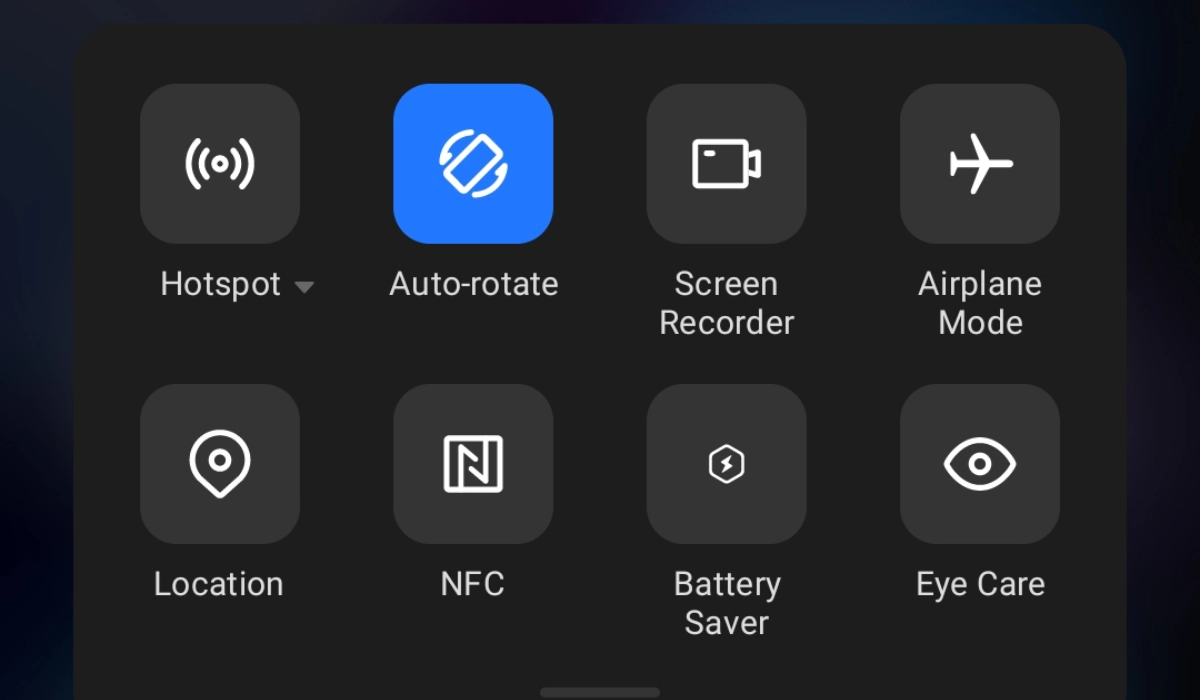
- Check the Quick Settings Panel: Swipe down from the top of your screen to access your Quick Settings. Look for the “Auto-Rotate” or “Portrait” icon. If it’s locked to Portrait, your device will never rotate, regardless of how you tilt it. Tap it to toggle it back to Auto-Rotate.
- Restart Your Device: It sounds cliché, but a simple system reboot clears temporary cache files and background processes that might be interfering with your accelerometer.
- Check App Compatibility: Some apps, particularly certain mobile games or legacy applications, are hard-coded to run only in portrait mode. Test the rotation in your browser or a native app like YouTube to see if the issue is global or app-specific.

2. Troubleshooting Hardware Sensors
Auto-rotate relies heavily on your device’s accelerometer and gyroscope. If these sensors fail, your phone won’t know which way is “up.”
- Test Your Sensors: Download a sensor diagnostic app from the Google Play Store or App Store. These tools provide real-time data on your accelerometer’s X, Y, and Z axes. If the numbers don’t change when you tilt your device, you likely have a hardware defect.
- Clear Your Cache Partition: If you recently updated your OS, a corrupted cache partition might be the culprit. Entering Recovery Mode to “Wipe Cache Partition” (available on most Android devices) can often fix erratic sensor behavior without deleting your personal data.
3. Software and System Updates
In 2026, operating systems are more complex than ever. A pending firmware update often contains patches for bugs that affect hardware-software communication.
- Update Your Operating System: Navigate to Settings > System > Software Update. Ensure you are running the latest version available for your device. Manufacturers frequently release patches to fix specific sensor-related issues.
- Check for Rogue Apps: Have you installed a new app right before the rotation stopped working? Apps that overlay on the screen (like blue light filters or screen recorders) can sometimes interfere with the system’s ability to rotate. Try uninstalling recent apps to see if functionality returns.
4. Using Safe Mode to Diagnose Conflicts
If you suspect a third-party app is causing the problem, Safe Mode is your best friend. In Safe Mode, your device runs only with the original factory software, disabling all third-party applications.
- Press and hold the power button on your device.
- Long-press the “Power Off” icon on the screen until the “Reboot to Safe Mode” prompt appears.
- Tap OK and wait for the device to restart.
- Once in Safe Mode, check if the auto-rotate feature works. If it does, a third-party app is definitely the cause. You will need to remove recently installed apps one by one until the rotation is restored.

5. When to Seek Professional Repair
If you have performed a factory reset and the sensors still show no activity, the issue is likely a physical failure of the accelerometer. This can happen due to drops, water damage, or general wear and tear.
- Contact Manufacturer Support: If your device is still under warranty, don’t attempt to open it yourself. Contact the manufacturer for a professional assessment.
- Visit an Authorized Service Center: Using original parts is crucial for maintaining the integrity of your device. Third-party repairs might be cheaper, but they often lack the calibration tools required for high-precision sensors.
Conclusion: Enjoying Your Media Again
Fixing auto-rotate issues is usually a matter of ruling out simple software toggles before moving into deeper diagnostic territory. Once you have your screen rotation back, you can get back to enjoying your high-resolution wallpapers, such as a 4K sunset background or a Full HD space image, in the orientation they were meant to be viewed.
Remember to keep your system updated and periodically check your sensor health to ensure your digital environment remains optimized for your 2026 lifestyle. If you found this guide helpful, feel free to bookmark it for future reference!