
Is your Facebook feed constantly freezing, or does the app force-close the moment you try to open it? You aren’t alone. Dealing with a glitchy social media experience is frustrating, especially when you’re trying to stay connected with friends and family in 2026.
If your Facebook app keeps crashing on Android, don’t panic. This issue is usually caused by outdated software, corrupted cache files, or temporary server-side outages. In this guide, we will walk you through the most effective, step-by-step troubleshooting methods to get your app running smoothly again.
1. Check if Facebook Servers are Down
Before you start changing settings on your phone, verify if the problem is on your end or theirs. Sometimes, Meta’s servers experience outages that affect millions of users simultaneously.
- Visit a site like DownDetector to see if there is a spike in reports regarding Facebook.
- If the servers are down, there is nothing you can do but wait. These outages can resolve in minutes or, in rare cases, last a few hours.

2. The Golden Rule: Restart Your Android Device
It sounds simple, but a system reboot is the most effective way to clear out temporary background processes that might be conflicting with the Facebook app.
- Press and hold the power button on your Android device.
- Select Restart from the menu.
- Once the device reboots, try opening Facebook again. This simple action often clears minor memory leaks that cause apps to crash.
3. Clear Facebook Cache and Data
Over time, your app accumulates “cache” files—temporary data used to load content faster. If these files become corrupted, they can cause the app to crash repeatedly.
- Go to Settings on your Android phone.
- Tap on Apps or Apps & notifications.
- Find Facebook in the list of installed applications.
- Tap on Storage & cache.
- Select Clear Cache first. If the problem persists, tap Clear Storage (or Clear Data). Note that this will log you out of the app, so make sure you remember your password!
4. Update the Facebook App
Running an outdated version of an app on a newer version of Android (like Android 15 or 16) can cause compatibility issues. Developers constantly release updates to fix bugs and improve stability.
- Open the Google Play Store.
- Search for “Facebook.”
- If an Update button is visible, tap it immediately.
- Once updated, restart your phone to ensure all new files are correctly integrated.
5. Enable Background Data Usage
If Facebook doesn’t have permission to use background data, it may struggle to refresh or load content, leading to a force-close.
- Navigate to Settings > Apps > Facebook.
- Tap on Mobile data & Wi-Fi.
- Ensure the toggle for Background data is turned ON. This allows the app to function correctly even when it isn’t the primary window open on your screen.
6. Reinstall the Facebook App
If you’ve tried the steps above and the Facebook app keeps crashing on Android, the installation package itself might be damaged. A fresh install is the nuclear option that usually fixes persistent software bugs.
- Uninstall the Facebook app by long-pressing the icon and selecting “Uninstall.”
- Restart your phone to remove any residual temporary files.
- Head to the Google Play Store and reinstall the app from scratch.
- Log back into your account. This process forces the phone to download a clean, updated version of the app.
7. Check for Android System Updates
Sometimes, the issue isn’t the app—it’s the operating system. If your Android firmware is outdated, it may struggle to run modern versions of popular apps.
- Go to Settings > System > System Update.
- Check for any pending updates. If one is available, download and install it. Keeping your OS current is vital for app security and performance in 2026.
Final Thoughts: When All Else Fails
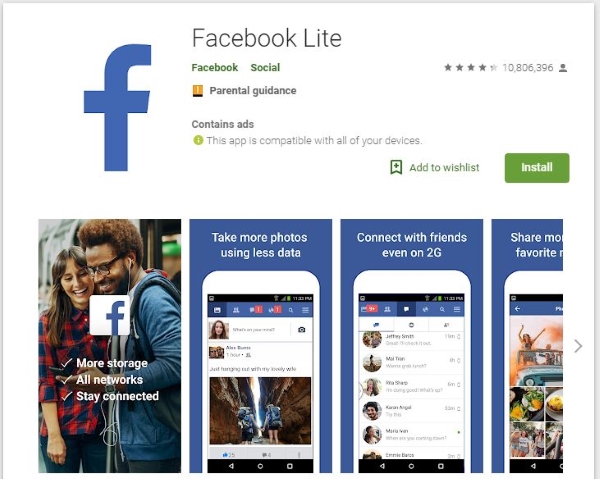
If you have exhausted every tip on this list and Facebook still crashes, consider using the Facebook Lite app. It is a lightweight version designed for slower connections and devices with less RAM, and it is significantly less prone to crashes.
Additionally, you can always access your account via your mobile browser (Chrome or Firefox) by visiting m.facebook.com. While it isn’t the same as the native app, it provides a stable, crash-free experience until the next official app update resolves the bug.