
Is your Android smartphone suddenly opening apps, typing random characters, or clicking buttons as if an invisible finger is controlling it? This infuriating experience is widely known as ghost touch. While it might feel like your device has developed a mind of its own, this is a well-documented technical issue rather than a supernatural phenomenon. As of 2026, with the rise of high-refresh-rate OLED displays and sophisticated haptic engines, ghost touch remains a common headache for users across all price points, from entry-level handsets to premium foldable devices.
Before you commit to an expensive screen replacement or upgrade your phone prematurely, you should systematically troubleshoot the root cause. This guide provides an updated, step-by-step approach to diagnosing and resolving ghost touch issues on your Android device.
Understanding the Root Causes of Ghost Touch in 2026
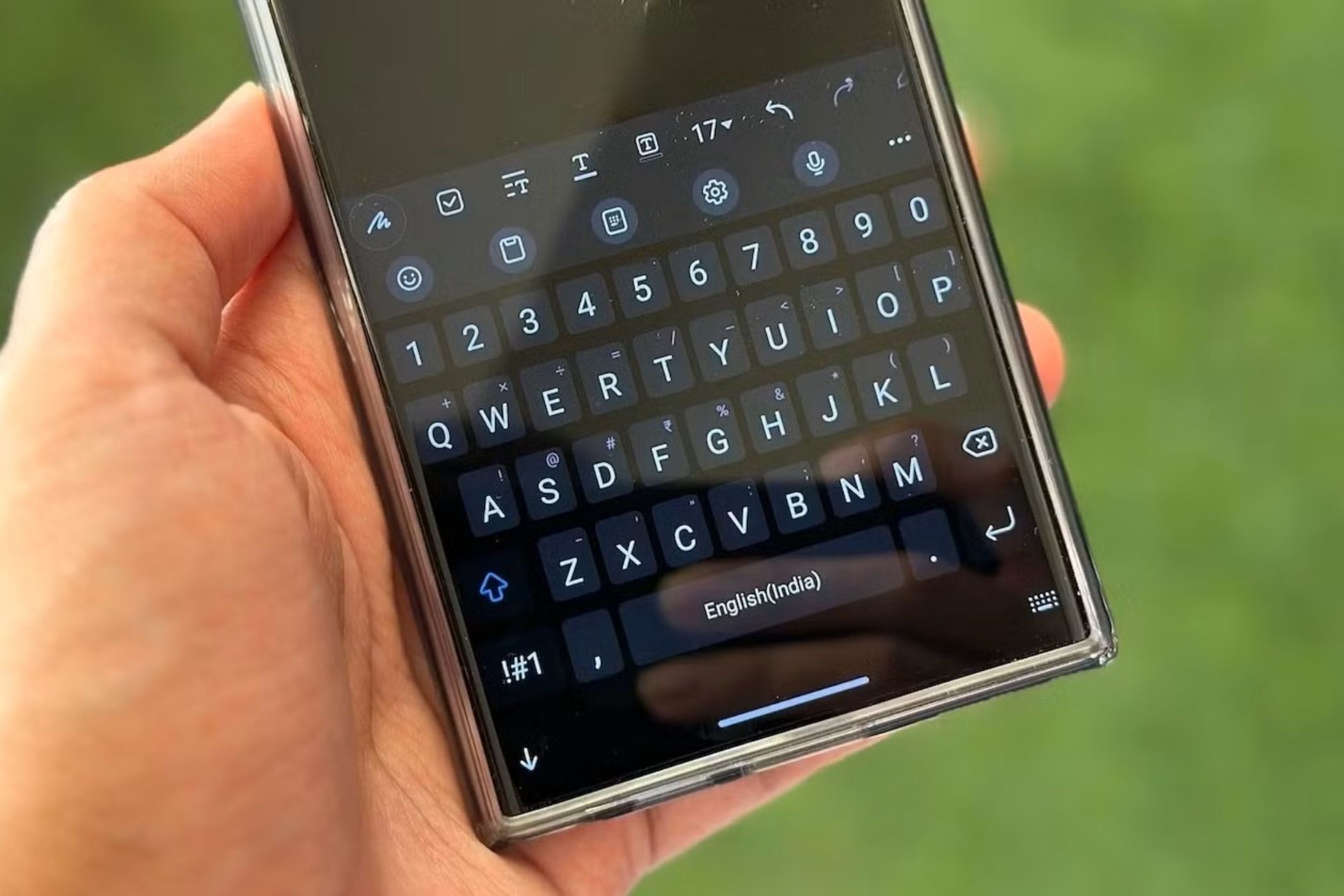
To fix the problem, you must first understand why it happens. Ghost touch occurs when the digitizer—the thin, transparent layer beneath your screen glass responsible for registering electrical impulses—receives false signals. In 2026, the primary culprits have shifted slightly due to advancements in hardware:
- Static Electricity and Grounding: Modern ultra-thin displays are highly sensitive. In dry climates or environments with poor electrical grounding, static buildup can trigger false inputs.
- Voltage Instability: Using non-certified, low-quality third-party chargers or damaged cables can introduce “dirty” electricity into your device, interfering with the digitizer’s sensors.
- Software Anomalies: With the integration of advanced AI-driven UI overlays in Android 16 and beyond, background processes or corrupted cache files can occasionally cause system-wide input glitches.
- Physical Stress: Even minor drops or pressure on the frame can cause internal ribbon cables to loosen, leading to intermittent connection issues.
1. The Deep Clean: Removing Conductive Debris
It sounds simple, but a significant portion of ghost touch cases are caused by invisible, conductive contaminants. Tiny particles of metal dust, oily residues from skin, or even moisture trapped under a screen protector can act as a bridge for electrical current, tricking the screen into registering a touch.
Power off your device completely. Use a high-quality microfiber cloth—not a paper towel, which can scratch the display. Wipe the surface using a small amount of 70% isopropyl alcohol on the cloth only. Do not spray anything directly onto the screen. Ensure you clean the edges where the glass meets the frame, as grime accumulation here is a common source of phantom inputs.
2. Screen Protector Evaluation and Replacement

In 2026, screen protection technology has evolved, but the issues remain the same. If you are using a tempered glass protector, check for hairline fractures. Even a microscopic crack can create a focal point for pressure, causing the screen to believe it is being pressed. Additionally, if your protector is lifting at the edges, it can create a capacitive gap that registers ghost touches.
Remove your screen protector and test the device for several hours. If the ghosting stops, the issue was strictly hardware interference from the protector. Invest in a high-quality, oleophobic-coated protector that matches your specific model to ensure perfect touch sensitivity.
3. Diagnosing Power-Related Interference
Does the ghost touch only happen while your phone is plugged in? If so, the issue is almost certainly your power supply. Third-party chargers often lack the proper electromagnetic interference (EMI) shielding found in OEM (Original Equipment Manufacturer) adapters. This allows ripples in the electrical current to disrupt the screen’s digitizer.
Try using a different, high-quality USB-C cable and a certified wall adapter. If you are using a wireless charger, ensure the phone is perfectly aligned. Misaligned coils can generate heat and magnetic interference that causes the screen to behave erratically.
4. Software Troubleshooting and System Calibration
If hardware checks fail, look at the software. A corrupted system cache or a buggy application update can interfere with input drivers. Start by booting your device into Safe Mode. This disables all third-party apps. If the ghost touch disappears in Safe Mode, a recently installed app is likely the culprit. Uninstall your most recent downloads until the issue is resolved.
Additionally, check for system updates. Manufacturers frequently release firmware patches that recalibrate touch sensitivity to account for environmental factors. Go to Settings, navigate to System, and check for the latest security or OS updates.
5. When to Seek Professional Repair
If you have tried the steps above and the issue persists, you may be dealing with a hardware failure. This could be a damaged digitizer, a loose display connector, or a swollen battery pressing against the back of the screen assembly. In 2026, many repair shops offer diagnostic testing that can pinpoint whether the issue is the display module itself. If your device is still under warranty, contact the manufacturer immediately to avoid unauthorized repair fees.
Frequently Asked Questions
Can a factory reset fix ghost touch?
Yes, a factory reset can resolve ghost touch if the cause is a deep-seated software bug or OS corruption. However, always back up your data first, as this will erase all local files.
Does humidity affect Android screen sensitivity?
Yes. High humidity or condensation inside the device can cause moisture to bridge the capacitive sensors. If your phone was recently exposed to water, let it dry in a silica gel pack for 48 hours before assuming the screen is broken.
Is ghost touch a sign of a dying battery?
It can be. A swollen battery expands and exerts pressure on the internal components, including the screen assembly. If the back of your phone looks slightly raised, stop using the device immediately and seek a battery replacement.
Conclusion
Dealing with a ghost touch Android screen is frustrating, but it is rarely a terminal diagnosis for your phone. By systematically eliminating environmental factors, checking your power accessories, and ruling out software conflicts, you can resolve the vast majority of these issues. If the problem persists after these steps, it is time to consult a professional technician to inspect the internal hardware. Stay patient, follow the troubleshooting steps, and you will likely have your device back to normal in no time.
Tags: Android troubleshooting, ghost touch, smartphone repair, tech support, display issues
Category: Mobile Tech Support