
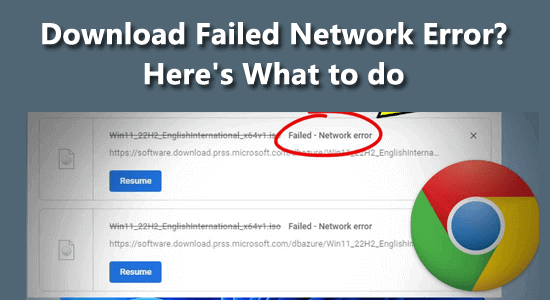
There is nothing more frustrating than trying to install a critical app or save an important file, only to be greeted by the dreaded “Network Error: Failed Download” message. As we navigate through 2026, Android devices have become more powerful, yet these persistent connectivity glitches remain a common hurdle for users worldwide.
Whether you are struggling with Google Play Store errors or browser-based download failures, this guide will walk you through the most effective troubleshooting steps to get your device back on track.
1. The Basics: Check Your Connection and Restart
Before diving into complex system settings, start with the “low-hanging fruit.” Often, the network error failed download Android issue is simply a result of a flickering Wi-Fi signal or a temporary glitch in your mobile data connection.
- Toggle Airplane Mode: Switch on Airplane Mode for 10 seconds, then turn it off. This forces your phone to re-establish a fresh handshake with the nearest cell tower or router.
- Restart Your Device: It sounds cliché, but a simple reboot clears the system RAM and kills background processes that might be interfering with your network stack.
- Switch Networks: If you are on Wi-Fi, try switching to mobile data (or vice versa) to see if the issue is ISP-specific.
2. Clear Google Play Store Cache and Data
If the error specifically occurs while downloading apps from the Play Store, the culprit is usually corrupted temporary data. Over time, the app stores “junk” files that can cause conflicts during new downloads.
- Open Settings on your Android device.
- Navigate to Apps or App Management.
- Find Google Play Store in the list.
- Tap Storage, then select Clear Cache and Clear Data.
Pro Tip: Repeat this process for Google Play Services as well, as it acts as the backbone for almost all background downloads on your OS.

3. Manage Your Storage Space
In 2026, high-definition apps and media files take up massive amounts of storage. Even if your phone looks like it has space, a lack of internal storage can trigger a network error because the system cannot allocate the necessary room for the download package to expand.
- Check Available Space: Go to Settings > Storage. Ensure you have at least 1-2GB of free space.
- Delete Unused Media: Clear out large video files or unused apps that are cluttering your disk space.
- Clear Downloads Folder: Sometimes, a corrupted file in your “Downloads” folder can prevent new files from being saved.
4. Re-add Your Google Account
Sometimes the link between your device and Google’s servers becomes “stale.” If your authentication token is expired, the system will return a network error because it cannot verify your account permissions.
- Go to Settings > Passwords & Accounts.
- Select your primary Google account and tap Remove Account.
- Restart your phone, then re-add the account. This forces a fresh synchronization of your credentials.
<img alt="How to Fix Android System Update Failed to Install Error – Guiding Tech" src="https://www.guidingtech.com/wp-content/uploads/TopWaystoFixWhatsAppNotDownloadingMediaoniPhoneand_Android-768×432.jpg” style=”max-width:100%; height:auto; border-radius:8px; margin: 1rem 0;” />
5. Advanced Troubleshooting: Network Settings Reset
If you have tried everything above and still face the failed download issue, your network configuration files might be misaligned. A Network Settings Reset wipes out saved Wi-Fi passwords, Bluetooth pairings, and mobile data configurations, returning them to factory defaults.
- Go to Settings > System (or General Management).
- Tap Reset Options.
- Select Reset Wi-Fi, mobile & Bluetooth.
- Confirm and reboot your phone.
Warning: Remember that this will force you to re-enter your Wi-Fi passwords and re-pair your Bluetooth devices.
6. Check for System Updates
Running an outdated version of Android can lead to compatibility issues with modern app requirements. Manufacturers frequently release patches in 2026 that specifically address connectivity bugs and download manager glitches. Navigate to Settings > Software Update and ensure your device is running the latest security patch.
Conclusion
Resolving the network error failed download on Android is rarely a permanent hardware failure; it is almost always a software or network handshake issue. By systematically clearing your cache, checking your storage, and refreshing your account credentials, you can resolve 99% of download failures. If these steps do not work, consider checking if a VPN or Ad-Blocker is active, as these tools often interfere with encrypted download traffic.
Don’t let a simple error stop your productivity. Follow these steps, and you will be back to downloading your favorite apps and files in no time!