
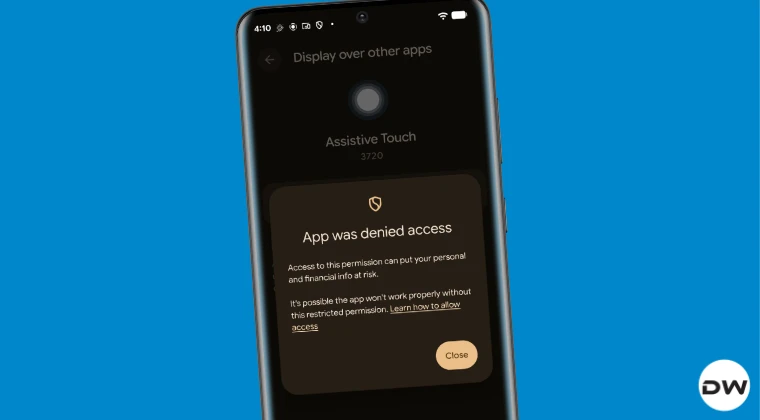
Are you tired of seeing the frustrating “App Was Denied Access” error message every time you try to launch your favorite tool or game? In 2026, Android’s security architecture is more robust than ever, but these strict privacy protections often lead to permission conflicts that prevent apps from functioning correctly.
Whether you are trying to grant storage access, camera permissions, or restricted settings access, this guide will walk you through the exact steps to resolve these roadblocks. Stop letting permission errors dictate how you use your device—let’s get your apps back in working order.
Understanding Why Android Denies App Access
Android’s Permission Model is designed to keep your personal data safe. When an app asks for access to your location, contacts, or files, the system requires explicit user authorization.
If you accidentally clicked “Deny” or if a system update reset your settings, the app will trigger an Access Denied error. Sometimes, these issues stem from Restricted Settings—a security feature introduced in recent Android versions to prevent malicious apps from accessing your accessibility services.
Method 1: Manually Granting Permissions via Settings
The most common solution to fix a permission denied error is to manually adjust the app’s access levels. This is the first step every user should take before diving into advanced troubleshooting.
- Open your device Settings.
- Navigate to Apps (or Apps & Notifications).
- Tap See all apps and locate the app causing the issue.
- Tap on Permissions.
- Review the “Denied” section. Tap on the specific permission (e.g., Camera, Storage) and select Allow only while using the app or Always allow.
Method 2: Enabling ‘Restricted Settings’ for Sideloaded Apps
If you are using apps from outside the Google Play Store, Android 15/16 often blocks them by default for security. You will need to manually enable the Allow Restricted Settings toggle to bypass this.

Follow these steps to unlock the app:
- Open Settings > Apps.
- Select the app that is throwing the error.
- Tap the three-dot menu icon in the top right corner.
- Look for an option labeled Allow restricted settings.
- Confirm your identity via your PIN or fingerprint to grant the permission.
Method 3: Using Shizuku for Advanced Permission Management
In 2026, power users are increasingly turning to Shizuku to handle app permissions that are otherwise hidden or locked by the system. This method is highly effective for apps that require elevated system-level access.

By using Shizuku, you can bypass standard Android limitations without needing to root your device. It acts as a bridge between the app and the system’s API, allowing you to grant permissions that the standard Settings menu might not display.
Method 4: Clear App Cache and Reset App Preferences
Sometimes, the “Permission Denied” error is not due to a setting, but a corrupted cache file. If the app’s internal data is inconsistent, it may fail to verify that you have granted it the necessary permissions.
- Go to Settings > Apps > [App Name].
- Tap on Storage & Cache.
- Select Clear Cache and Clear Storage (Note: this will reset app settings).
- Restart your device and check if the error persists.
If the problem occurs across multiple apps, you can perform a Reset App Preferences. This will reset all disabled apps, notification restrictions, and permission restrictions to their default factory states without deleting your personal data.
Troubleshooting Tips for 2026
- Check for System Updates: Ensure your Android OS is up to date, as manufacturers often release patches that resolve permission bugs.
- Disable Battery Optimization: Sometimes, Android’s aggressive battery management revokes permissions for background apps. Set your app to Unrestricted in the Battery settings.
- Check Google Play Protect: If an app is being blocked by Google Play Protect, it may be flagged as potentially harmful. If you trust the source, you can temporarily disable Play Protect, though this is not recommended.
Conclusion
Resolving the “App Was Denied Access” error on your Android device is usually a matter of navigating the right menus in your system settings. By manually toggling permissions, enabling restricted settings, or clearing your cache, you can restore full functionality to your apps in minutes.
Remember, Android’s security features are there to protect you. Only grant high-level permissions to apps you trust, and always keep your device updated to the latest security patch level. By following these steps, you’ll have a smoother, error-free experience throughout 2026 and beyond.