
Is your Telegram download stuck at 0% or showing the dreaded “Could not be completed” error? You aren’t alone. As we move through 2026, Telegram remains one of the most popular messaging platforms globally, but technical glitches regarding media and file downloads can be incredibly frustrating. Whether you are trying to grab a document for work or a high-quality video, a failed download disrupts your workflow.
In this comprehensive guide, we will walk you through exactly how to fix Telegram not downloading files. From simple connectivity checks to advanced app settings, these solutions are designed to get your files moving again.
1. The Quick Fixes: Checking Connectivity and Network
Before diving into complex settings, address the most common culprit: your internet connection. Telegram requires a stable connection to initiate and maintain file transfers.
- Switch Networks: If you are on Wi-Fi, try switching to mobile data (or vice versa). Sometimes, specific ISP restrictions or router firewalls can block Telegram’s servers.
- Restart Your Router: If you are at home, a quick power cycle of your router can resolve local network congestion that might be causing the Telegram download stuck issue.
- Test Other Apps: Open a browser or another app to ensure your internet is actually functioning. If other apps are also slow, the issue is your connection, not Telegram.
2. Managing Storage and App Permissions
Even with a perfect internet connection, Telegram might fail to download files if it lacks the necessary “tools” to save them to your device.
- Check Device Storage: If your phone’s internal storage is full, Telegram will be unable to save incoming files. Go to your phone’s settings and ensure you have at least a few gigabytes of free space.
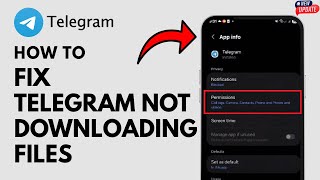
- Verify App Permissions: Telegram needs permission to access your device’s storage. Go to Settings > Apps > Telegram > Permissions and ensure that “Files and Media” or “Storage” is set to “Allow.”
- Clear Telegram Cache: Over time, the app accumulates temporary files that can lead to corruption. Navigate to Data and Storage > Storage Usage > Clear Telegram Cache. This often fixes the “could not be completed” error instantly.
3. Dealing with VPNs and Proxy Settings
In 2026, many users rely on VPNs or MTProto proxies to enhance privacy or bypass regional restrictions. However, these tools are often the primary cause of interrupted downloads.
- Disable Your VPN: If you are using a VPN, toggle it off and try downloading the file again. VPNs can sometimes throttle connection speeds or block the specific ports Telegram uses for file transfers.
- Check Proxy Settings: If you are using an MTProto proxy, it might be expired or overloaded. Go to Settings > Data and Storage > Proxy and try switching to a different server or disabling the proxy entirely to test the download speed.
4. Advanced Troubleshooting: App Updates and Reinstallation
If the basic steps haven’t worked, the issue might be a bug within the current version of the app installed on your device.
- Update the App: Developers frequently release patches for connectivity bugs. Check the Google Play Store or Apple App Store to ensure you are running the latest version of Telegram.
- Force Stop and Restart: Sometimes, a background process gets stuck. Force stop the app through your phone’s settings, clear the cache, and relaunch it.
- Reinstall Telegram: If all else fails, a clean install is the “nuclear option” that usually works. Before doing this, ensure you have backed up your important chats and media, as uninstalling the app will clear your local data.
5. Why Does the “Could Not Be Completed” Error Happen?
Understanding the root cause can help you prevent the problem in the future. The “Could not be completed” error usually triggers when:
- Server-side issues: Telegram’s servers are temporarily overwhelmed.
- File expiration: The file has been removed from Telegram’s servers due to age or copyright violations.
- Corrupted cache: The app’s temporary data is conflicting with the new download request.
Pro-Tip: Optimize Auto-Download Settings
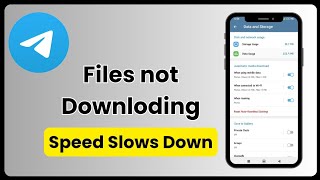
To prevent future frustrations, head over to Data and Storage Settings in Telegram. You can configure “Automatic media download” settings to ensure that files are prioritized based on your network type. By setting your preferences to “When using Wi-Fi,” you ensure that large files don’t get stuck due to the limitations of mobile data speeds.
Conclusion
Dealing with a Telegram download error is annoying, but it is rarely permanent. By systematically checking your network, clearing your cache, and ensuring your app permissions are correct, you can resolve 99% of these issues. Remember to keep your app updated throughout 2026 to take advantage of the latest stability improvements Telegram rolls out. If the problem persists, wait a few hours; sometimes, the issue lies entirely on the platform’s side, and patience is the only true fix.