
Have you ever settled in to watch your favorite movie on your smartphone, only to realize the dialogue is lagging seconds behind the actors’ lip movements? Audio-video desynchronization is a frustrating experience that can ruin the immersion of any content. As we move further into 2026, our Android devices have become primary media hubs, making it essential to know how to resolve these pesky technical glitches quickly.
Whether you are streaming high-definition content or watching a downloaded file, audio lag is a common hurdle. In this guide, we will walk you through the most effective methods to fix video delay and audio sync issues on Android, ensuring your media experience remains seamless and enjoyable.
Why Does Audio and Video Go Out of Sync?
Before diving into the fixes, it is helpful to understand why this happens. Generally, audio delay on Android stems from three main culprits: software glitches, overloaded hardware, or corrupted media files.
When your processor is overworked by too many background apps, it may struggle to decode the audio and video streams simultaneously. Additionally, outdated media players or cached data can interfere with the playback engine. Understanding the root cause helps you select the right troubleshooting steps.
Step 1: The Quick Fixes (Restart and Clear Cache)
Before trying complex settings, start with the basics. Often, a simple system restart clears out temporary memory leaks that cause audio desync.
- Restart your device: This stops all background processes that might be hogging the CPU or RAM.
- Clear App Cache: If the delay happens in a specific app (like Netflix or YouTube), go to Settings > Apps > [App Name] > Storage > Clear Cache.
- Update your OS: Ensure your Android device is running the latest software version available in 2026 to benefit from the latest media driver patches.
Step 2: Adjusting Audio Delay in Third-Party Players
If you are playing local video files, the built-in player might lack the necessary configuration tools. Switching to a robust third-party media player like VLC for Android is the most effective way to fix audio sync issues permanently.
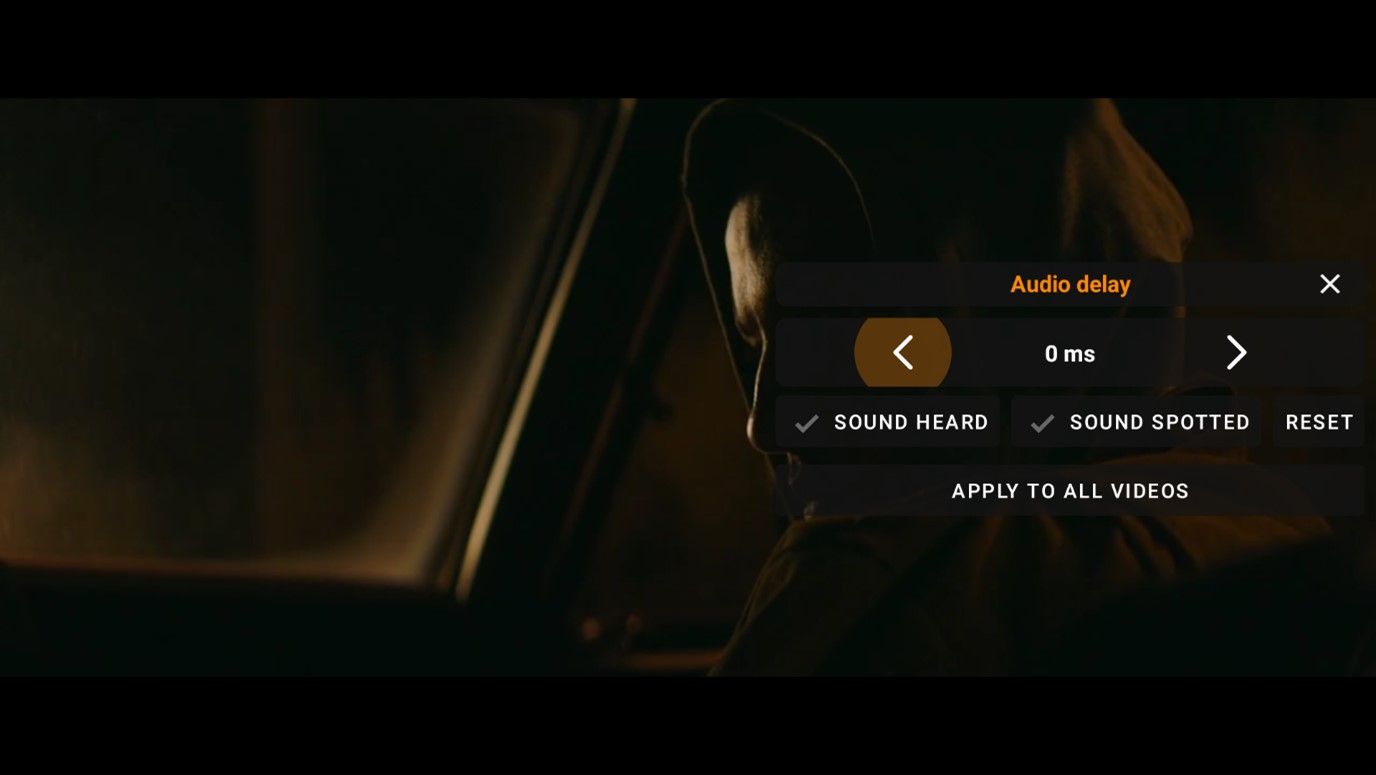
VLC features a built-in audio synchronization tool that allows you to shift the audio track forward or backward in milliseconds.
- Open your video in the VLC app.
- Tap the screen to bring up the playback controls.
- Tap the three-dot icon (or the audio/subtitle icon).
- Select Audio Delay.
- Use the `+` or `-` buttons to manually sync the audio with the video in real-time.
Step 3: Troubleshooting Bluetooth Audio Lag
In 2026, most users consume media via Bluetooth headphones. However, Bluetooth can introduce significant latency due to the signal transmission process. If you notice a delay while using wireless earbuds, consider these adjustments:
- Switch Audio Codecs: In your Developer Options, check your Bluetooth audio codec settings. Switching from SBC to a more efficient codec like aptX or LDAC can significantly reduce latency.
- Toggle “Disable Absolute Volume”: In Developer Options, toggling this setting can sometimes fix handshake issues between your phone and your headphones.
- Re-pair the device: Sometimes, a stale connection is the culprit. Forget the device in your Bluetooth settings and pair it again from scratch.
Step 4: Advanced Techniques for Persistent Issues
If the problem persists across all apps, the issue might be deeper in your system’s audio processing engine.
- Check for conflicting background apps: Apps that use the microphone or audio recording features can sometimes lock the audio buffer. Ensure apps like voice recorders or screen recorders are fully closed.
- Factory Reset (Last Resort): If you have tried everything and the audio/video sync is still off, a factory reset might be necessary to eliminate deep-seated software corruption. Always remember to back up your data before performing this step.
- Disable Battery Optimization: Sometimes, aggressive battery-saving modes throttle the media processing components. Check Settings > Battery > Battery Optimization and set your media apps to “Don’t Optimize.”
Conclusion: Achieving Perfect Harmony
Fixing audio delay on Android doesn’t have to be a headache. By following these steps—starting with simple cache clearing, moving to specialized media players like VLC, and optimizing your Bluetooth connections—you can effectively resolve any sync issues.
As we continue to use our Android devices for high-quality entertainment in 2026, keeping your apps updated and your system cache clean will go a long way in preventing these issues from returning. If you find yourself frequently dealing with these problems, upgrading your media player is often the most reliable “set it and forget it” solution. Enjoy your perfectly synced media!