
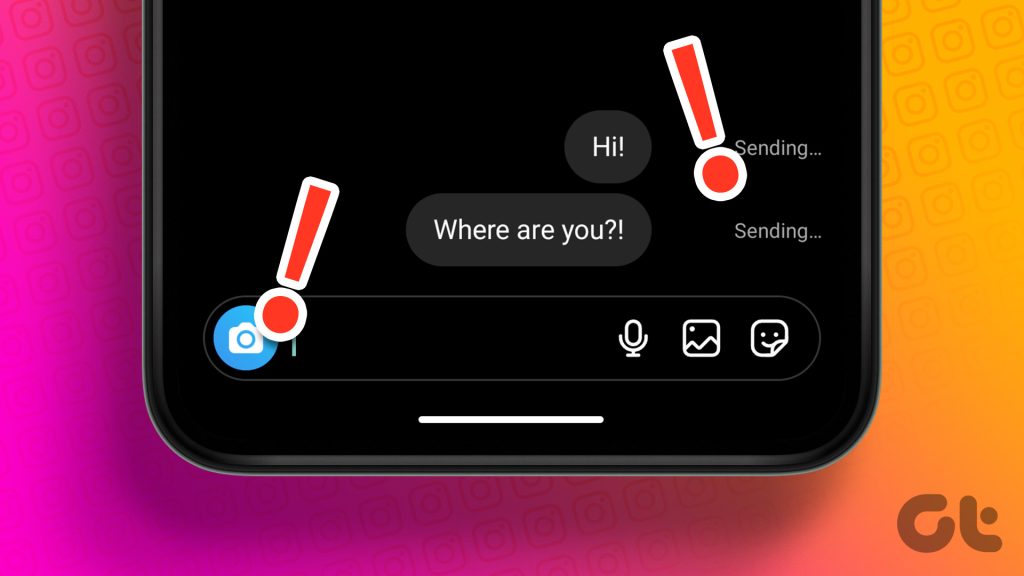
Is your WhatsApp stuck on a “clock” icon, or are your messages failing to deliver? There is nothing more frustrating than being unable to communicate with friends, family, or clients in real-time. As we navigate through 2026, WhatsApp remains the world’s most popular messaging platform, but even the best apps encounter technical hiccups.
If you are wondering how to fix WhatsApp not sending messages, you have come to the right place. Whether you are using an Android device or an iPhone, this comprehensive troubleshooting guide will help you get your chats flowing again in minutes.
1. Check Your Internet Connection
The most common reason for WhatsApp message failure is an unstable or disconnected internet connection. Before diving into complex settings, ensure your device is actually online.
- Toggle Airplane Mode: Turn on Airplane mode, wait 10 seconds, and turn it off again to reset your network connection.
- Switch Networks: If you are on Wi-Fi, try switching to mobile data (or vice versa) to see if the issue is specific to your ISP.
- Test Connectivity: Open your web browser and try loading a news site. If it doesn’t load, the problem is your internet, not the app.

2. Force Stop and Restart WhatsApp
Sometimes, the WhatsApp application might encounter a minor background glitch that prevents it from syncing with the server. A simple forced restart often clears these temporary bugs.
- On Android: Go to Settings > Apps > WhatsApp > Force Stop. Relaunch the app.
- On iPhone: Swipe up from the bottom of your screen (or double-press the Home button) and swipe the WhatsApp card away to close it completely. Then, reopen the app.
3. Clear Cache (Android Only)
Over time, WhatsApp accumulates temporary files known as a cache. If this data becomes corrupted, it can cause the app to malfunction. Clearing the cache is a safe way to resolve this without losing your chat history.
- Open Settings on your phone.
- Navigate to Apps or App Management.
- Find WhatsApp in the list.
- Tap on Storage & Cache.
- Select Clear Cache.
4. Check WhatsApp Server Status
While rare, WhatsApp does occasionally suffer from global server outages. If the servers are down, no amount of troubleshooting on your end will fix the issue. You can check sites like DownDetector to see if other users are reporting similar problems in 2026.
5. Update WhatsApp to the Latest Version
Running an outdated version of the app can lead to compatibility issues with the latest mobile operating systems. Developers frequently release patches to address bugs, including message delivery failures.
Check the Google Play Store or the Apple App Store to see if an update is available. If you see an “Update” button, tap it immediately to ensure you are running the most stable version of the software.

6. Verify Permissions and Data Restrictions
Did you recently update your phone’s security settings? Sometimes, WhatsApp loses the necessary permissions to access your data or run in the background.
- Background Data: Ensure WhatsApp is allowed to use background data. Go to Settings > Apps > WhatsApp > Mobile Data and toggle on Allow background data usage.
- Permissions: Ensure the app has access to your contacts and storage.
7. Check for Blocked Status
If you can send messages to everyone except one specific person, there is a high probability that they have blocked you.
When you are blocked, you won’t see their profile picture updates, their “last seen” status, or the double-check marks. Unfortunately, if this is the case, there is no “fix”—you simply have to wait for them to unblock you or reach out through another channel.
8. Restart Your Phone
It sounds like a cliché, but restarting your device is the “silver bullet” for most technical issues. A reboot clears the RAM, terminates hung processes, and establishes a fresh handshake with your cellular network. Give your phone a full power cycle and try sending a message again.
9. Reinstall WhatsApp (The Last Resort)
If none of the above methods work, a clean install might be necessary. Warning: Before deleting the app, ensure you have a backup of your chats (Google Drive for Android, iCloud for iPhone).
- Uninstall the WhatsApp application.
- Restart your phone to clear residual files.
- Download and install the latest version from your app store.
- Verify your phone number and restore your backup.
Conclusion
Experiencing issues with WhatsApp not sending messages in 2026 can be disruptive, but usually, the fix is straightforward. By systematically checking your internet, clearing the cache, and ensuring your app is updated, you can resolve the vast majority of delivery problems.
If you have tried all nine steps and are still unable to send messages, verify that your phone is not in a restricted network area or contact your service provider to ensure there are no issues with your mobile data plan. Stay connected and keep those messages flowing!