
Is your smartphone acting like a relic from the past? If you are tired of stuttering animations, long loading screens, and frame drops during intense gaming sessions, you aren’t alone. As we move through 2026, apps are becoming more resource-intensive, putting immense pressure on older or budget-friendly hardware.
The good news is that you don’t need to buy a flagship phone to enjoy a snappy experience. By tweaking a few hidden settings and optimizing your software environment, you can significantly reduce lag on low-end phones and reclaim that “out-of-the-box” speed.
Why Do Low-End Phones Lag?
Before we dive into the fixes, it is important to understand the culprit. Lag is usually caused by RAM exhaustion, background process congestion, or storage fragmentation. When your processor struggles to juggle too many tasks simultaneously, your frame rate drops, and your interface feels sluggish.
1. Switch to Lite Versions of Popular Apps
One of the most effective ways to boost performance is to stop “bloated” apps from hogging your system resources. Apps like Facebook, Instagram, and even Google Maps have “Lite” or “Go” versions specifically designed for low-end hardware.
- Reclaim Memory: Lite apps are significantly smaller in file size and consume up to 60% less RAM.
- Reduced Background Activity: These versions are stripped of heavy tracking scripts that constantly ping servers in the background.
- Data Efficiency: They use less data, which indirectly reduces the strain on your phone’s network processor.
2. Master Your Background Processes
If you are wondering how to reduce lag on a low-end phone, the first place to look is your Developer Options. This hidden menu allows you to take control of how your phone manages tasks.
- Go to Settings > About Phone and tap Build Number 7 times to unlock Developer Options.
- Navigate to Settings > System > Developer Options.
- Scroll down to the Apps section.
- Change Background process limit to “At most 2 processes.”
- Set Window animation scale, Transition animation scale, and Animator duration scale to 0.5x or “Off.”
By turning off these animations, your phone will feel significantly faster because it isn’t wasting time rendering transition effects.

3. Optimize Gaming Performance Without Root
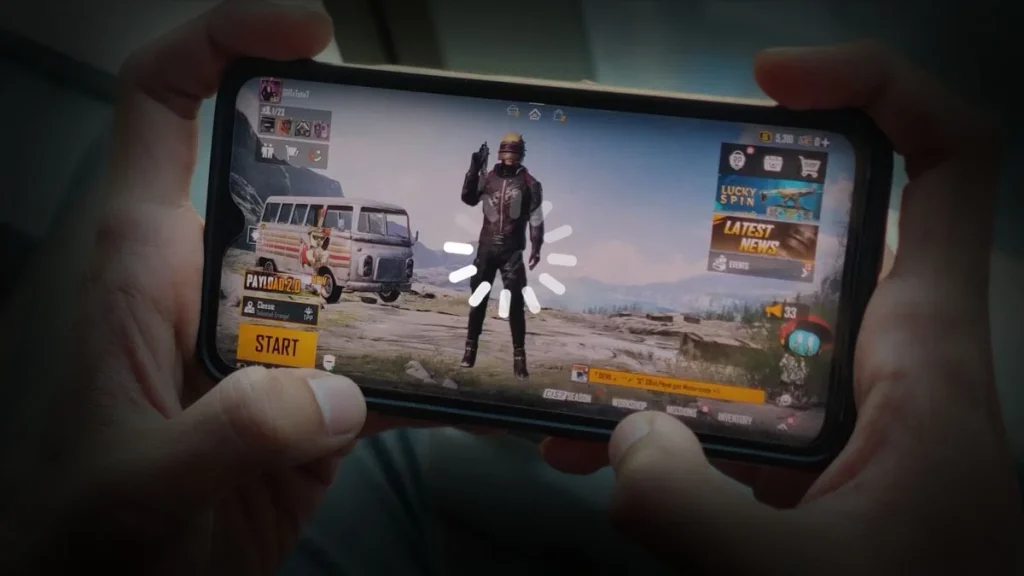
Gaming is where low-end hardware struggles the most. Whether you are playing PUBG or Call of Duty, you need every bit of CPU power. You can improve game performance by optimizing your settings rather than just relying on hardware.
- Lower In-Game Graphics: Always set your graphics to “Low” or “Smooth.” The visual difference is often negligible, but the gain in FPS (frames per second) is massive.
- Clear Cache Regularly: Cached files accumulate over time and can lead to “micro-stutters.” Clear the cache of your most-played games in Settings > Apps > [Game Name] > Storage.
- Disable Game Boosters: While some boosters help, many consume more RAM than they save. Stick to the built-in “Game Mode” or “Game Turbo” provided by your phone manufacturer.

4. The “Storage Hygiene” Rule
A full storage drive is a slow storage drive. When your internal memory is nearly full, your phone struggles to create temporary swap files, which leads to UI lag and app crashes.
- Keep 15% Free: Always aim to keep at least 15% of your total storage capacity empty.
- Delete Duplicate Files: Use a file manager to find and remove duplicate photos, videos, and large downloads you no longer need.
- Offload Media: Move your photos and videos to cloud storage (like Google Photos or OneDrive) to free up physical space on the device.
5. Manage Auto-Sync and Notifications
Constant syncing is a silent performance killer. When your phone is trying to sync emails, cloud backups, and social media updates all at once, it puts a heavy load on your CPU and network.
- Turn off Auto-Sync: Go to Settings > Accounts and turn off auto-sync for apps you don’t use frequently.
- Restrict Notifications: Every notification triggers a small wake-up cycle for your processor. Go to Settings > Notifications and turn off alerts for apps that don’t need your immediate attention.
Final Thoughts: Consistency is Key
Learning how to reduce lag on a low-end phone isn’t a one-time fix; it requires a bit of maintenance. By adopting these habits—using Lite apps, managing background processes, and keeping your storage clean—you can extend the life of your device significantly.
In 2026, software optimization is your best friend. Don’t let a budget-friendly price tag dictate your user experience. Take control of your settings, cut the bloat, and enjoy a smoother, faster smartphone experience today!