
Are you tired of intrusive pop-ups and full-screen video ads ruining your browsing experience? You aren’t alone. In 2026, mobile advertising has become more aggressive than ever, often cluttering our screens and draining our data. The good news is that you don’t need to clutter your device with suspicious third-party “ad-blocker” apps to reclaim your screen.
Learning how to stop ads on Android phone without app installations is not only safer for your privacy but also better for your phone’s performance. By leveraging built-in system configurations and browser settings, you can enjoy a cleaner, faster, and more secure mobile experience.
Why Avoid Third-Party Ad-Blocker Apps?
Many users flock to the Google Play Store searching for ad-blockers. However, many of these apps are essentially “middlemen” that track your data to deliver targeted ads of their own. Furthermore, running a background VPN or proxy app can significantly slow down your internet connection and drain your battery life.
By utilizing native Android features, you eliminate the need for extra background processes. You maintain complete control over your system’s privacy without relying on a third-party developer’s security promises.
1. Utilize Private DNS to Block Ads System-Wide
The most effective “hidden” method to stop ads without an app is by configuring Private DNS. This acts as a filter for your entire network traffic, preventing ad-serving domains from loading at the source.
- Open your Android Settings.
- Navigate to Network & Internet (or Connections).
- Tap on Private DNS.
- Select Private DNS provider hostname.
- Type `dns.adguard.com` and hit Save.
Once you perform this quick setup, your phone will automatically filter out ad-related requests across most apps and browsers. It is a seamless, one-time fix that works silently in the background.
2. Tweak Your Google Advertising ID
Google assigns every Android user an Advertising ID. This ID is used by advertisers to track your behavior across different apps to serve personalized ads. Resetting or deleting this ID makes it significantly harder for trackers to build a profile on you.
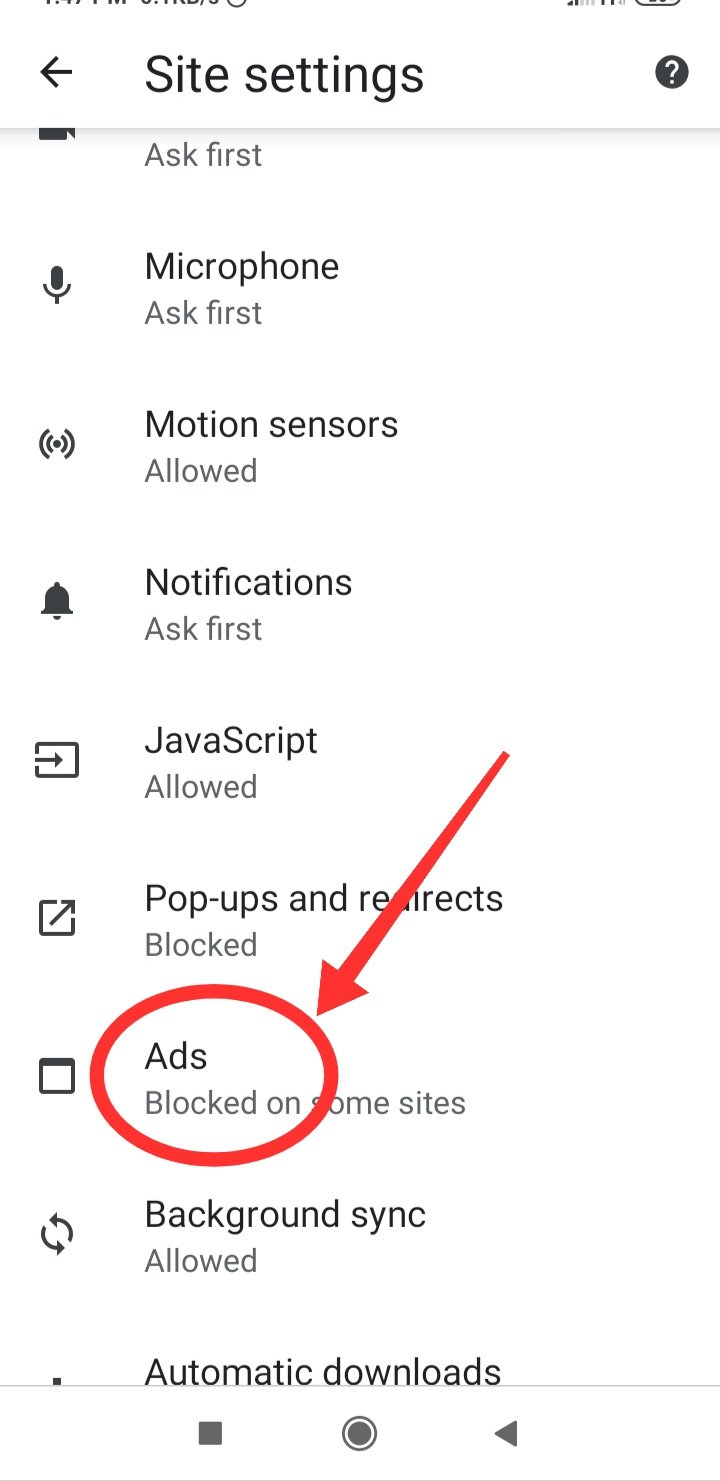
- Go to Settings > Google.
- Tap on Ads.
- Select Delete advertising ID.
- Confirm your choice.
By deleting this ID, you are effectively telling Google and third-party advertisers that you no longer wish to be tracked for personalized ad purposes. While this won’t stop ads entirely, it removes the “creepy” factor of seeing ads for items you just searched for.
3. Mastering Chrome Browser Settings
Since Google Chrome is the default browser for most Android users, it is often the primary gateway for annoying web ads. You can disable intrusive pop-ups and redirects directly within the browser settings.
- Open Chrome and tap the three-dot menu in the top-right corner.
- Go to Settings > Site Settings.
- Tap on Pop-ups and redirects and ensure the toggle is turned OFF.
- Return to the previous menu and tap Ads. Set this to Blocked on sites that show intrusive or misleading ads.
These simple adjustments ensure that your browsing experience remains smooth, preventing those frustrating “click-trap” ads that often plague mobile websites.
4. Managing App-Specific Permissions
Sometimes, the ads you see are coming from specific apps you’ve downloaded. If you notice a particular app is constantly throwing full-screen ads, you can limit its ability to run in the background or access the internet.
- Go to Settings > Apps.
- Find the app that is causing the most trouble.
- Check Data usage and restrict Background data.
- If the app is unnecessary, consider disabling it entirely to stop the ad-serving process at its core.
5. Clearing Your Cache and Cookies
Over time, your browser accumulates cache and cookies that store trackers. These trackers can influence the types of ads you see. Clearing your browser data periodically is a great way to “reset” your digital footprint.
- In Chrome, go to Settings > Privacy and security.
- Tap Clear browsing data.
- Select Cookies and site data and Cached images and files.
- Tap Clear data.
Conclusion: A Cleaner Experience in 2026
Learning how to stop ads on Android phone without app installations is a vital skill for any modern smartphone user. By utilizing Private DNS, managing your Google Advertising ID, and fine-tuning your browser settings, you can drastically reduce the number of ads you encounter every day.
Not only will your phone feel faster, but your privacy will be significantly better protected. Remember, the best security is the one that doesn’t require extra software—just a few minutes of smart configuration. Enjoy your clutter-free, ad-lite mobile experience!