
Is your smartphone feeling sluggish? Does your battery drain to zero before your workday is even over? You aren’t alone. In 2026, our devices are more powerful than ever, but they are also burdened by dozens of hidden processes eating up your RAM and CPU cycles. Learning how to stop apps running in background on Android is the single most effective way to reclaim your phone’s speed and extend your battery life.
Whether you are dealing with aggressive social media apps or background sync services that never sleep, this guide will walk you through the manual and automated methods to regain control of your device.
Why Background Apps Are Killing Your Android Experience
Modern Android versions (Android 15 and beyond) are smarter at managing resources, but they still allow many apps to “wake up” in the background. These apps perform tasks like checking for notifications, syncing cloud data, or tracking your location.
While some of these processes are necessary, many are redundant. By limiting these, you reduce thermal throttling and prevent unnecessary data usage. Just as you customize your device with high-quality aesthetics—like the latest vintage backgrounds or premium landscape illustrations—you should curate your software environment to ensure it runs as efficiently as possible.
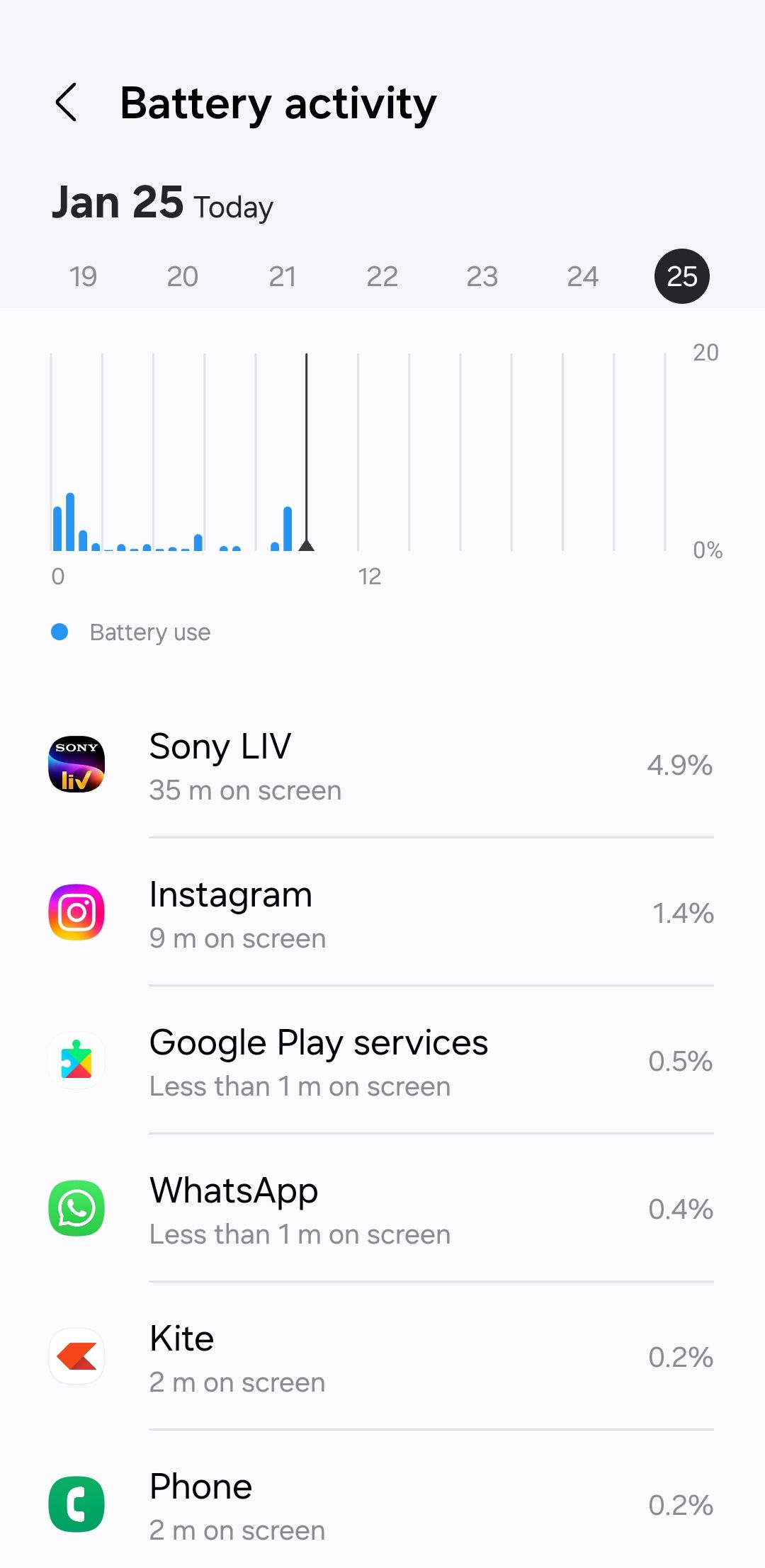
Step-by-Step: How to Stop Apps Running in Background (Android 2026)
1. Using the Built-in Battery Usage Menu
The most direct way to stop background activity is through your phone’s native battery settings. Android provides granular control over how each app behaves when it’s not on your screen.
- Go to Settings > Battery.
- Tap on Battery Usage or App Battery Usage.
- Select the app that is consuming the most power.
- Change the setting from “Optimized” to “Restricted”.
When you set an app to Restricted, the system prevents it from running in the background entirely. This is perfect for apps you rarely use but don’t want to uninstall.
2. Force Stopping Apps Manually
If you need to kill a specific app that is currently frozen or acting erratically, the Force Stop function is your best friend.
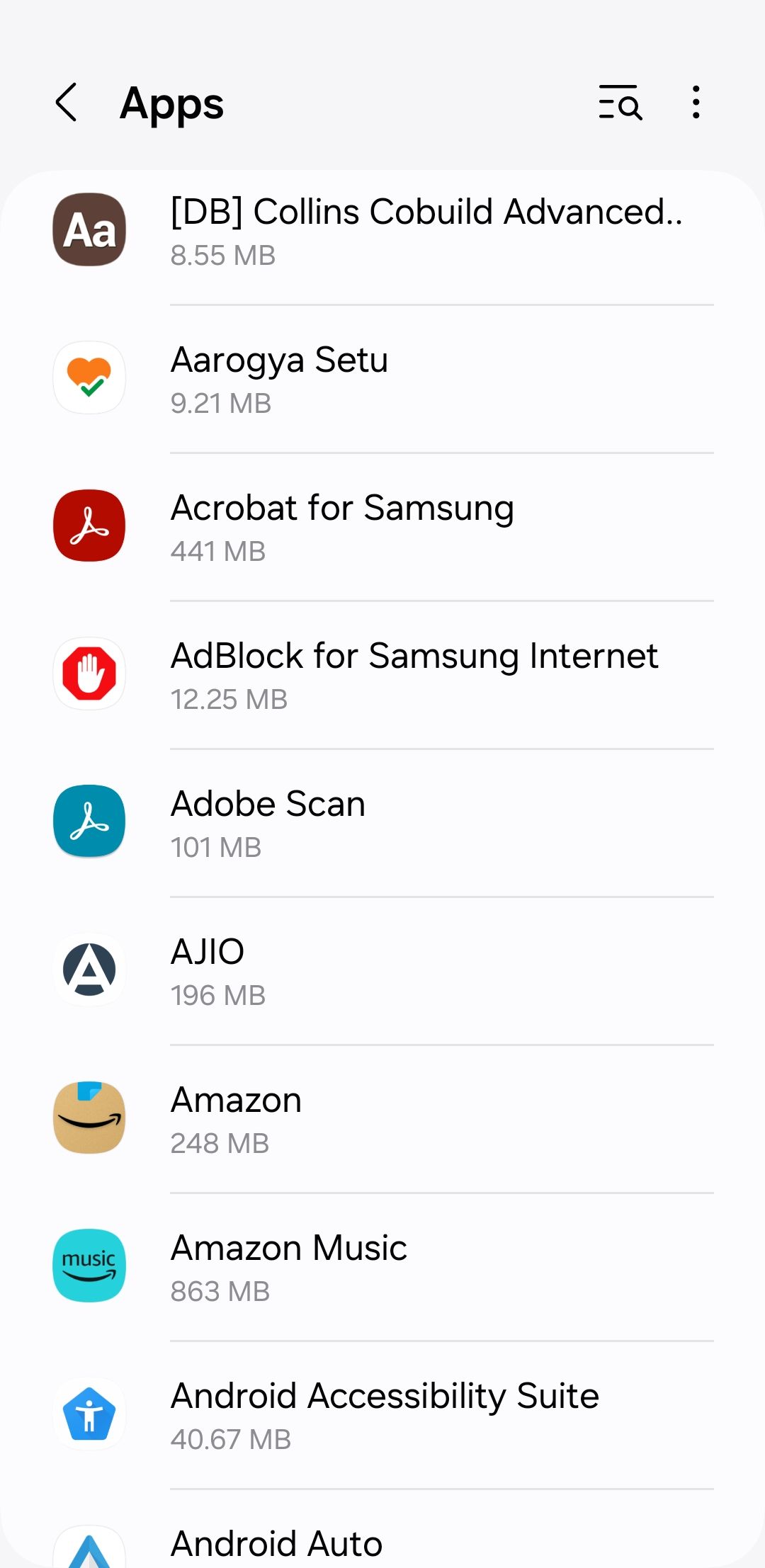
- Open Settings > Apps > See all apps.
- Find the specific app in the list.
- Tap Force Stop.
Note: This is a temporary measure. The app will restart the next time you manually open it.
Advanced Optimization: Developer Options
For power users who want more aggressive control, the Developer Options menu offers a hidden feature that manages background processes at a system level.
- Enable Developer Options by going to Settings > About Phone and tapping Build Number seven times.
- Navigate to Settings > System > Developer Options.
- Scroll down to the Apps section.
- Tap Background process limit.
- Select “At most 1 process” or “No background processes”.
Warning: Setting this to “No background processes” may prevent some apps from sending notifications. Use this setting with caution if you rely on real-time alerts from messaging or email apps.
Does Clearing RAM Actually Help?
Many users believe that using “RAM Cleaner” apps is the secret to a faster phone. In 2026, this is mostly a myth. Android is designed to keep apps in memory so they open faster when you need them. Constantly clearing your RAM forces your processor to work harder to reload apps from scratch, which actually consumes more battery.
Instead of clearing RAM, focus on limiting background activity for specific, power-hungry apps using the methods mentioned above. A clean, optimized phone is like a clean, optimized desktop—it performs best when it isn’t cluttered with unnecessary tasks.
Best Practices for Long-Term Performance
- Uninstall Bloatware: If an app is pre-installed and you never use it, disable it or uninstall it via the App Info menu.
- Check Data Usage: Apps that use a lot of data in the background are often the ones draining your battery. Disable Background Data for these apps in their individual settings.
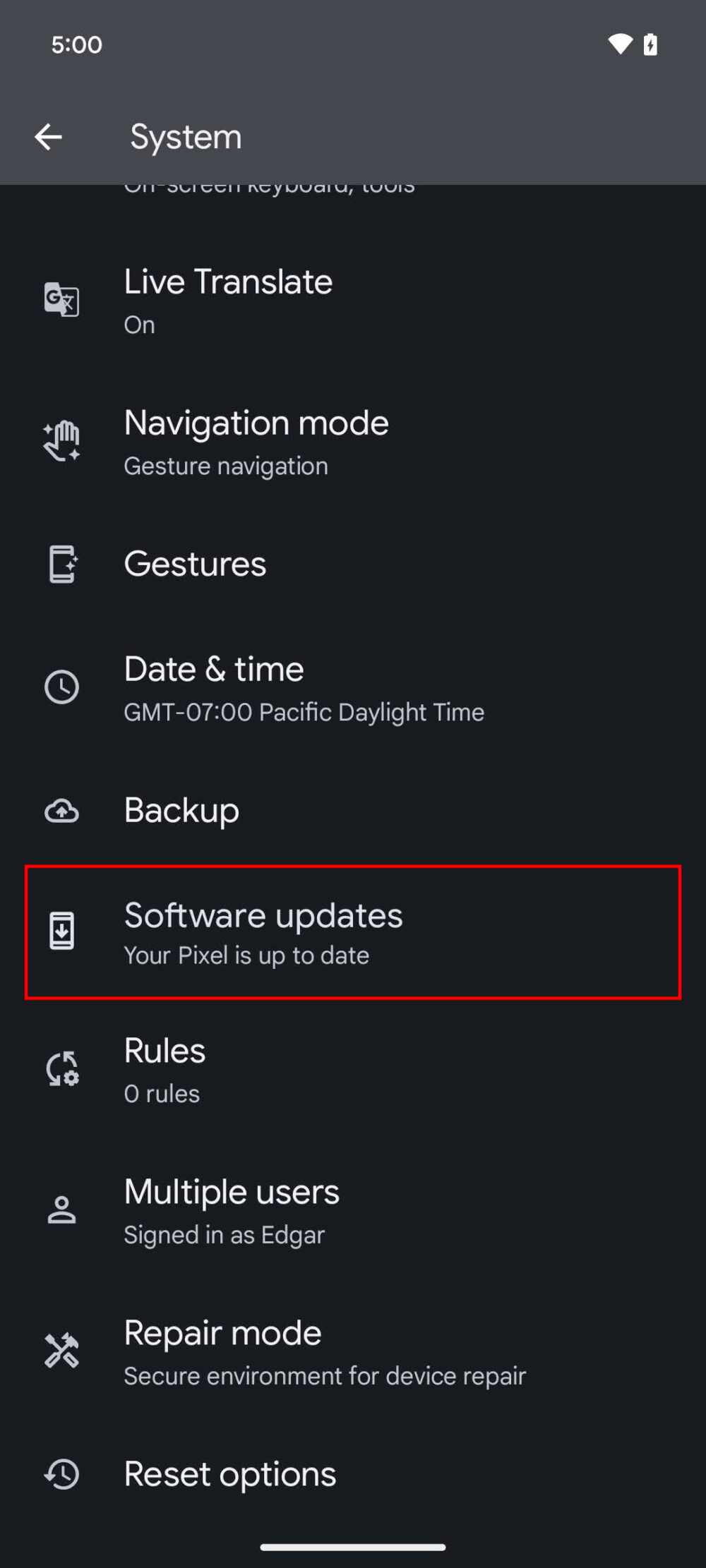
- Update Your OS: Manufacturers frequently release updates that improve battery management algorithms. Always keep your phone updated to the latest security patch.
- Minimalist Aesthetic: Just as you would choose a high-resolution classic gradient texture or retina-quality wallpaper to improve your visual experience, keep your app drawer lean to ensure a smoother interface experience.
Conclusion
Stopping apps from running in the background is a balancing act between convenience and performance. By moving your most aggressive apps to “Restricted” mode and keeping your system updated, you can significantly improve your battery life and overall speed in 2026. Don’t let hidden processes dictate your phone’s performance—take charge today and enjoy a faster, more responsive device.