
Is your phone storage constantly vanishing, or are you tired of apps changing their layout overnight? You aren’t alone. In 2026, mobile applications have become increasingly data-heavy, and automatic background updates can consume your precious cellular data and internal storage without warning.
Taking control of your device updates is one of the smartest ways to optimize performance and save battery life. Whether you want to test a new version before committing or simply want to avoid bugs introduced in recent patches, learning how to stop phone from auto-updating apps is an essential skill for every smartphone user.
Why Should You Disable Auto-Updates?
While updates are generally meant to improve security, they aren’t always perfect. In 2026, many users prefer a manual approach for several key reasons:
- Storage Management: Large updates can bloat your storage, leaving no room for your high-quality media, such as your Incredible City Wallpaper or Geometric Illustration Collection.
- Data Preservation: If you are on a limited mobile data plan, background updates can drain your monthly allowance in minutes.
- Stability Control: Sometimes, a new version of an app might be unstable. By disabling auto-updates, you can wait for user reviews to confirm a version is stable before installing it.
- Customization: If you’ve customized your phone with Sunset Designs and specific themes, some updates might reset your preferences or change the app’s icon, disrupting your aesthetic.
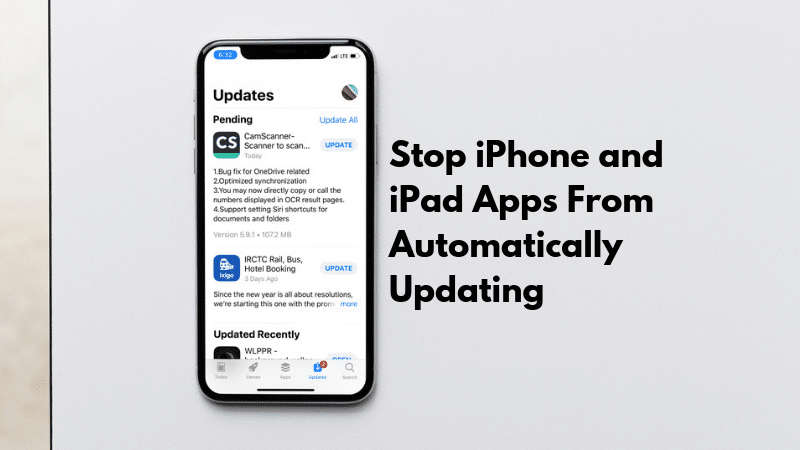
How to Stop Auto-Updates on iPhone (iOS 19/20)
Apple makes it relatively simple to toggle off automatic updates. If you are running the latest iOS version in 2026, follow these steps to regain control over your App Store experience.
Disabling Automatic Updates via Settings
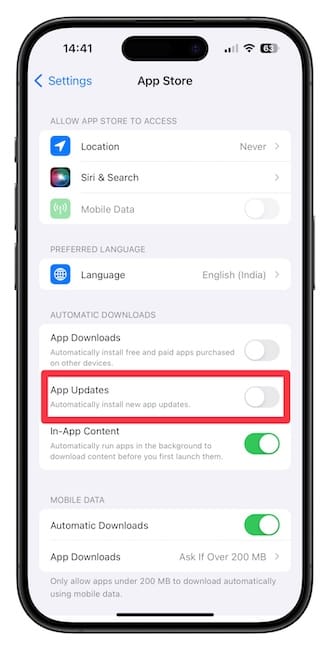
- Open the Settings app on your iPhone or iPad.
- Scroll down and tap on App Store.
- Under the Automatic Downloads section, toggle off the switch for App Updates.
Once this is disabled, your iPhone will no longer download updates in the background. You will still see a red badge on the App Store icon when updates are available, allowing you to choose exactly which apps you want to update and when.
How to Stop Auto-Updates on Android Devices
Android users have even more granular control. Whether you are using a stock Android device or a manufacturer-specific UI, the process remains consistent through the Google Play Store.
Step-by-Step: Disabling Play Store Auto-Updates
- Open the Google Play Store app on your Android device.
- Tap on your Profile Icon located in the top-right corner.
- Select Settings from the menu.
- Tap on Network preferences to expand the menu.
- Select Auto-update apps.
- Choose Don’t auto-update apps.
By selecting this option, you prevent the Play Store from pushing updates over Wi-Fi or mobile data. This is particularly useful if you want to ensure your phone remains exactly as it is while you are traveling or working on a professional project.

Pro-Tips for Managing App Updates in 2026
Now that you know how to stop phone from auto-updating apps, you need a system to manage them effectively. Don’t just ignore updates forever—they often contain critical security patches.
- Schedule Manual Updates: Set aside time once a week, perhaps on a Sunday evening, to manually review and update your apps while connected to a stable Wi-Fi network.
- Check Release Notes: Before hitting “Update All,” click on the app in your store and read the “What’s New” section. If the update doesn’t offer features you need, you can safely skip it.
- Monitor Battery Usage: If you notice your battery draining faster than usual, check your recent updates. Sometimes, reverting to an older version (if possible) or waiting for a “hotfix” update can save your device’s battery health.
- Maintain Your Digital Space: By controlling your app environment, you ensure that your phone remains a clean, organized space for your Ultra HD Quality illustrations and personal files.
Summary: Take Back Control
Managing your device updates isn’t just about saving data; it’s about user autonomy. In 2026, your phone is the central hub of your digital life. You shouldn’t have to deal with unexpected changes or storage issues caused by background processes.
By following the steps outlined above, you can ensure that your device updates only when you want it to. Whether you are protecting your data limit or simply maintaining the perfect software environment for your productivity, manual updates are the way to go.