
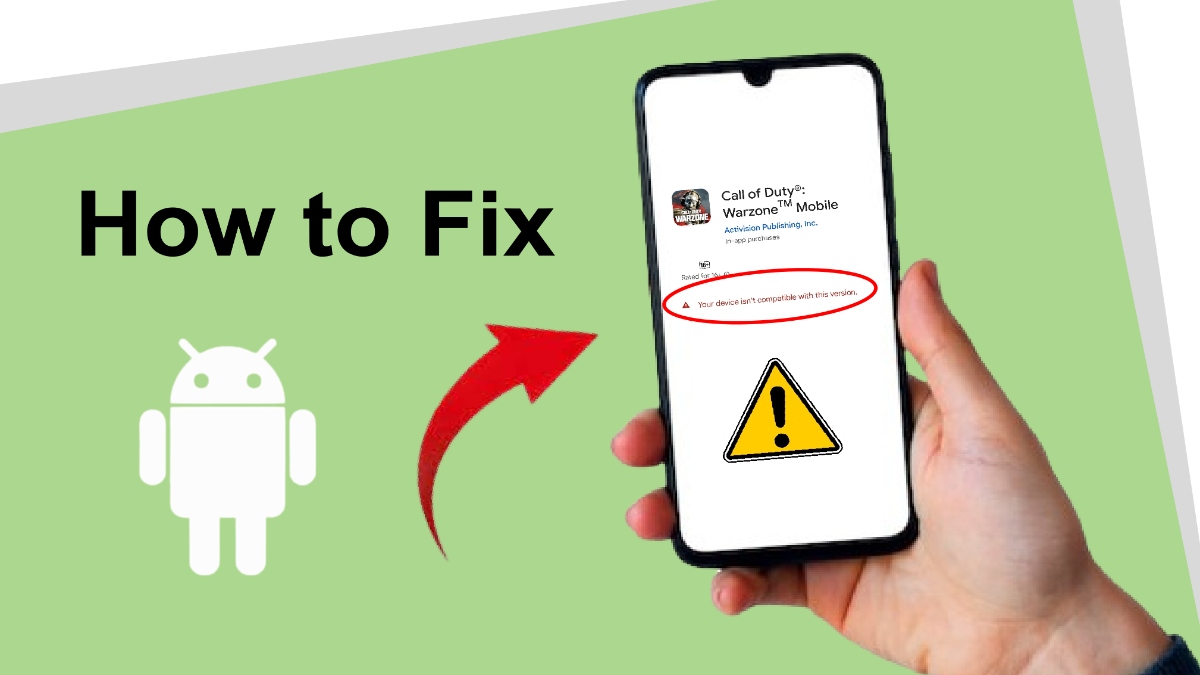
Have you ever tapped the “Install” button on the Google Play Store, only to be met with the frustrating message: “Your device isn’t compatible with this version”? In 2026, as mobile applications become more sophisticated and hardware-dependent, this error has become a common hurdle for many Android users. Whether you are using a flagship device or a budget-friendly handset, compatibility blocks can prevent you from accessing the tools and games you need.
The good news is that this error isn’t always a permanent roadblock. Often, it’s a simple mismatch between software requirements and your current settings. In this guide, we will walk you through the most effective methods to troubleshoot and fix these installation errors, ensuring you can get back to using your favorite apps.
Why Does the “App Not Compatible” Error Happen?
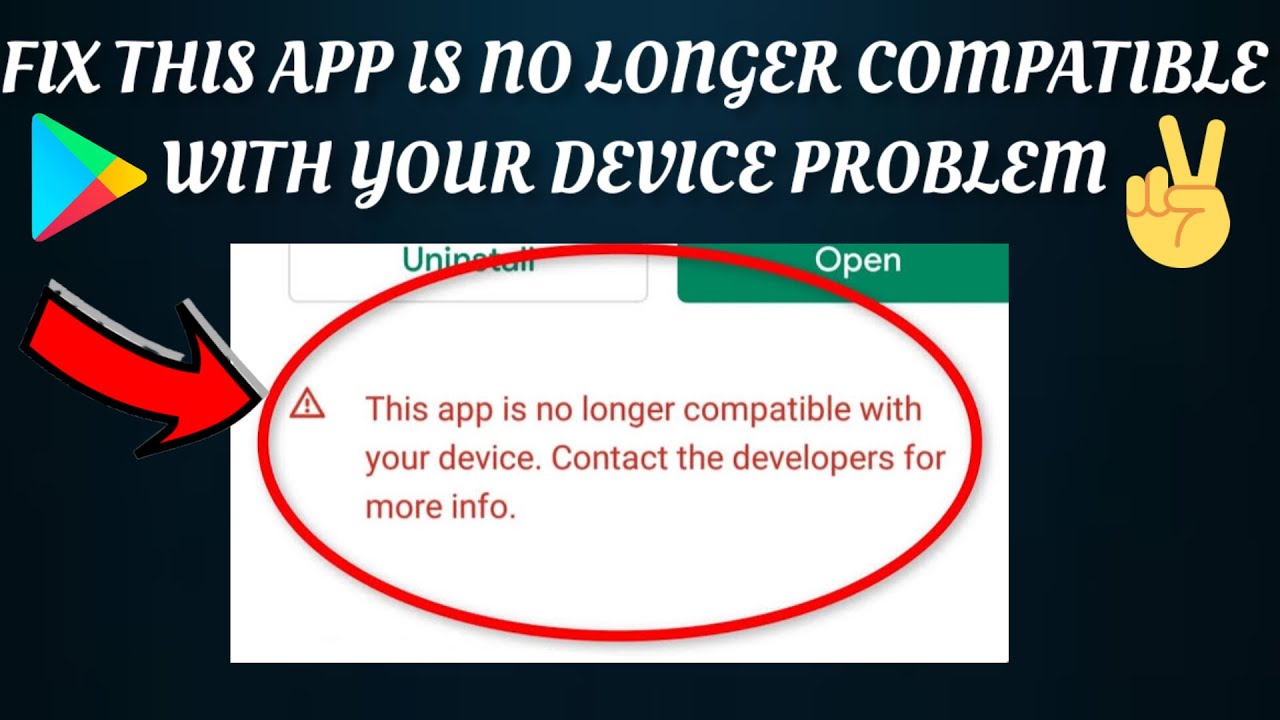
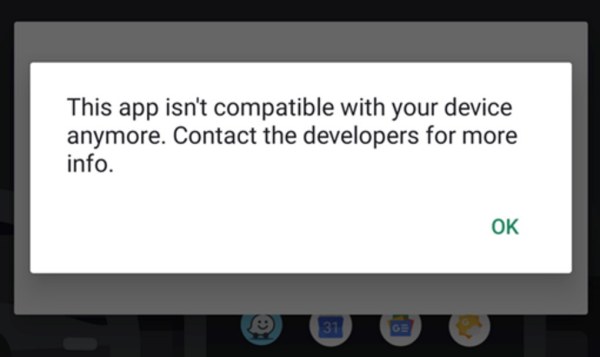
Before diving into the fixes, it is important to understand why app not compatible with device fix searches are trending. Developers often set specific “minimum requirements” for their apps. If your device fails to meet these criteria, the Play Store automatically hides the “Install” button.
Common reasons for this incompatibility include:
- Outdated Android OS: The app requires a newer version of Android than what your phone is currently running.
- Hardware Limitations: Your device lacks the necessary RAM, processor power, or specific sensors (like a gyroscope or NFC) required by the app.
- Regional Restrictions: Sometimes, an app is restricted to specific countries, which can be misread by the Play Store as a device incompatibility.
- Corrupted Cache: Occasionally, the Google Play Store app itself holds onto outdated data about your device, leading to false compatibility flags.
Step-by-Step Solutions to Fix Incompatibility
If you are determined to install that app, follow these proven troubleshooting steps.
1. Clear Google Play Store Cache and Data
Sometimes the Play Store is simply “confused” about your device specs. Clearing its temporary memory is the quickest app not compatible with device fix.
- Go to Settings > Apps > See all apps.
- Find Google Play Store in the list.
- Tap on Storage & cache.
- Select Clear cache and then Clear storage (or Clear data).
- Restart your phone and try installing the app again.
2. Update Your Android Software
If your device is running an older security patch or a legacy Android version, modern apps may refuse to install. Check for system updates by navigating to Settings > System > System update. Keeping your device updated is the best way to maintain long-term compatibility with the latest app releases in 2026.
3. Sideload the APK File Safely
If the Play Store insists your device is incompatible, but you know your hardware is capable, you can manually install the APK file.
- Warning: Only download APKs from trusted sources like APKMirror or APKPure. Never download files from shady websites, as they may contain malware.
- How to do it: Download the APK file, tap on it in your file manager, and grant permission to “Install from Unknown Sources” when prompted.
4. Edit Your Device Model (Advanced)
Some apps are restricted to specific device models. Advanced users sometimes use tools to “spoof” their device model to match a supported one. Note that this requires root access and is not recommended for beginners, as it can potentially compromise your device’s security.
When Should You Give Up?
While these fixes work for many, sometimes a device truly is incompatible. If an app requires a hardware component you don’t have—such as an ultra-wide camera or a specific AI-processing chip—software workarounds will not bridge that gap. In these cases, it is best to look for a “Lite” version of the app or a third-party alternative that offers similar functionality without the heavy hardware requirements.
Final Thoughts
The “App Isn’t Compatible” error is a common part of the Android ecosystem, but it shouldn’t stop you from enjoying your digital life. By keeping your OS updated, clearing your Play Store cache, and utilizing safe sideloading practices, you can overcome most restrictions. Remember, always prioritize security over convenience; if an app is truly incompatible due to hardware, it may perform poorly or crash even if you force it to install.
Stay updated, keep your device clean, and happy downloading!