
Is your monthly mobile data allowance disappearing faster than your morning coffee? If you find yourself hitting your data cap mid-month, you aren’t alone. In 2026, apps are more sophisticated than ever, constantly syncing, updating, and fetching content in the background, often without your explicit permission.
Excessive data usage isn’t just a threat to your wallet; it is a primary culprit behind rapid battery drain and sluggish phone performance. When your device is constantly pinging servers for background updates, it consumes both your cellular plan and your system resources. Let’s dive into the ultimate guide to reclaiming your data and optimizing your Android experience.
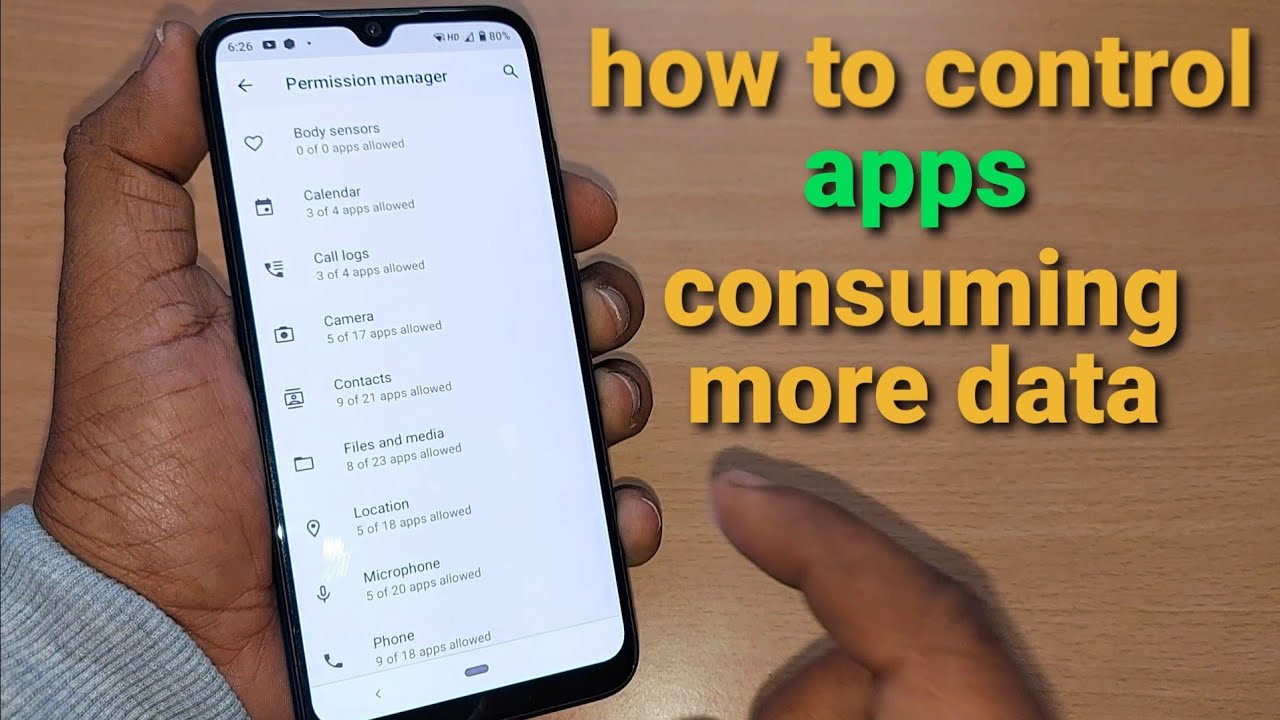
Why Does My Android Use So Much Data?
Understanding the “why” is the first step toward the “how.” Modern Android apps utilize background data to keep your feeds updated, sync cloud storage, and push real-time notifications. While these features provide convenience, they often run rampant.
Common culprits include high-definition video streaming apps, social media platforms with “auto-play” features, and cloud backup services. If you have “Auto-update apps over Wi-Fi/Mobile Data” enabled in the Google Play Store, your phone might be downloading massive game patches behind your back.
Step 1: Identify the Data Hogs
Before you start cutting off access, you need to see exactly which apps are responsible for the drain. Android’s built-in monitoring tools are incredibly robust in 2026.
- Go to Settings > Network & Internet (or Connections).
- Tap on Data Usage or Mobile Data Usage.
- Review the list of apps sorted by consumption.
Look for apps you rarely use but that appear at the top of the list. These are prime candidates for restriction or deletion.

Step 2: Restrict Background Data for Specific Apps
Once you identify the offenders, you can strip them of their ability to use your mobile connection when you aren’t actively using them.
- Select the app from your data usage list.
- Toggle off “Background Data”.
- By doing this, the app will only pull data when you open it. This is a perfect fix for news apps, social media, or productivity tools that don’t need to be “always on.”
Step 3: Utilize the “Data Saver” Feature
Android’s Data Saver mode is an intelligent, automated solution. When enabled, it prevents apps from sending or receiving data in the background. If an app absolutely needs data, it will wait until you open it to sync.
- Go to Settings > Network & Internet.
- Tap on Data Saver.
- Turn it On.
- You can also select “Unrestricted Data” for essential apps like WhatsApp or Maps, ensuring they function correctly while the rest of your phone stays on a “diet.”

Step 4: Manage Unused Apps and RAM
In 2026, we have learned that storage space and data usage are linked. Apps that aren’t being used don’t just take up space; they often run hidden services that ping the internet.
- Archive unused apps: Google’s “Free up space” feature can automatically archive apps you don’t frequent. This removes the app’s binary but keeps your personal data intact.
- Clear the cache: Over time, apps cache massive amounts of data to load faster. Clearing this cache via Settings > Apps > [App Name] > Storage can prevent apps from “bloating” and consuming extra bandwidth to sync outdated files.
- Uninstall bloatware: If an app is pre-installed and you never use it, disable it. Disabling prevents the app from running background tasks that eat your RAM and mobile data.
Step 5: Tweak App-Specific Settings
Many popular apps have built-in data management tools that are often overlooked:
- Social Media: Disable “Auto-play videos” in the settings of apps like Facebook, Instagram, and TikTok.
- Streaming Services: Set video quality to “Data Saver” or “Standard” when on mobile data.
- Cloud Sync: Ensure your photos and videos only back up to the cloud when connected to Wi-Fi.
Conclusion: Taking Control in 2026
Managing your mobile data doesn’t require a degree in computer science. By consistently monitoring your data usage statistics, enabling Data Saver mode, and aggressively pruning background processes, you can significantly extend your data plan.
Remember, a phone that uses less data is also a faster, more efficient device. By keeping your apps in check, you prevent unnecessary RAM usage and preserve your battery life for the tasks that actually matter. Start auditing your apps today—your data plan will thank you!