
It is 2026, and technology should be seamless. Yet, one of the most frustrating experiences for any computer or smartphone user is clicking an icon, watching it bounce or flicker, and seeing it close immediately. Whether you are on Windows 11, macOS, or a mobile device, this “instant crash” loop can halt your productivity in its tracks.
Why does this happen? Usually, it is a conflict between software updates, corrupted cache files, or background permission issues. In this guide, we will walk you through the most effective methods to perform a why apps open then close immediately fix for your specific device.
Troubleshooting Windows 11 and 10 App Crashes
If your classic desktop programs or Microsoft Store apps are closing the second you launch them, you aren’t alone. In 2026, Windows updates often introduce new security protocols that can clash with older software.
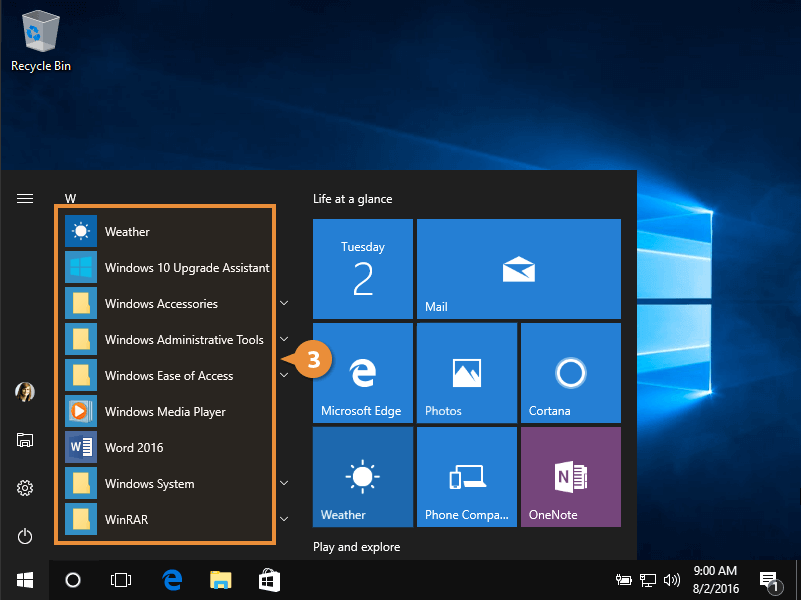
1. Check for Third-Party Conflicts
Often, the culprit is a third-party background service or an antivirus program that misidentifies the app as a threat.
- Perform a Clean Boot: Press `Win + R`, type `msconfig`, and navigate to the Services tab.
- Check “Hide all Microsoft services” and then select Disable all.
- Restart your PC. If the app opens correctly, one of your disabled services was the cause.
2. Reset or Repair Microsoft Store Apps
If it is a UWP (Universal Windows Platform) app, the built-in repair tool is your best friend.
- Go to Settings > Apps > Installed Apps.
- Find the problematic app and click the three dots (…).
- Select Advanced options and click Repair. If that fails, click Reset to clear the app’s data cache.
Why Do Apps Crash on macOS?
Mac users aren’t immune to this glitch. If your applications bounce in the Dock and then vanish, the issue is often related to corrupted preference files or incompatible architecture (especially with the transition to newer Apple Silicon chips).

How to Resolve Mac App Crashes:
- Check for macOS Updates: Ensure your OS is running the latest 2026 patch. Apple frequently releases hotfixes for app compatibility.
- Delete Preference Files: Navigate to `~/Library/Preferences/` and look for files named `com.developername.appname.plist`. Move these to the trash and restart the app.
- Reinstall the App: Sometimes, a simple drag-and-drop to the trash and a fresh download from the App Store or developer website clears out corrupted binary files.
Fixing “Open and Close” Issues on Mobile Devices
Mobile apps require a different approach. If your iPhone or Android app closes immediately, it is almost always linked to outdated cache or authentication tokens.
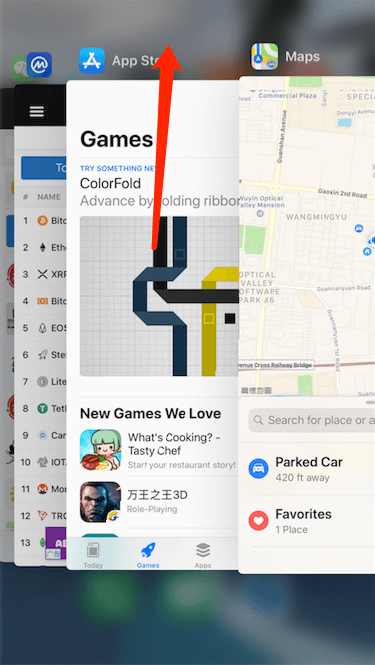
Steps to Restore Mobile Functionality:
- Clear the Cache (Android): Go to Settings > Apps > [App Name] > Storage > Clear Cache.
- Offload the App (iOS): Go to Settings > General > iPhone Storage. Select the app and tap Offload App. This keeps your data but deletes the app binary, which you can then reinstall fresh.
- Update Your OS: In 2026, many apps utilize AI-driven features that require the latest firmware frameworks. If your OS is two versions behind, the app will refuse to launch.
Pro Tips to Prevent Future Crashes
To avoid the “open then close” nightmare in the future, follow these system maintenance best practices:
- Keep Your Drivers Updated: Especially for Windows users, outdated GPU drivers can cause applications that rely on hardware acceleration to crash instantly.
- Monitor Disk Space: If your drive is at 99% capacity, apps cannot write the temporary files they need to launch. Keep at least 10-15% of your storage free.
- Avoid Beta Software: While exciting, beta versions of operating systems (like the latest macOS or Windows Insider builds) are notorious for breaking app compatibility. Stick to stable releases for your primary work machine.
- Check Permissions: Sometimes an app closes because it is trying to access your camera or microphone, but the system denies it without a prompt. Check your Privacy & Security settings to ensure the app has the necessary permissions.
When Should You Seek Professional Help?
If you have tried the steps above and the app still closes immediately, you may be dealing with a corrupted user profile or malware infection.
If the problem persists across all apps, it is time to run a full system scan using a trusted security suite. If it only happens with one specific app, contact the developer’s support team. In 2026, most developers provide a “diagnostic log” feature that can help them identify exactly why their software is failing on your specific hardware configuration.
Conclusion
The “why apps open then close immediately” issue is annoying, but it is rarely a sign that your device is “broken.” By systematically clearing your cache, checking for third-party conflicts, and ensuring your software is up to date, you can resolve 95% of these crashes yourself. Start with the simplest solutions—like a restart or a quick app reset—before moving into more advanced troubleshooting. Follow these steps, and you will be back to your digital workflow in no time!