
Is your browsing experience grinding to a halt? If you are frustrated by the “why chrome slow loading pages android fix” dilemma, you aren’t alone. Even with the advanced hardware of 2026 smartphones, Google Chrome can occasionally become sluggish, hanging on white screens or taking ages to render heavy web pages.
A slow browser isn’t just an annoyance; it’s a productivity killer. Whether you are scrolling through news feeds, shopping, or working on the go, a snappy browser is essential. This guide will walk you through the most effective, field-tested methods to restore your Chrome browser to its lightning-fast glory.

Why Is My Chrome So Slow? Understanding the Root Causes
Before jumping into the fixes, it helps to understand why your browser might be lagging. In 2026, web pages are more complex than ever, utilizing high-resolution media, intensive scripts, and heavy tracking.
Common culprits include:
- Accumulated Cache and Data: Over months of use, your browser stores massive amounts of temporary files that can bloat the app.
- Too Many Open Tabs: Chrome’s memory management is efficient, but dozens of active tabs will inevitably strain your device’s RAM.
- Outdated App Version: Chrome receives frequent updates to patch performance bottlenecks; running an old version is a recipe for slowness.
- Background Processes: Sometimes, Chrome’s “Preload” feature or background data sync can conflict with your connection speed.
Step-by-Step Fixes to Speed Up Chrome on Android
Ready to get back to browsing at full speed? Follow these proven steps to optimize your experience.
1. Clear Browsing Data and Cache
The most frequent reason for a sluggish browser is an overloaded cache. This is the “digital junk” that piles up over time.
- Open Chrome on your Android device.
- Tap the three-dot menu in the top right corner.
- Go to Settings > Privacy and security > Clear browsing data.
- Select “Cached images and files” and “Cookies and site data.”
- Set the time range to “All time” and tap Clear data.
2. Enable “Preload Pages” for Instant Loading
Chrome has a built-in feature designed to make your browsing feel instantaneous. By predicting which pages you are likely to visit next, Chrome loads them in the background.
- Go to Settings in Chrome.
- Tap Privacy and security.
- Select Preload pages.
- Choose “Standard preloading” or “Extended preloading” for the fastest results. This uses a small amount of data to significantly reduce wait times.
3. Update Chrome and Your Android OS
In 2026, software optimization is critical. If your Chrome app or your Android system is outdated, you are missing out on performance patches that specifically address loading bugs. Check the Google Play Store to ensure Chrome is on the latest version. Similarly, check your phone’s System Settings to see if a firmware update is pending.

4. Manage Your Open Tabs
Chrome is a powerful browser, but it is not magic. If you have 50+ tabs open, your phone’s processor will struggle to allocate resources effectively.
- Close unused tabs: Periodically audit your open tabs.
- Use Tab Groups: Organize your work to keep your workspace clean and reduce the memory footprint.
- Enable Memory Saver: Check your advanced settings to see if your specific device supports Chrome’s “Memory Saver” mode, which frees up RAM from inactive tabs.
5. Disable Hardware Acceleration (If Needed)
Sometimes, the hardware acceleration feature can conflict with specific smartphone GPUs, leading to stuttering or slow page rendering. While usually beneficial, toggling this off can be a “secret fix” for specific Android models. Navigate to `chrome://flags` in your address bar, search for “Hardware-accelerated video decode,” and try switching it to Disabled to see if performance improves.
When All Else Fails: The “Nuclear” Option
If you have tried everything and Chrome is still crawling, it might be time for a fresh start.
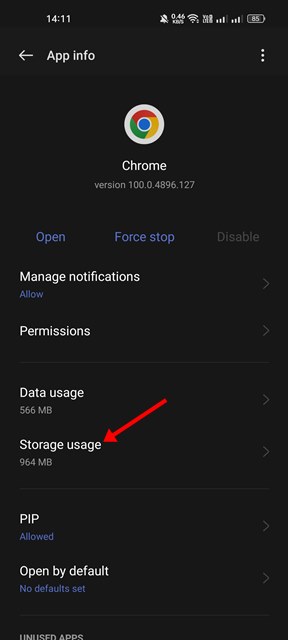
- Go to Settings > Apps > Chrome.
- Tap Storage.
- Select Manage Storage and tap Clear All Data.
Note: This will sign you out of your sites and reset your settings, but it often resolves deep-seated software glitches that standard clearing cannot touch.
Conclusion: A Faster Browsing Experience in 2026
Fixing a slow Chrome browser on Android doesn’t have to be a headache. By regularly clearing your cache, managing your tabs, and utilizing Chrome’s built-in preloading features, you can ensure your mobile browsing remains fluid and responsive.
If you find that Chrome remains slow even after these steps, consider checking your internet connection or testing a different network, as heavy page loads are often dependent on your ISP’s latency. Keep your browser updated, keep your tabs organized, and enjoy the speed you deserve!