
Is your Android mobile hotspot failing to connect when you need it most? Whether you are trying to work remotely, stream content on a laptop, or share internet with a friend, a faulty hotspot is incredibly frustrating. In 2026, as our reliance on seamless mobile connectivity grows, these glitches are more than just a nuisance—they are a productivity killer.
If you are wondering why hotspot not working on your Android device, you aren’t alone. From software bugs to carrier restrictions, the culprits are often simpler than they appear. In this guide, we will walk you through the most effective, field-tested solutions to get your connection back online instantly.
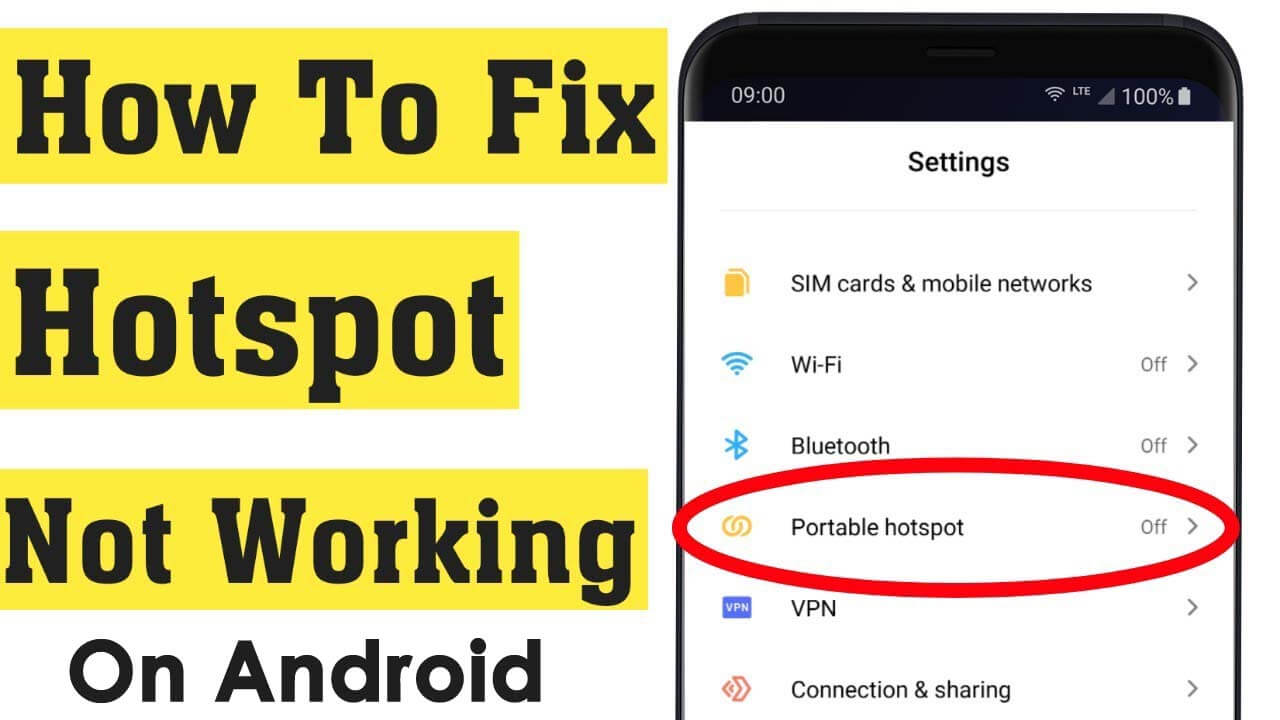
1. The Basics: Check Your Mobile Data and Signal
Before diving into complex settings, start with the fundamentals. Your hotspot relies entirely on your phone’s ability to access the internet. If your mobile data is off or your signal is weak, the hotspot will broadcast a signal, but devices connected to it will have no internet access.
- Verify Mobile Data: Swipe down your Quick Settings panel and ensure the Mobile Data icon is active.
- Check Signal Strength: If you only have one bar of service, your hotspot speed may be too slow to establish a handshake with other devices.
- Toggle Airplane Mode: Turn on Airplane Mode for 10 seconds, then turn it off. This forces your phone to re-establish a connection with the nearest cellular tower, often clearing out temporary network glitches.
2. Restart Everything: The “Golden Rule” of Troubleshooting
It sounds cliché, but a system restart remains the most effective fix for Android connectivity issues in 2026. Restarting your phone clears the temporary cache and stops background processes that might be interfering with your network adapter.
Additionally, don’t forget to restart the receiving device (the laptop, tablet, or secondary phone). Sometimes the issue isn’t with your Android phone at all, but with the receiving device’s Wi-Fi adapter “hanging” on an old network configuration.
3. Adjust Your Hotspot Settings
Sometimes, the issue lies in how your hotspot is configured. Modern Android devices allow for advanced customization, but these settings can occasionally cause compatibility issues.
Change the AP Band: Many older devices cannot connect to the 5GHz band. Go to Hotspot Settings > AP Band* and switch it to 2.4GHz. This is the most common fix for devices that “see” the network but refuse to connect.
- Security Protocols: Ensure your security is set to WPA2-Personal. While WPA3 is the newest standard, it is not supported by all devices. If you are struggling to connect, switching to WPA2 can resolve the authentication error.
- Check Data Limits: Some Android phones have a Data Limit feature for hotspots. Check if you have accidentally capped your hotspot usage, which would automatically disconnect users once the limit is reached.
4. Reset Your Network Settings
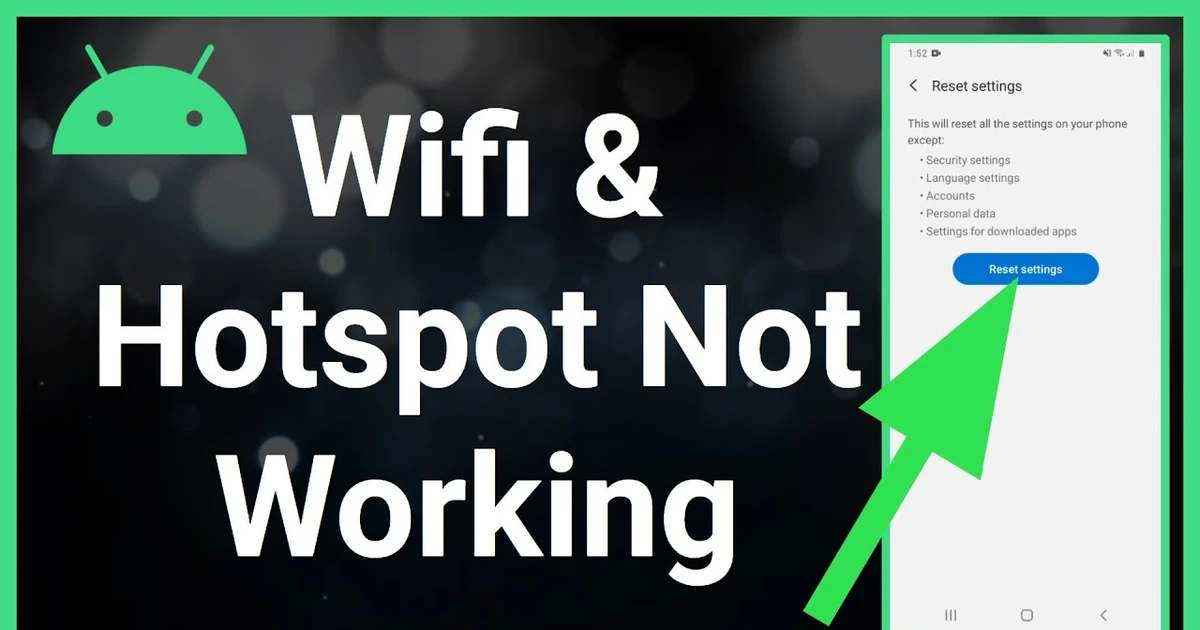
If you’ve tried the quick fixes and the hotspot still isn’t working, it’s time to perform a Network Settings Reset. This action will not delete your photos or apps, but it will wipe your saved Wi-Fi passwords, paired Bluetooth devices, and cellular network configurations.
- Open Settings.
- Navigate to System or General Management.
- Select Reset options.
- Choose Reset Wi-Fi, mobile & Bluetooth (or “Reset Network Settings”).
- Confirm and restart your phone.
![Fixed: Hotspot Not Working Android [13 Ways]](https://www.androiddata-recovery.com/blog/wp-content/uploads/2020/11/Fix-Android-Hotspot-Not-Working.png)
5. Check for Software Updates and Carrier Restrictions
In 2026, Android updates are frequent and vital for maintaining security and network compatibility. A pending system update might contain a patch for a known hotspot bug. Check Settings > Software Update to ensure you are running the latest version.
Furthermore, verify your carrier plan. Some mobile providers restrict hotspot usage or require a specific add-on for tethering. If you recently changed your plan or reached your monthly data cap, your carrier may have throttled or completely blocked your hotspot capabilities.
6. Disable Battery Saver Mode
Battery Saver mode is a lifesaver for your daily usage, but it often restricts background data and lowers the performance of the Wi-Fi hardware to conserve energy. When you are trying to use a hotspot, Battery Saver mode can actively kill the connection to save power. Always ensure your battery is sufficiently charged and that Battery Saver is disabled before starting your hotspot.
Conclusion: Getting Back Online
Troubleshooting a mobile hotspot doesn’t have to be a nightmare. By following these steps—starting from simple signal checks to resetting network configurations—you can resolve 99% of Android connection issues.
Remember to keep your software updated and always check your carrier’s data policies if you are a heavy hotspot user. If you have tried all these steps and still face issues, it might be time to contact your carrier’s support team or consider a hardware diagnostic at an authorized service center. Stay connected, stay productive, and don’t let a minor glitch slow you down in 2026!