
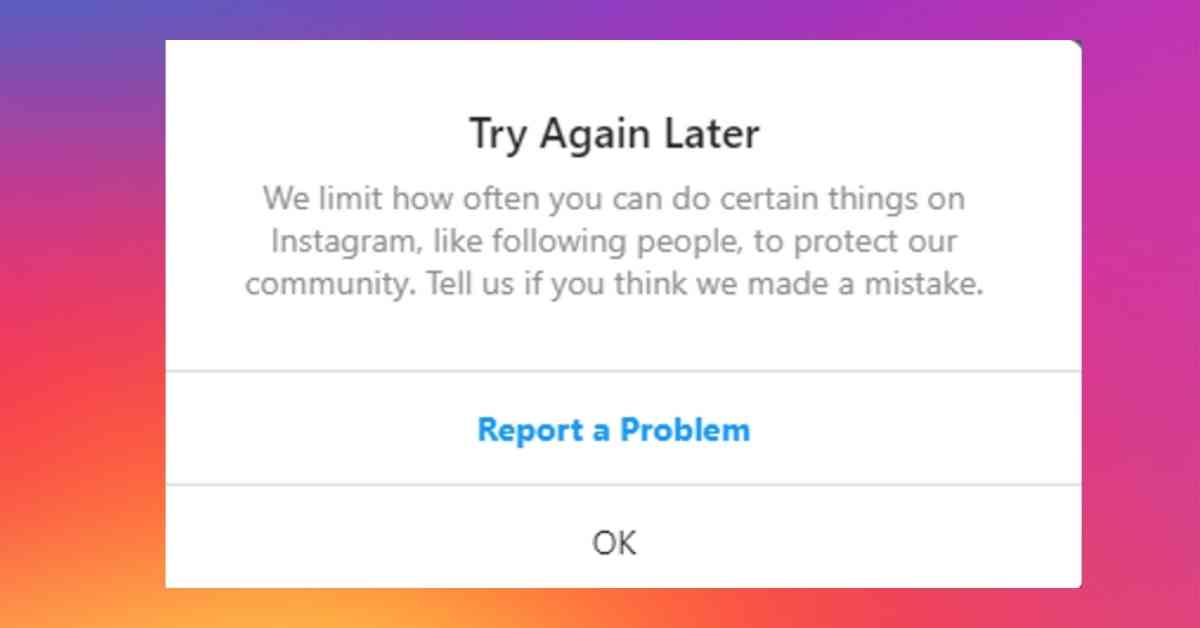
Are you staring at your screen, frustrated by the dreaded “Please try again later” message while trying to access your Instagram account? You aren’t alone. In 2026, as Instagram’s algorithms become increasingly sophisticated at detecting automated behavior and security threats, this error has become a common hurdle for many users.
Whether you are a casual scroller or a professional content creator, being locked out of your account is a major inconvenience. Fortunately, this error is rarely permanent. In this guide, we will break down exactly why this happens and provide you with the most effective troubleshooting steps to get you back online.
Why Does the “Try Again Later” Error Occur?
Before jumping into the fixes, it is important to understand why Instagram triggers this error. Essentially, the platform’s security system acts like a digital bouncer. When it detects behavior that deviates from a “normal” human pattern, it places a temporary block on your account to prevent spam, bots, or unauthorized access.
Common triggers include:
- Excessive Activity: Liking, commenting, following, or unfollowing too many accounts in a very short window.
- Third-Party Apps: Using unauthorized tools for growth, scheduling, or analytics.
- IP Address Issues: Switching between multiple devices or using unstable public Wi-Fi networks.
- Recent Account Changes: Changing your password, email, or phone number multiple times in a single day.
- App Glitches: Sometimes, it’s simply a technical bug within the Instagram app itself that requires a refresh.

11 Proven Strategies to Fix Instagram Login Errors
If you are stuck, don’t panic. Follow these steps in order to resolve the issue quickly and safely.
1. Wait It Out (The “Cool Down” Period)
The most common reason for the “Try again later” error is that you have triggered a temporary rate limit. In many cases, the best fix is simply patience. Step away from the app for 24 to 48 hours. During this time, do not attempt to log in, as repeated failed attempts can reset the timer on your block.
2. Switch Your Network
Sometimes, Instagram flags your specific IP address. If you are on Wi-Fi, turn it off and try logging in using your mobile data. Conversely, if you are on mobile data, connect to a stable, private Wi-Fi network. This forces your device to use a different connection path, which may bypass the restriction.
3. Clear App Cache and Data
Over time, your app stores temporary files that can become corrupted, leading to login loops.
- For Android: Go to Settings > Apps > Instagram > Storage > Clear Cache and Clear Data.
- For iOS: The best approach is to uninstall the app completely, restart your phone, and reinstall it from the App Store.
4. Update the Instagram App
Using an outdated version of the app in 2026 can lead to severe compatibility issues with Instagram’s servers. Head over to the Google Play Store or Apple App Store and ensure you are running the latest version of Instagram.
5. Log in via Browser
If the app is failing, try accessing your account through a mobile or desktop web browser (Chrome, Safari, or Firefox). If you can log in via the browser, the issue is likely isolated to the app on your phone, and simply reinstalling the app should resolve it.
6. Remove Third-Party Apps
If you have granted account access to apps like “Follower Trackers” or “Auto-Likers,” these are likely the culprits. Go to your Instagram settings via a browser, navigate to Apps and Websites, and remove any suspicious third-party connections.
7. Reset Your Password
If you suspect your account might have been flagged for security reasons, performing a password reset can signal to Instagram that you are indeed the rightful owner. Use the “Forgot Password” link on the login screen to trigger a reset email or SMS.
Troubleshooting “Unexpected Error Occurred”
Sometimes, the error isn’t about “trying later,” but an “unexpected error.” This is often related to server-side connectivity or authentication tokens. If you face this:
- Enable/Disable VPN: If you are using a VPN, turn it off. Instagram often blocks traffic from common VPN data centers.
- Check for Outages: Visit a site like DownDetector to see if Instagram’s servers are experiencing a widespread outage.
- Update Your Device Software: Ensure your phone’s operating system (iOS or Android) is fully updated.
Preventing Future Login Issues
Once you regain access, you want to ensure this doesn’t happen again. Consistency is key. Avoid mass-following or mass-unfollowing accounts. If you are a social media manager, use only Meta-approved scheduling tools to ensure your actions remain within Instagram’s API guidelines. Finally, keep your account verified with a phone number and email address to prove your identity to the platform.
Conclusion
The “Please try again later” error is essentially Instagram’s way of protecting your account and the platform’s ecosystem. While it is undeniably frustrating, it is usually a temporary measure that resolves itself within a day or two. By following the steps outlined above—especially clearing your cache, switching networks, and removing unauthorized third-party apps—you can expedite the process and get back to your feed.
If you have tried all these steps and still cannot access your account after 48 hours, consider reaching out to Instagram Support through the “Report a Problem” feature on a secondary account. Stay patient, stay secure, and keep engaging with your community authentically!