
You have spent hours editing the perfect video, only to hit “Post” and see your masterpiece turn into a pixelated, blurry mess. If you are an Android user in 2026, you aren’t alone. Many creators struggle with Instagram Reels quality issues, often wondering why their high-definition footage loses its crispness the moment it hits the platform.
The good news? It’s usually not your phone’s camera quality—it’s your Instagram settings. This guide will walk you through the real-time solutions to ensure your content looks professional, sharp, and ready for the algorithm.
Why Are My Instagram Reels Blurry?
Before we dive into the fixes, it is important to understand why this happens. Instagram’s compression algorithms are designed to keep the app running smoothly across thousands of different Android devices. When you upload a video, Instagram compresses the file size to ensure it loads quickly for your followers.
If your settings aren’t optimized, the app may aggressively downscale your video, leading to that dreaded “blurry” look. Common culprits include data-saver modes, incorrect upload quality settings, or even outdated app versions.

The #1 Fix: Enable “Upload at Highest Quality”
The most effective way to fix blurry Reels on Android in 2026 is by adjusting your account’s data usage preferences. Instagram often defaults to a “data-saver” mode that throttles your upload quality to save bandwidth.
Follow these steps to force high-quality uploads:
- Open your Instagram Profile and tap the three-line menu in the top right corner.
- Navigate to Settings and Activity.
- Scroll down until you find Data usage and media quality.
- Toggle on the switch for Upload at highest quality.
By enabling this, you are telling Instagram to prioritize visual fidelity over upload speed. This is a game-changer for creators who want their content to stand out.
Check Your Android Camera Settings
Sometimes the issue originates before you even open the Instagram app. If your Android camera is set to record in a format that isn’t fully compatible with Instagram’s internal editor, the quality will drop during the processing phase.
- Resolution: Ensure you are recording in 1080p at 30 or 60 fps. While 4K is tempting, Instagram often struggles to compress 4K files efficiently, which can lead to unexpected blurriness.
- HEVC/H.265 Settings: Check your camera settings for “High Efficiency” modes. While they save space, they can sometimes cause playback issues on social platforms. Try switching to “Most Compatible” if you notice persistent blur.

Optimize Your Internet Connection
We often forget that upload stability is just as important as the file quality. If your internet connection is fluctuating while you upload a Reel, Instagram’s server may drop the bitrate of your video to ensure the upload finishes without timing out.
- Avoid Public Wi-Fi: Public networks are notorious for packet loss and slow upload speeds.
- Use Stable Wi-Fi: Always upload your Reels on a stable, high-speed home network rather than relying on mobile data, which can be inconsistent.
- Wait for Processing: Once the upload bar finishes, stay on the app for a few extra seconds to allow Instagram to complete its server-side processing.
Does Your App Need an Update?
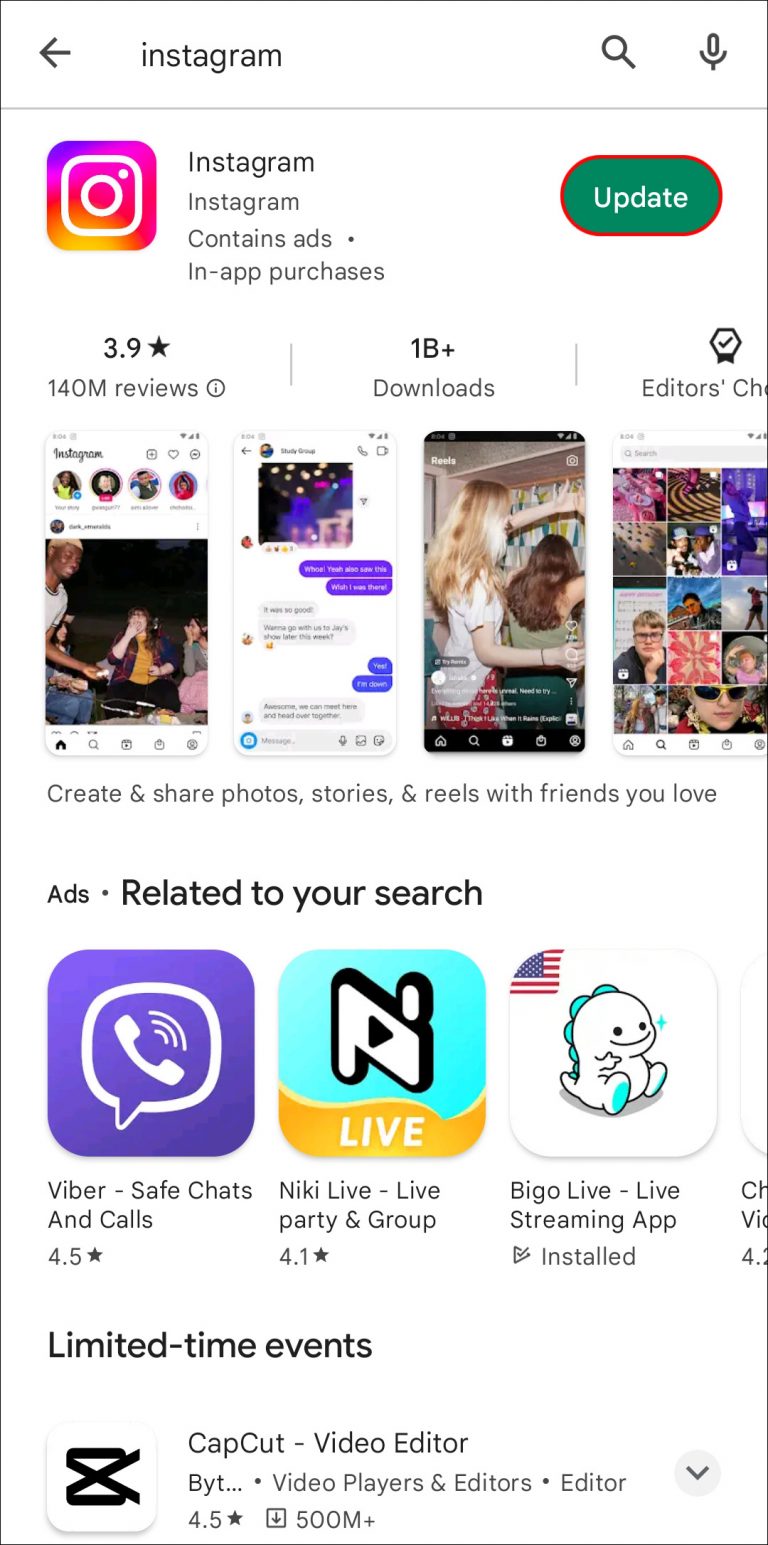
In 2026, Instagram releases frequent updates to fix bugs and improve performance for various Android hardware models. Running an outdated version of the app is one of the most common reasons for low-quality Reels.
Check the Google Play Store to ensure you are on the latest build. If the issue persists after an update, try clearing your app cache. Go to Settings > Apps > Instagram > Storage > Clear Cache. This removes temporary files that might be interfering with your upload quality.
Final Pro-Tips for Crystal Clear Reels
If you have followed all the steps above and your Reels still look slightly soft, consider these advanced tips:
- Edit Externally: Use high-quality editing apps like CapCut or Adobe Premiere Rush, then export your video using the standard 1080×1920 resolution.
- Limit Transitions: Heavy, complex transitions can sometimes confuse the video encoder, leading to blur during fast-moving scenes. Keep your edits clean.
- Check Your Display: Sometimes the video looks blurry because your phone’s screen brightness or blue-light filters are interfering with your perception. Check your Reel on a secondary device to confirm if the blur is actually in the file or just on your screen.
Conclusion
Fixing blurry Instagram Reels on Android isn’t about magic—it’s about configuration. By ensuring your “Upload at Highest Quality” setting is active, recording in stable 1080p, and maintaining a rock-solid internet connection, you can consistently deliver high-definition content to your audience.
Don’t let technical compression stop your creative growth in 2026. Use these steps, monitor your upload environment, and watch your engagement soar as your content quality matches your creative vision.