
It is the quintessential tech frustration of the modern era: you receive a notification for the latest Android OS update, anticipate the sleek new interface and enhanced security features, and hit install. Yet, once the device reboots, your once-snappy smartphone begins behaving like a relic from a decade ago. If your phone is lagging after an update in 2026, you are certainly not alone. With the increasing complexity of AI-integrated operating systems and high-refresh-rate displays, even the most powerful hardware can occasionally stumble during a major software transition.
The good news is that this performance dip is rarely a sign of permanent hardware failure. In most cases, the sluggish behavior is a temporary software optimization hurdle. By 2026, Android has become remarkably sophisticated, but this power comes with a cost: the system requires significant post-update maintenance to align with your specific usage patterns. This guide will walk you through the diagnostic steps and advanced fixes to restore your device to its peak performance.
Why Does My Phone Lag After an Update?

To understand the fix, you must first understand the process. When you install a major Android update, your smartphone is doing much more than just swapping out a few lines of code. It is essentially rebuilding its own foundation. In 2026, modern Android versions utilize Advanced Adaptive Performance, which learns how you use your phone to allocate resources. When an update hits, that learning process often resets, forcing the phone to re-evaluate every background process.
Primary reasons for post-update lag include:
- System Cache Conflicts: Residual data from your previous OS version can create “ghost” files that conflict with new system architecture.
- AI Background Re-indexing: Modern Android devices use machine learning to index files and photos. After an update, this process restarts, consuming significant CPU cycles.
- App Optimization Mismatch: Many third-party developers update their apps to match the latest API levels simultaneously with OS releases, leading to temporary instability if your apps are not yet synchronized.
- Storage Overload: New OS updates often require larger system partitions, which can leave your internal storage critically low, causing the flash memory to slow down significantly.
Step 1: The 48-Hour Settling Period
In 2026, the most common mistake users make is immediate troubleshooting. Modern Android versions are designed to be “self-optimizing,” but this takes time. Immediately following an update, your phone is likely performing intense background tasks, including compiling ART (Android Runtime) code and re-indexing your media library. We highly recommend waiting at least 48 hours of normal usage before assuming something is wrong. During this window, keep your phone plugged into a charger overnight; this allows the system to perform its most intensive maintenance tasks while idle.
Step 2: Clearing the System Cache Partition
If the lag persists beyond the two-day mark, the system cache is your first point of attack. Note that in recent Android iterations, some manufacturers have moved away from a user-accessible “Wipe Cache Partition” in recovery mode to prioritize security. However, for most devices, the process remains effective. By clearing this partition, you are deleting temporary system files that are no longer compatible with the new OS version. This does not erase your photos, contacts, or apps—it simply clears the “junk” that the OS uses to speed up boot times.
Step 3: Update Your App Ecosystem
Lag is often localized to specific applications rather than the entire operating system. If your phone feels fine on the home screen but stutters when opening social media or banking apps, those applications likely haven’t been updated to support the latest Android framework. Open the Google Play Store, navigate to “Manage apps and device,” and ensure that every single app is updated. In 2026, developers are moving toward dynamic delivery, meaning your apps may need a manual update trigger to align with the new OS security protocols.
Step 4: Manage Storage and Background Processes
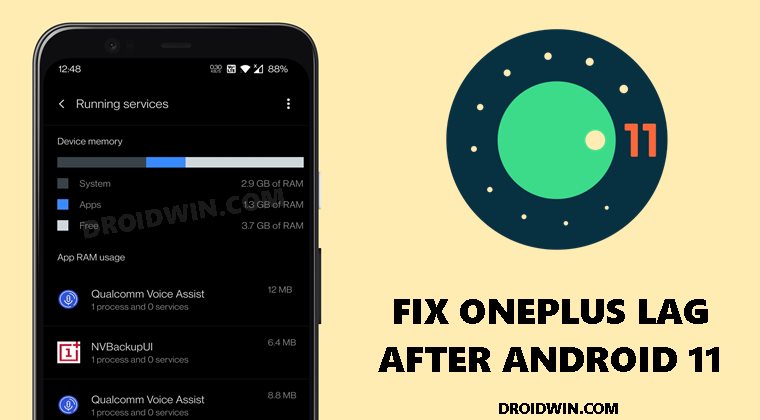
Performance degradation is often a symptom of storage saturation. If your device has less than 10% of its total storage capacity available, the system will struggle to perform read/write operations efficiently. This is especially true after a major update, as the OS requires “breathing room” to move files around. Additionally, head into your Developer Options—if enabled—and check the “Running Services” tab. Identify any apps that are consuming excessive RAM and force-stop them to see if the interface responsiveness improves immediately.
Step 5: When to Consider a Factory Reset
If you have exhausted all other options, a factory reset is the final, albeit nuclear, solution. While inconvenient, it is the only way to ensure a perfectly clean slate. In 2026, Android’s Cloud Backup and Restore features are more robust than ever, meaning you can often restore your apps and settings in under an hour. Only resort to this if you experience frequent system crashes, “System UI” errors, or if the lag makes the phone functionally unusable.
Frequently Asked Questions
Q: Will a factory reset fix all lag issues?
A: Yes, in 99% of cases, a factory reset will resolve software-induced lag because it wipes out all conflicting configuration files. However, it will not fix hardware-related issues like a degrading battery or failing flash memory.
Q: Why does my battery drain faster after an update?
A: Battery drain and lag are often linked. The system is working hard to re-index files and optimize apps. This usually stabilizes within 3-5 days. If it continues after a week, check for specific apps causing “wakelocks” in your battery settings.
Q: Should I disable animations to make my phone feel faster?
A: While disabling animations in Developer Options can make the phone *feel* snappier, it doesn’t fix the underlying cause of the lag. Use this as a cosmetic fix, not a permanent solution for system instability.
Conclusion
A lagging phone after an update is frustrating, but it is rarely a reason to head to the store for a new device. By understanding that your phone needs time to re-index, clear out old cache files, and sync with updated applications, you can resolve the vast majority of performance issues. In 2026, the key to a smooth Android experience is patience. Give the system the time it needs to optimize, keep your apps updated, and maintain healthy storage habits. If you follow these steps, your device will likely return to its original, fluid performance state within just a few days.
Tags: Android update, phone lag fix, system optimization, smartphone performance, tech troubleshooting
Category: Technology Guides