
Have you ever captured the perfect high-definition shot, only to send it to a friend on WhatsApp and watch it transform into a pixelated, blurry mess? It is one of the most frustrating experiences for smartphone users in 2026. Whether you are sharing memories with family or sending professional assets to a client, maintaining image quality is non-negotiable.
In this guide, we will break down exactly why WhatsApp compresses your images and provide you with the most effective solutions to ensure your photos remain crisp and clear every single time you hit that send button.
Why Does WhatsApp Reduce Photo Quality?
The primary reason for blurry photos on WhatsApp is automatic image compression. To ensure that messages send instantly, even on slower 5G or Wi-Fi networks, WhatsApp’s servers automatically resize and compress your files.
By default, the platform prioritizes speed and data efficiency over raw resolution. While this helps the app run smoothly across billions of devices globally, it often results in the loss of metadata and fine details, making your high-resolution photos look soft or “blurry.”
Proven Methods to Fix Blurry Photos on WhatsApp (2026 Edition)
If you are tired of losing quality, follow these actionable steps to bypass the compression filters and keep your images sharp.
1. Send Photos as “Documents”
This is the “gold standard” trick for power users. Instead of using the standard Gallery or Camera button, select the Document option when attaching a file.
- Open the chat.
- Tap the Paperclip (Attach) icon.
- Select Document instead of Gallery.
- Locate your photo in your file manager and send it.
By sending the file as a document, WhatsApp treats it as a raw data file rather than an image, effectively bypassing the compression engine entirely.
2. Update WhatsApp to the Latest Version
As of 2026, Meta frequently releases updates that improve media handling. If you are running an outdated version of the app, you might be missing out on “High Quality” upload features that have been rolled out recently. Check the App Store or Google Play Store to ensure you are running the latest build.
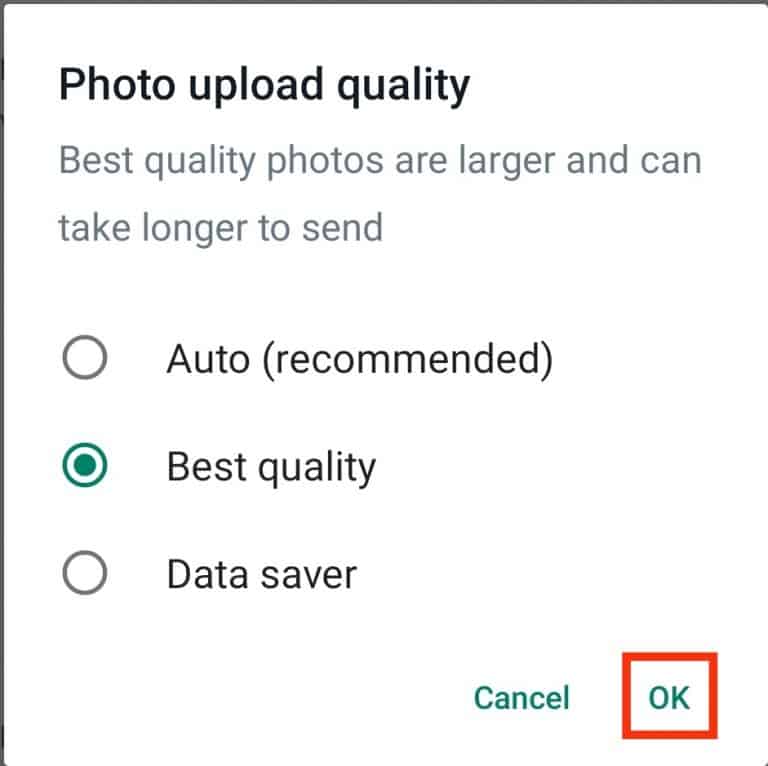
3. Adjust Media Upload Quality Settings
WhatsApp now offers a built-in toggle to control media quality.
- Go to Settings within WhatsApp.
- Navigate to Storage and Data.
- Look for Media Upload Quality.
- Select Best Quality instead of “Auto” or “Data Saver.”

Troubleshooting Technical Glitches
Sometimes, the blurriness isn’t caused by compression, but by a temporary software glitch or network instability. If your photos are still appearing blurry, try these quick fixes:
- Restart Your Device: A simple power cycle can clear the cache and resolve background processes that may be interfering with image rendering.
- Switch Network Connections: If you are on a weak Wi-Fi signal, the app might be struggling to upload the full-resolution file. Toggle your Wi-Fi off and switch to Mobile Data, or vice versa.
- Clear WhatsApp Cache: On Android, go to Settings > Apps > WhatsApp > Storage and tap Clear Cache. This often fixes display issues where thumbnails appear blurry because of corrupted local data.
Dealing with Blurry WhatsApp Status Updates
Sending a photo to a chat is one thing, but sharing it on your Status is another. Because Status updates are optimized for ultra-fast loading, they are subjected to even heavier compression.
To mitigate this, try editing your photo slightly (even just a minor crop or brightness adjustment) using a third-party photo editor before uploading. This can sometimes trick the compression algorithm into processing the file differently, preserving more detail than a direct upload from your camera roll.
Frequently Asked Questions (FAQ)
Q: Does using a VPN affect WhatsApp photo quality?
A: Generally, no. However, a slow VPN connection might cause the app to time out during the upload of a high-quality file, causing the app to default to a lower-resolution version to ensure the message delivers.
Q: Why do my photos look fine on my phone but blurry on my friend’s phone?
A: Check if your friend has “Data Saver” mode enabled on their smartphone. If their phone is restricting data usage, it may automatically display low-resolution previews of images to save bandwidth.
Q: Is there a limit to the file size I can send as a document?
A: Yes. As of 2026, WhatsApp allows for the transfer of large documents up to 2GB. This is more than enough for even the highest-resolution RAW photos or massive video files.
Conclusion
Fixing blurry photos on WhatsApp in 2026 is all about understanding how the app handles your data. By switching to the Document upload method and ensuring your Media Upload Quality settings are set to “Best,” you can ensure that your photos maintain their professional integrity.
Don’t let compression ruin your visual storytelling. Use these tips to keep your images sharp, clear, and high-quality every single time you share them with your contacts.