
Are you tired of your screen being hijacked by intrusive advertisements every time you try to check your messages? If you’re asking, “Why do pop-up ads keep appearing on my phone?” you are certainly not alone. As we move deeper into 2026, mobile adware has become more sophisticated, often disguising itself as legitimate system notifications or utility apps.
These persistent pop-ups aren’t just annoying; they can be a significant security risk. In some cases, they serve as a gateway for malware, phishing attempts, or identity fraud. Fortunately, fixing this issue is manageable if you know where to look. In this guide, we will walk you through the essential steps to reclaim your device’s screen and ensure your privacy remains intact.
Identifying the Culprit: Why Are You Seeing Ads?
Most mobile users assume that pop-up ads are a sign of a “broken” phone, but they are almost always caused by third-party applications. When you grant an app “Display over other apps” permissions, you give it the power to inject content onto your screen even when you aren’t actively using that app.
Common reasons for these unwanted intrusions include:
- Malicious Third-Party Apps: Apps downloaded from outside the Google Play Store often contain aggressive advertising SDKs.
- Browser Hijacking: Sites you visit might have triggered “Allow Notifications” prompts, which they now use to spam your lock screen.
- Adware masquerading as tools: Flashlight, battery optimizer, or “cleaner” apps are notorious for hiding ad-delivery services in the background.
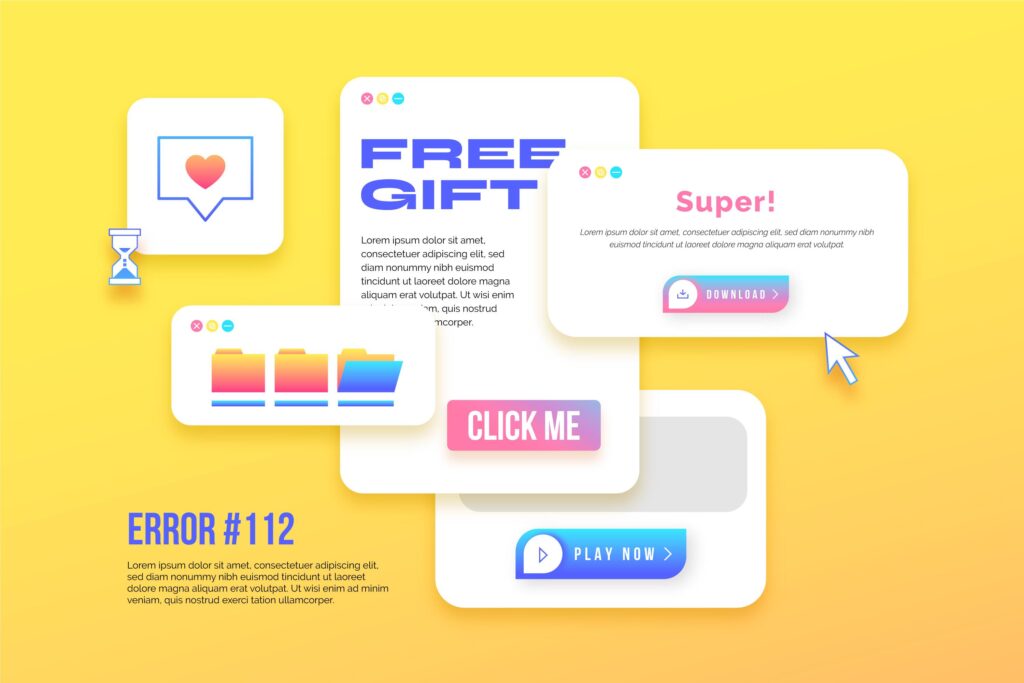
Step-by-Step Fix: How to Stop Pop-Up Ads in 2026
If you want to know how to stop pop-up ads on your phone, you need a systematic approach. Follow these steps to diagnose and remove the source of the trouble.
1. Boot into Safe Mode
The most reliable way to determine if a third-party app is the cause is to use Safe Mode. This disables all non-essential apps you have installed.
- Press and hold the Power button on your device.
- On the screen, touch and hold the Power off icon.
- Confirm that you want to reboot in Safe Mode.
- If the ads stop while in Safe Mode, you have confirmed that a recently installed app is the culprit.
2. Audit Your App Permissions
Even if you don’t want to delete everything, you can restrict which apps have permission to show overlays.
- Go to Settings > Apps > Special app access.
- Tap on Display over other apps.
- Review the list. If you see an app you don’t recognize or one that doesn’t need to be there (like a calculator or simple game), toggle the permission off.

Advanced Troubleshooting: Clearing Browser Cache and Notifications
Sometimes, the ads aren’t coming from an app, but from a website that has been granted permission to send push notifications. This is a common tactic used by malicious sites in 2026 to bypass traditional ad blockers.
- Check Browser Settings: Open Chrome (or your default browser), go to Settings > Site Settings > Notifications.
- Review the “Allowed” list: Remove any websites that look suspicious or that you don’t explicitly remember visiting.
- Clear Browser Data: Clearing your cache and cookies can often remove the tracking scripts responsible for triggering these pop-ups.
Best Practices to Prevent Future Pop-Ups
Prevention is always better than the cure. To keep your phone clean of adware in 2026, adopt these habits:
- Stick to Trusted Sources: Only download apps from the Google Play Store. While not perfect, Google’s Play Protect security features are designed to scan for and block malicious apps before they reach your device.
- Read Permissions Carefully: If a simple wallpaper app asks for permission to “Display over other apps” or “Access your contacts,” deny it immediately. These are major red flags.
- Keep Your OS Updated: Manufacturers release regular security patches that address vulnerabilities used by adware developers to gain persistence on your device.
- Use a Reputable Mobile Security Suite: An updated antivirus app can perform deep scans to identify hidden malware that manual checks might miss.
Conclusion: Take Control of Your Mobile Experience
Dealing with constant pop-up ads is frustrating, but it is a solvable problem. By identifying which apps have overlay permissions, clearing your browser notifications, and sticking to trusted app sources, you can effectively sanitize your phone.
Always remember: if a free app seems too good to be true, it might be using your screen real estate to generate revenue through intrusive ads. Stay vigilant, review your permissions regularly, and keep your software updated to ensure your phone remains a tool for your productivity, not a billboard for spammers. By following the steps outlined in this 2026 guide, you are well on your way to a smoother, ad-free mobile experience.