
If your Android smartphone is feeling sluggish or apps are crashing mid-session in 2026, you aren’t alone. Many users notice their RAM usage is consistently high, leading to the common fear that their device is “clogged.” But before you start panic-downloading “RAM booster” apps, it’s important to understand how modern Android architecture actually works.
In this guide, we’ll dive into why your RAM usage looks high, when you should actually worry, and the proven fixes to optimize your Android performance in 2026.
Understanding the “RAM Myth”: Why High Usage Isn’t Always Bad
The most common misconception about Android is that “empty RAM is good RAM.” In reality, unused RAM is wasted RAM. Android is designed to keep apps in the background so that they launch instantly when you need them.
<img alt="Why does Android OS use so much RAM?" src="https://mirfatif.github.io/IAnswers/ss/cachedappsram.jpg” style=”max-width:100%; height:auto; border-radius:8px; margin: 1rem 0;” />
When you see your RAM usage hovering at 80% or 90%, it usually means the operating system is working exactly as intended. It is pre-loading your most-used apps into memory to ensure a fluid experience. However, if your phone is actively stuttering or closing apps prematurely, you are dealing with insufficient memory headroom.
How to Check Your Current RAM Usage
Before applying fixes, you need to see what is consuming your resources. Modern Android versions (Android 15 and beyond) make this easy.
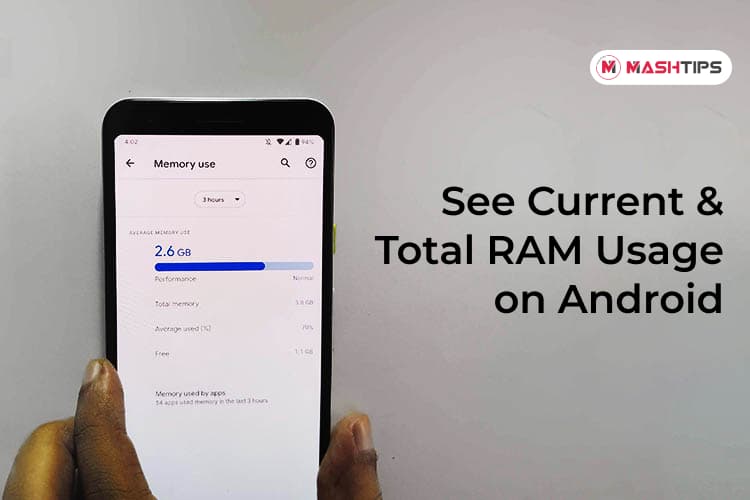
- Go to Settings.
- Navigate to Battery and Device Care (or Memory).
- Tap on Memory to see a breakdown of which apps are consuming the most space.
4 Proven Ways to Reduce RAM Usage in 2026
If you’ve confirmed that your phone is genuinely struggling, follow these steps to regain control over your device’s performance.
1. Identify and Restrict “Resource-Hungry” Apps
Some apps are poorly optimized and will sit in the background consuming CPU and RAM cycles even when you aren’t using them. Look for social media apps, bloated browsers, or games with heavy background sync.
- Fix: Use the built-in “Deep Sleep” or “Restricted” battery settings for apps you rarely use. This prevents them from waking up in the background.
2. Disable or Uninstall Bloatware
Many pre-installed apps (bloatware) run background services that you cannot see. In 2026, many manufacturers still include “system” apps that provide little value to the end user.
- Fix: Long-press the app icon and select App Info. If you see an “Uninstall” or “Disable” button, use it. If it’s a system app, look for “Disable” to stop it from running entirely.
3. Use “Lite” Versions of Popular Apps
If you are using a mid-range device with lower RAM capacity, full-featured apps like Facebook, Messenger, or Twitter can be heavy.
- Fix: Switch to “Lite” or “Go” versions of these applications. They are designed to use significantly less RAM while providing the core functionality you need.
4. Clear Cached Data Regularly
While caches are meant to speed up your phone, corrupted or massive cache files can lead to performance degradation.
- Fix: Go to Settings > Storage > Apps. Select a heavy app and tap Clear Cache. Avoid clearing “Data,” as that will log you out and delete your personal settings within that app.
When You Should Stop “Fixing” Your RAM
It is vital to know when to stop. Many “Task Killer” apps in the Play Store are actually counter-productive.
When you force-close an app that the system wants to keep in memory, Android immediately attempts to restart it. This constant cycle of closing and reopening apps consumes more battery life and processing power than simply letting the OS manage the memory. If your phone is running smoothly, leave the RAM management to Android’s intelligent kernel.
Conclusion: Finding the Balance
High RAM usage is not the enemy—it’s a sign of a busy, efficient system. However, if your device is lagging, stuttering, or closing apps in the background, the tips above will help you clear the clutter and reclaim your phone’s speed.
In 2026, the best “RAM booster” is simply being mindful of the apps you install and ensuring your system is kept up to date. Focus on restricting background activity for unnecessary apps rather than aggressively killing tasks, and your Android experience will remain smooth for years to come.