
Is your laptop screen acting like a mood ring? One moment it’s vibrant and clear, and the next, it dims unexpectedly, making it impossible to finish your work or enjoy a movie. If you are frustrated by this flickering display, you aren’t alone. In 2026, modern Windows devices are equipped with sophisticated sensors designed to “help” you, but often, they just get in the way.
Understanding why your screen brightness keeps changing automatically is the first step to reclaiming control. Whether you are running the latest Windows 11 updates or a customized setup, this guide will walk you through the definitive fixes to lock in your preferred display settings.
Why Does My Screen Brightness Change on Its Own?
Modern laptops feature ambient light sensors that detect the light levels in your room. While this is intended to save battery life and reduce eye strain, the software implementation can be jumpy.
Beyond the hardware sensor, there are software-level power saving features hidden deep within your graphics drivers. These settings often prioritize battery longevity over visual consistency, causing the screen to dim whenever the content on your display shifts from light to dark.
Step 1: Disable Windows System-Level Auto Brightness
The most common culprit is the built-in Windows setting designed for adaptive brightness. Disabling this is usually the quickest way to stop the fluctuation.
- Open your Settings app (Press `Win + I`).
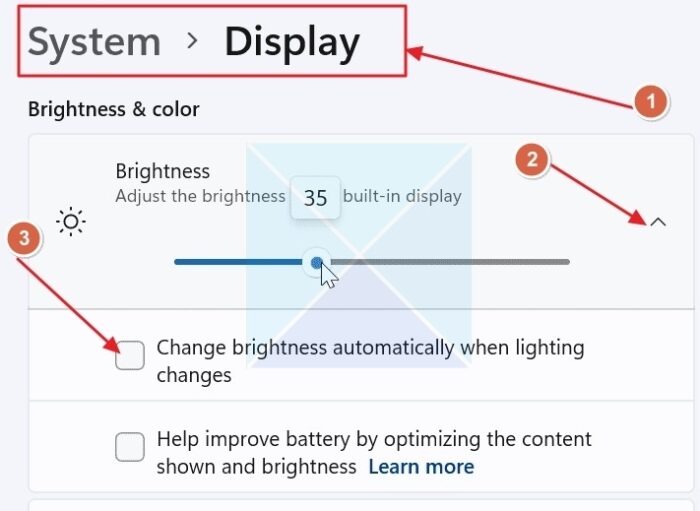
- Navigate to System and click on Display.
- Look for the Brightness section.
- If available, uncheck the box labeled “Change brightness automatically when lighting changes” or “Help improve battery by optimizing the content shown and brightness.”
By turning these off, you tell Windows to respect your manual brightness slider settings regardless of environmental conditions.
Step 2: Tame the Graphics Command Centers
Even if Windows settings are disabled, your graphics card might be running its own power-saving algorithm. This is especially true for laptops with integrated Intel or AMD graphics.
For Intel Graphics Users:
- Open the Intel Graphics Command Center.
- Go to the System tab and select Power.
- Look for Display Power Saving Technology.
- Toggle this Off. This feature is notorious for changing contrast and brightness based on the image being displayed.
For AMD Radeon Users:
- Open the AMD Radeon Software.
- Navigate to the Settings (gear icon) and select Display.
- Find the Vari-Bright feature.
- Disable Vari-Bright to prevent the software from automatically adjusting the display to save power.

Step 3: Check Your Power Plan Settings
Sometimes, Windows power plans can override display settings to conserve energy during battery mode. If your brightness only changes when you unplug your charger, this is your target.
- Open the Control Panel and go to Hardware and Sound > Power Options.
- Click Change plan settings next to your active power plan.
- Select Change advanced power settings.
- Expand the Display section, then expand Enable adaptive brightness.
- Set both “On battery” and “Plugged in” to Off.
Step 4: Update or Reinstall Display Drivers
If you have tried all the above and the issue persists, your display drivers might be corrupted or outdated. In 2026, driver compatibility is crucial for the seamless operation of Windows 11 features.
- Right-click the Start button and select Device Manager.
- Expand Display adapters.
- Right-click your graphics card (e.g., Intel Iris Xe or NVIDIA GeForce) and select Update driver.
- If that fails, choose Uninstall device, then restart your computer. Windows will automatically reinstall the driver upon reboot, often clearing out the glitch causing the brightness shift.
When to Contact Support
If you have exhausted these steps and your screen brightness still fluctuates, there may be a hardware fault with the ambient light sensor itself. In rare cases, a malfunctioning sensor can send “ghost” signals to the operating system. If your device is still under warranty, reach out to the manufacturer to see if a hardware repair or sensor recalibration is necessary.
Conclusion
A flickering screen can be incredibly distracting, but in most cases, the “why screen brightness changing automatically fix” is just a few clicks away. By disabling the ambient light sensor, turning off power-saving features in your graphics command center, and ensuring your power plans are configured correctly, you can achieve a consistent and reliable display.
Don’t let your laptop decide how bright your screen should be. Follow these steps, take control of your workspace, and enjoy a flicker-free visual experience throughout 2026!