
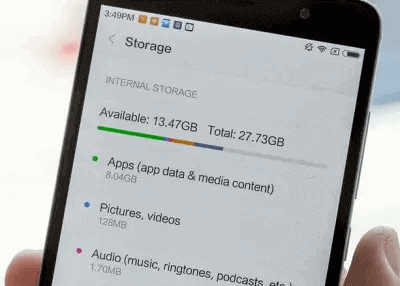
Is your phone constantly screaming that your storage is full, even when your gallery and apps seem relatively empty? You aren’t alone. In 2026, as Android operating systems become more sophisticated and feature-rich, the “System Storage” category often balloons, leaving users frustrated.
Understanding why system storage is so high is the first step toward reclaiming your device’s performance. Often, your phone isn’t actually “full”—it’s simply overwhelmed by accumulated temporary files, residual cache, and system logs that the OS creates to keep things running smoothly.
What Exactly Is “System Storage” on Android?
Many users confuse “System Storage” with the space occupied by apps or photos. In reality, the System partition is a dedicated area of your internal memory reserved for the Android OS itself, pre-installed apps, and critical system libraries.
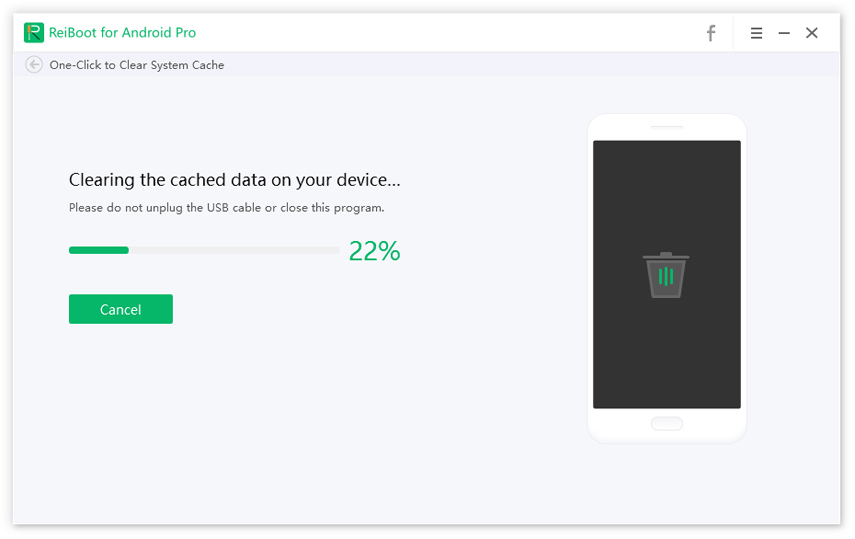
As your phone operates, it generates temporary cache files and log files to speed up performance. While these files are designed to make your experience snappier, they can accumulate over months of heavy usage, leading to the dreaded “Storage Full” error.
7 Proven Fixes to Reduce Android System Storage
If you are looking for an Android system storage fix, you don’t necessarily need to be a tech wizard. Follow these battle-tested steps to clear that phantom space.
1. Clear App Cache Regularly
The most common culprit for bloated storage is cached data. Every app you use—Instagram, Chrome, or TikTok—stores temporary data to load faster.
- Go to Settings > Apps.
- Select an app with high usage.
- Tap Storage & Cache.
- Select Clear Cache. Repeat this for your most-used apps.
2. Manage “System” Bloatware
Many Android devices come with pre-installed apps you never use. These apps occupy space in the system partition. While you often cannot uninstall them, you can Disable them. This stops them from running in the background and prevents them from downloading updates that consume extra storage.
3. Use the “Files by Google” App
Google’s native file manager is a powerhouse for 2026. It features a Clean tab that intelligently identifies “junk files,” unused apps, and large media files that you’ve forgotten about. It’s the safest way to perform a deep clean without accidentally deleting system-critical files.
4. Update Your Android OS
Sometimes, a high system storage footprint is actually a bug in the OS. Developers frequently release patches to optimize partition management. Ensure your phone is running the latest firmware by checking Settings > System > Software Update.
5. Check for “Ghost” Downloads
Hidden downloads are a frequent cause of storage warnings. Check your Downloads folder via your file manager. You’ll often find large PDFs, installers (APK files), or media files that were downloaded months ago and never deleted.
6. Clear Partition Cache (Recovery Mode)
If the storage issue persists, you may need to wipe the cache partition. This clears temporary system files without deleting your personal photos or apps.
- Turn off your phone.
- Enter Recovery Mode (usually by holding Power + Volume Down buttons simultaneously).
- Select Wipe Cache Partition.
Note: Be careful not to select “Wipe Data/Factory Reset” unless you have a full backup.*

7. Perform a Factory Reset as a Last Resort
If you have tried everything and your system storage is still suspiciously high, a Factory Data Reset is the ultimate solution. This returns your phone to its “out-of-the-box” state. Always ensure you have a cloud backup of your photos, contacts, and messages before proceeding.
When to Seek Professional Help
If you have performed a factory reset and the system storage remains unusually high (e.g., taking up 40%+ of your total capacity), there may be a hardware-level issue or a corrupted file system. In this case, visiting an authorized service center is recommended, as they can re-flash the OS firmware to resolve deep-seated system errors.
Conclusion: Keep Your Android Running Smoothly
Managing your Android storage doesn’t have to be a monthly chore. By clearing your cache, uninstalling unused apps, and keeping your system updated, you can prevent the “System Storage” from spiraling out of control.
Remember, Android is designed to use some space for performance, but it shouldn’t hold your device hostage. Use the tips above to regain control of your storage and keep your phone feeling brand new throughout 2026.