
There is nothing more frustrating than spending hours editing the perfect clip, only to watch it turn into a pixelated, blurry mess the moment you hit “Post.” In 2026, TikTok’s algorithm prioritizes high-definition content, yet many creators still struggle with compression issues that destroy their visual quality.
If you are wondering why TikTok video blurry after upload, you aren’t alone. Whether you are a brand, an influencer, or a casual creator, grainy footage can kill your engagement and ruin your reach. Fortunately, the solution is usually hidden within your app settings or your export preferences.

The Hidden “High-Quality Upload” Setting
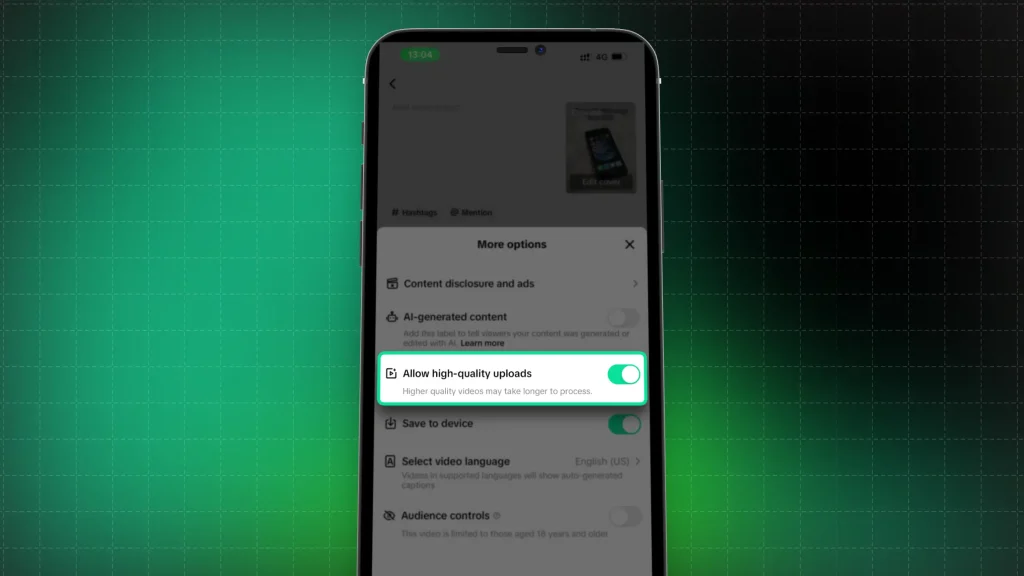
The most common reason for blurry TikTok videos is that the “Allow high-quality uploads” setting is disabled by default. TikTok often turns this off to save data usage for users, which leads to aggressive compression during the upload process.
To fix this, follow these steps before your next upload:
- Open the TikTok app and go to your Profile.
- Tap the three-line menu (top right) and select Settings and Privacy.
- Scroll down to Post or Data & Display.
- Look for the Upload HD or Allow high-quality uploads toggle.
- Ensure this is switched to the ON position.
Is Your Internet Connection Sabotaging You?
Even if your settings are perfect, a shaky internet connection is a major culprit for poor video quality. When you upload a video, the TikTok app monitors your network speed. If your connection drops or fluctuates, the app will automatically compress your file to ensure the upload completes successfully.
Pro-tip for 2026: Always upload your content while connected to a stable Wi-Fi network. If you must use mobile data, ensure you have a strong 5G signal. Uploading on a weak or public network is a recipe for pixelation.

Optimize Your Export Settings (The Secret Sauce)
Many creators export their videos in 4K resolution, thinking “higher is better.” However, TikTok’s platform is optimized for 1080p. When you upload a 4K file, TikTok’s server has to perform heavy downscaling, which often results in artifacts and blurriness.
For the best results in 2026, use these export settings in your editing software (like CapCut, Adobe Premiere, or DaVinci Resolve):
- Resolution: 1080 x 1920 (Vertical).
- Frame Rate: 30fps (or 60fps for high-motion content).
- Bitrate: Aim for 10-15 Mbps. Anything higher is overkill and will trigger aggressive compression.
- Format: H.264 (MP4) is the industry standard for mobile social platforms.
The “In-App” Editing Trap
While TikTok’s built-in editor has become more powerful, it is still not as robust as professional external editing software. Every time you add text, stickers, or filters inside the TikTok app, the video undergoes an additional layer of processing.
If you want the crispest possible look, complete your editing outside of the app. Import your fully polished video file directly to TikTok, add your music, and post. This minimizes the amount of “re-encoding” the app has to perform on your file.
Troubleshooting Checklist: Why TikTok Video Blurry After Upload Fix
If you have tried the steps above and still see blur, run through this quick checklist:
- Clear your Cache: TikTok’s cache can become bloated, causing the app to lag or fail to render uploads correctly. Go to Settings and Privacy > Free up space > Clear Cache.
- Update the App: Always ensure you are running the latest version of TikTok. Developers release patches specifically for rendering and upload bugs.
- Check Lighting: Sometimes, “blur” is actually just digital noise caused by filming in low light. If your camera sensor is struggling to find light, the video will look grainy regardless of your upload settings.
- Clean Your Lens: It sounds simple, but a smudge on your phone camera lens is the leading cause of “soft” or blurry footage in 2026.
Conclusion: Quality is King in 2026
In the competitive landscape of 2026, visual quality is a major ranking factor. High-definition, clear videos keep viewers watching longer, which signals the TikTok algorithm to push your content to a wider audience.
By enabling the High-Quality Upload setting, exporting at 1080p, and ensuring your internet connection is rock-solid, you can stop the blur and start growing your channel. Stop letting compression ruin your hard work—apply these fixes today and watch your video clarity skyrocket.