
Have you ever spent hours editing the perfect video, only to watch it turn into a blurry, pixelated mess the moment you hit “upload”? In 2026, high-definition content is the standard, and seeing your hard work degraded by social media algorithms or compression errors is incredibly frustrating.
Whether you are a content creator on YouTube, Instagram, or TikTok, understanding why videos look pixelated after upload is the first step toward reclaiming your visual quality. In this guide, we will break down the technical culprits behind grainy footage and provide you with actionable, expert-tested solutions to ensure your uploads remain crisp and clear.
Why Does My Video Quality Drop After Uploading?
When you upload a file, platforms perform server-side compression to ensure the video loads quickly for users across all devices. If your source file doesn’t align with the platform’s specific requirements, the compression algorithm will aggressively strip away data, leading to artifacts, pixelation, and grain.
Common reasons for this quality loss include:
- Incorrect Export Settings: Using a bitrate that is either too low or excessively high for the platform.
- Resolution Mismatch: Uploading in 4K when the platform prefers 1080p for specific display types.
- Codec Incompatibility: Using high-efficiency codecs (like H.265) that some platforms struggle to transcode correctly.
- Slow Internet Connection: Some platforms automatically downgrade your quality during the upload process if your connection is unstable.
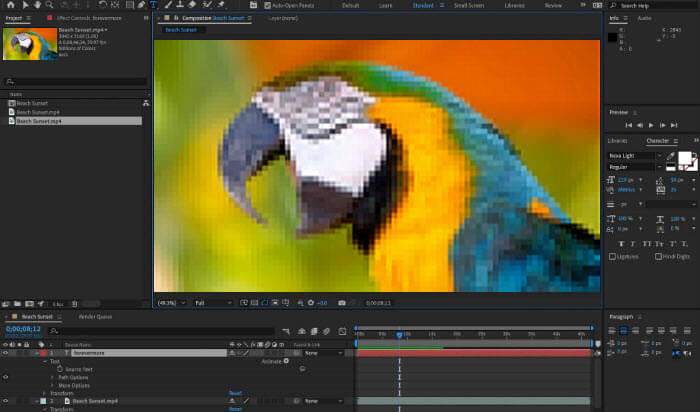
4 Proven Methods to Fix Pixelated Videos in 2026
If your footage is already pixelated, don’t panic. There are ways to restore clarity and prevent the issue in future uploads. Follow these four reliable methods to improve your video quality.
1. Optimize Your Export Settings
The most common cause of pixelation is an improper bitrate. If your bitrate is too low, the video lacks the data to display fine details. Conversely, an extremely high bitrate forces the platform to re-compress your file heavily, causing “macro-blocking” or pixelation. Always consult the platform’s “recommended upload settings” page before exporting your project.
2. Utilize Video Enhancement Software
If you have a video that is already grainy due to low-light recording or poor export, AI video enhancers are your best friend. In 2026, tools powered by machine learning can analyze frames, upscale resolution, and remove digital noise without sacrificing detail. These tools are highly effective at “cleaning up” footage that otherwise looks unusable.

3. Check the “High-Quality Upload” Settings
Many platforms, including Instagram and TikTok, have a hidden toggle in their settings menu. If you aren’t uploading via a high-speed connection, the app might default to “Data Saver” mode, which significantly reduces the quality of your video upon upload. Always ensure “Upload at Highest Quality” is toggled ON in your app settings.
4. Use the Correct Format and Codec
While H.265 (HEVC) is great for saving space, it isn’t always the best for compatibility. For most web uploads, H.264 (MP4) remains the gold standard. It offers the best balance between file size and visual fidelity, ensuring that the platform’s servers don’t have to struggle to transcode your video.
Step-by-Step: How to Prevent Pixelation Before It Happens
To ensure your videos look professional every single time, follow this checklist before you hit the publish button:
- Shoot in a higher resolution than needed: If you plan to output in 1080p, shooting in 4K provides more data to work with during the downscaling process.
- Maintain a constant frame rate (CFR): Variable frame rates (VFR) often cause sync issues and pixelation during the compression process.
- Use a professional NLE: Software like Adobe Premiere Pro, DaVinci Resolve, or Final Cut Pro offers better encoding engines than mobile-based editors.
- Wait for the “Processing” phase: On platforms like YouTube, a video might look pixelated immediately after upload because the high-definition version is still being processed. Wait at least 30-60 minutes before assuming the upload failed.
Conclusion: Take Control of Your Video Quality
Learning why videos look pixelated after upload is a rite of passage for every digital creator. By understanding the balance between bitrate, resolution, and platform-specific requirements, you can stop the degradation before it starts.
Whether you need to use AI enhancement tools to save existing footage or simply need to adjust your export settings, remember that consistency is key. By following the steps outlined in this guide, you can ensure that your content looks just as sharp on your audience’s screens as it does on your editing monitor. Keep experimenting with your settings, stay updated with the latest platform requirements, and your viewers will thank you for the crisp, high-quality experience.