
It is 2026, and our entire lives—from business contracts to precious family memories—reside within our chat histories. You hit the “Back Up” button, expecting a seamless transition to the cloud, only to see the dreaded “Preparing backup…” or a progress bar frozen at 99%.
If your WhatsApp backup is stuck on Android, you aren’t alone. With the latest Android 16 updates and Google’s refined storage policies, the reasons for these glitches have evolved. This guide provides the most up-to-date, proven solutions to get your data secured in Google Drive without the headache.
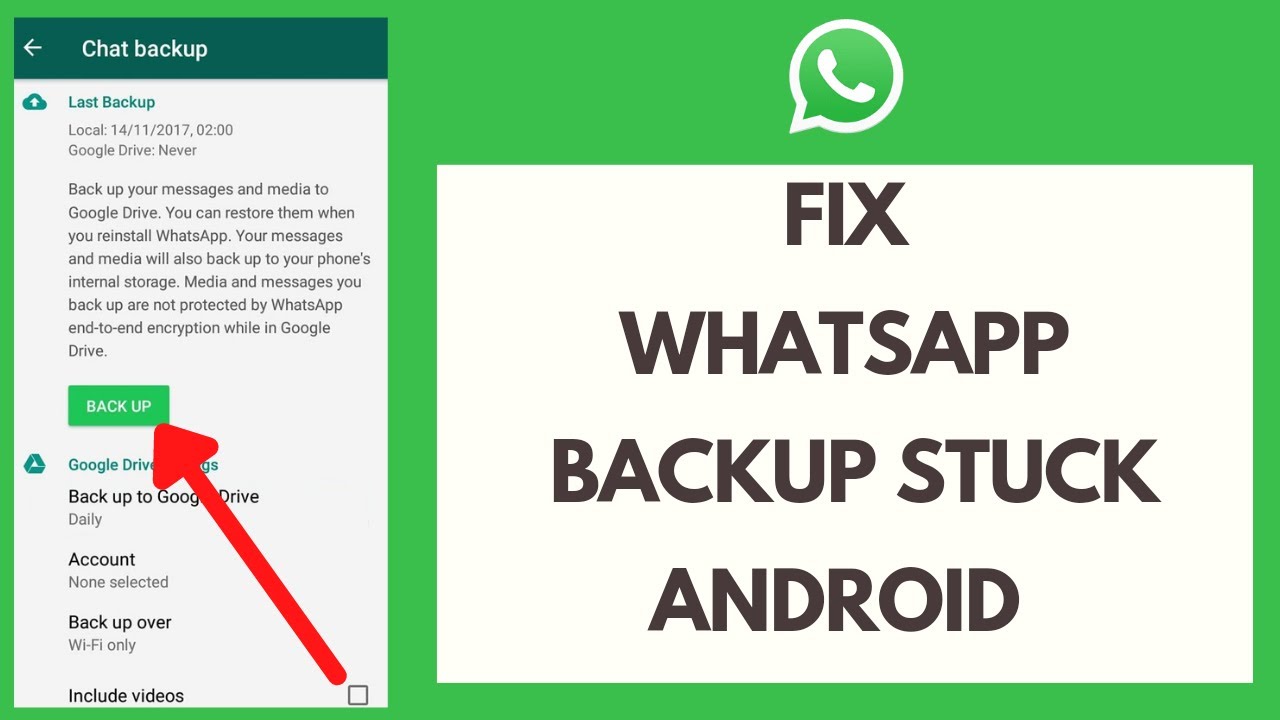
Why is My WhatsApp Backup Stuck in 2026?
Before diving into the fixes, it is crucial to understand the “why.” In 2026, WhatsApp backups no longer enjoy “free” unlimited storage on Google Drive; they count directly against your Google One storage quota.
Common culprits include:
- Network Instability: Even on 5G, micro-drops in connection can corrupt the upload stream.
- Storage Limits: Your Google Drive is full, preventing the “handshake” between WhatsApp and the server.
- Cache Bloat: Accumulated temporary files in the WhatsApp app directory.
- Outdated Google Play Services: The bridge between your apps and Google’s cloud.
1. Check Your Google Drive Storage Quota
The most common reason for a WhatsApp backup stuck fix Android issue in 2026 is reaching your storage limit. Since WhatsApp backups now consume your Google account storage, a full inbox or a large Google Photos library will halt your backup.
Go to your Google One app or Drive settings and verify you have at least 1GB of free space. If you are hitting the limit, consider deleting old emails or upgrading your storage plan.
2. Force Restart the Backup Process
Sometimes the software logic simply gets “confused.” A force stop can reset the sync cycle.
- Go to Settings > Apps > WhatsApp.
- Tap on Force Stop.
- Open WhatsApp again and navigate to Settings > Chats > Chat Backup.
- Tap Back Up to restart the process.
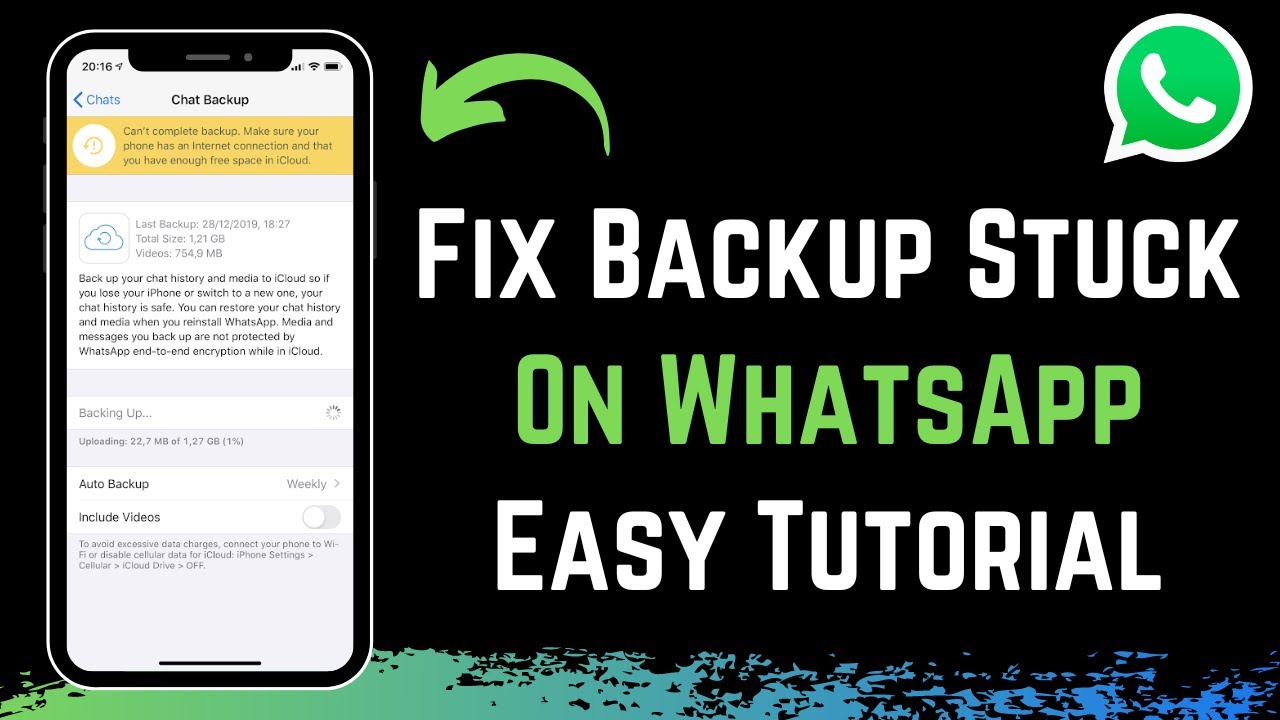
3. Clear WhatsApp Cache (The “Clean Slate” Method)
Over time, the cache directory can become corrupted, especially after a major Android OS update. Clearing the cache does not delete your messages; it only removes temporary files that might be blocking the upload.
- Navigate to Settings > Storage > Apps > WhatsApp.
- Select Clear Cache.
Note: Do not* tap “Clear Data” unless you have a local backup, as this will delete your chat history.
4. Optimize Your Network Connection
While 5G and Wi-Fi 7 are standard in 2026, they aren’t infallible. A WhatsApp backup stuck at 0% is usually a handshake issue with the router.
- Toggle Airplane Mode: Turn it on for 10 seconds and off again to refresh your IP address.
- Disable Battery Saver: Android’s “Extreme Battery Saver” often kills background data transfers.
- Switch to a Different Wi-Fi: If you are on a public network, the firewall might be blocking Google Drive’s upload ports.
5. Exclude Large Videos from the Backup
If your backup is stuck at 99%, it is likely struggling with a massive video file. High-definition 4K and 8K videos shared in 2026 can be several gigabytes in size.
To fix this, go to WhatsApp > Settings > Chats > Chat Backup and toggle off “Include Videos.” If the backup completes successfully after this, you know the video size was the bottleneck.
![[2024] WhatsApp Backup Stuck on Preparing? 14 Ways to Fix!](https://images.anyrecover.com/anyrecoveren/assets/article/whatspp-backup-stuck.png)
6. Update Google Play Services
Google Play Services acts as the invisible engine for all Android cloud syncs. If this app is outdated, WhatsApp cannot communicate effectively with Google Drive.
Search for “Google Play Services” in the Google Play Store. If an update is available, install it immediately. This often resolves the “Preparing Google Drive backup” loop.
7. Re-link Your Google Account
Occasionally, the authentication token between WhatsApp and your Google account expires or glitches.
- In WhatsApp, go to Chat Backup settings.
- Tap on Google Account.
- Select a different account or remove the current one and re-add it.
- Grant the necessary permissions when prompted.
8. Check for Android System Updates
In 2026, Android releases frequent security and “feature drops.” If your system version is out of sync with the WhatsApp version, background tasks like backups can be deprioritized by the OS. Ensure your device is running the latest Android 16/17 security patch.
9. Reduce Local Database Size
If you have years of messages, your internal database might be too large for the app to process.
- Use the “Manage Storage” tool in WhatsApp settings to delete large forwarded files.
- Archive old chats that are no longer needed.
- A leaner database is a faster-backing-up database.
10. The Last Resort: Reinstall WhatsApp
If all else fails, you may need to perform a clean installation.
- Ensure you have a Local Backup (Settings > Chats > Chat Backup > Back Up).
- Uninstall WhatsApp.
- Reinstall from the Play Store.
- During setup, choose to Restore from the local backup first, then try the cloud backup again.
Summary Checklist for a Smooth Backup
To prevent the WhatsApp backup stuck fix Android issue from recurring, follow these best practices:
- Schedule Backups Weekly: Daily backups can sometimes fail if the previous day’s sync is still “pending” in the cloud.
- Use Strong Wi-Fi: Avoid backing up over mobile data unless you have an “unlimited” plan with high priority.
- Monitor Storage: Keep an eye on your Google Drive storage meter.
Conclusion
A stuck WhatsApp backup is more than just a minor glitch; it’s a risk to your digital legacy. By following these 2026-optimized steps—checking your Google One quota, clearing the app cache, and ensuring your Play Services are updated—you can resolve the issue in minutes.
Don’t wait until you lose your phone to realize your backup wasn’t working. Take five minutes today to ensure that “Last Successful Backup” timestamp is current!